
Choose the right report
Understand the people, leave, claims and payroll questions each report answers.
What this guide helps you do
Reports uses employee, leave, claims and payroll records to answer common questions. HR administrators open ADMINISTRATION, then Reports for company-wide results. Managers open Team Reports for reports limited to their current direct reports and without pay or private identity information.
The available reports depend on the company’s enabled features and the reader’s role. If a report is not listed, the company may not have the required feature or the reader may not have permission to open it. An empty report is different: the report is available, but no records match its filters.
Start on the Reports page
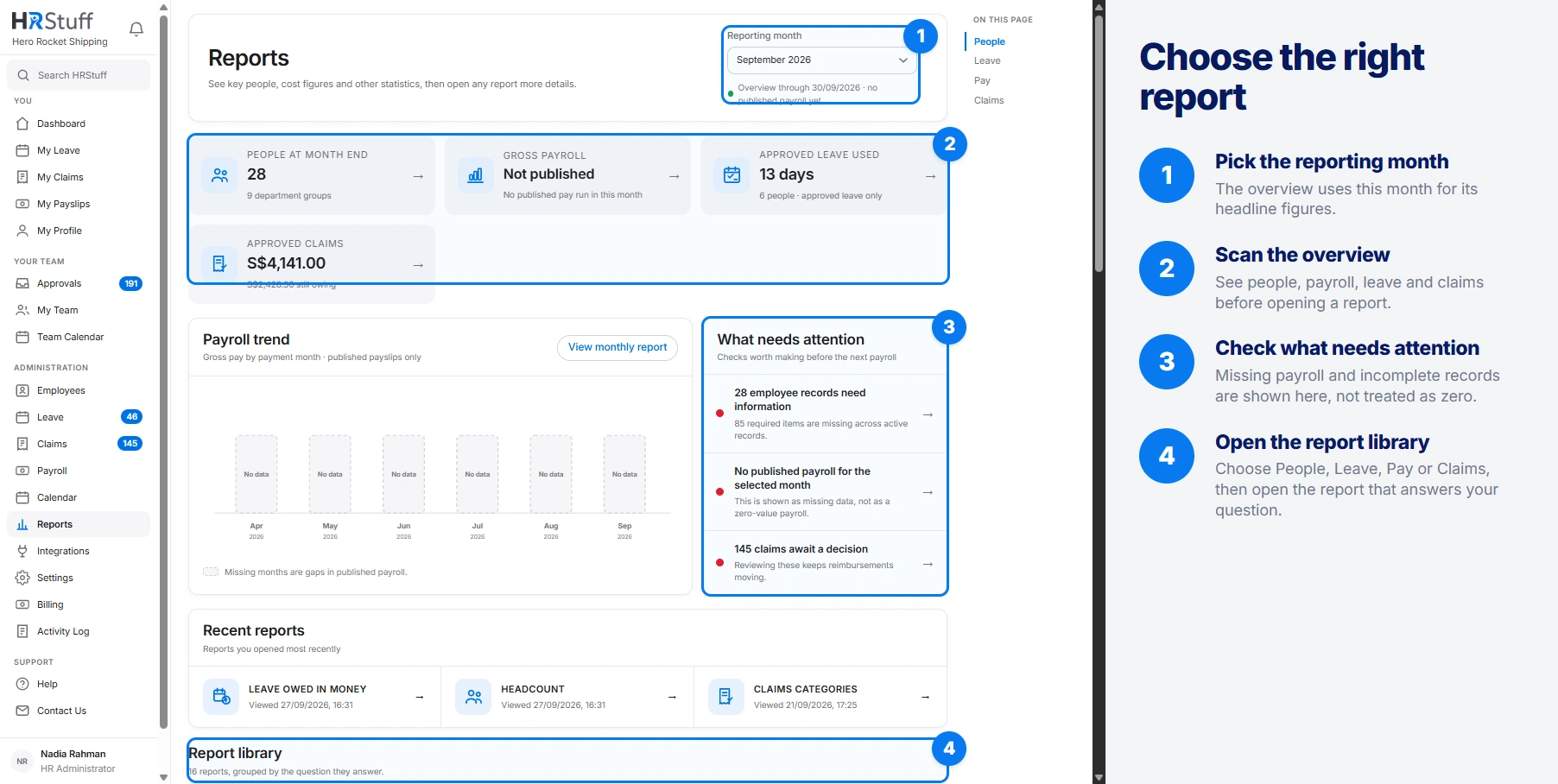
The overview uses a selected month to show headline people, payroll, leave and claims figures, items that need attention, recently viewed reports and quick links. When published payroll exists, the latest published payroll month is selected by default; otherwise the current month is used.
Search finds reports by name, description or group. The People, Leave, Pay and Claims buttons filter the report list only; they do not change the data inside a report. Open a report to filter its records by date, department or employee.
People reports
Headcount shows how many people were employed on a date you choose, split by department and employment type. It uses each person’s start and last working dates, so a past report still includes people who were employed then but have since left.
Joiners and leavers lists the people who started or left during a date range and shows how those changes affected headcount. Managers see Team joiners instead, which does not include future leaving information.
Missing information lists active or selected-status records that are not ready for payroll, such as a missing start date, bank account or employment contract. It names what is absent without printing the private value itself. This report is for HR only.
Leave reports
Leave balances shows allowance, brought-forward days, adjustments, taken, pending and remaining days by person and leave type for one leave year.
Leave taken shows approved days actually used within a date range, grouped by person and leave type.
Leave owed in money estimates the value of unused encashable leave. It uses salary, so only HR can run it and the company must have both Leave and Payroll features.
Pay reports
Pay reports are company-wide HR reports. Managers cannot open them, even for their own direct reports. Unless Include draft payslips is selected, these reports use published payslips only.
Pay summary by month compares company totals month by month. A month with no payroll is marked missing rather than treated as zero.
Pay run detail gives one row per payslip, including salary, overtime, additions, deductions, gross pay, take-home pay, employer cost and status.
Cost by department groups gross pay and employer costs using the department recorded when a published payslip was first published.
Pay against last month finds people whose pay changed between two consecutive payroll months.
Deductions summary groups amounts by the payroll-line name.
Earnings so far this year totals each person’s pay within the selected payroll year.
Pay figures for the bookkeeper separates gross pay, named deductions, employer costs and take-home pay for posting.
Claims reports
Claims reports use the day the money was spent. Cancelled claims are excluded. Approved amounts include claims that have already been paid; Still owing is the approved amount that has not yet been marked Paid.
Claims Summary shows claimed, approved, paid, owing and rejected amounts month by month.
Claims Categories groups the same figures by claim category.
Claims by Employee groups them by person and can be narrowed to selected employees.
Understand Team Reports
A manager’s Team Reports contain Headcount, Team joiners, Leave balances, Leave taken, Claims Summary, Claims Categories and Claims by Employee. Every page, CSV and print view is limited to current direct reports.
Team Reports does not include indirect reports, people elsewhere in the company, Missing information, Leave owed in money or any Pay report. An HR administrator who also manages people uses the company Reports page rather than a second team-only page.
Read the answer before using it
Read the report description, filter summary and method note. They state the date basis, inclusions and exclusions behind the figures.
Do not use a total while the report warns about mixed currencies or figures that cannot be added together. The CSV and print view show the same warning instead of a combined total.
Use the detailed table, not only the headline cards or chart, when checking an individual record.
A report describes records already in HRStuff. Correct the underlying employee, leave, claim or payslip record rather than editing an exported total.