
Create, verify and download a backup
Protect one company at a time and understand what verification does and does not prove.
What this guide helps you do
Company Backups is a full-platform-administrator tool. It protects one customer company at a time, including that company’s database records and private files, without mixing records from other companies into the archive.
Open Platform, then Backups. New backup work can run only when backup storage and the background backup worker are both healthy. If either has a problem, the page explains what needs to be fixed.
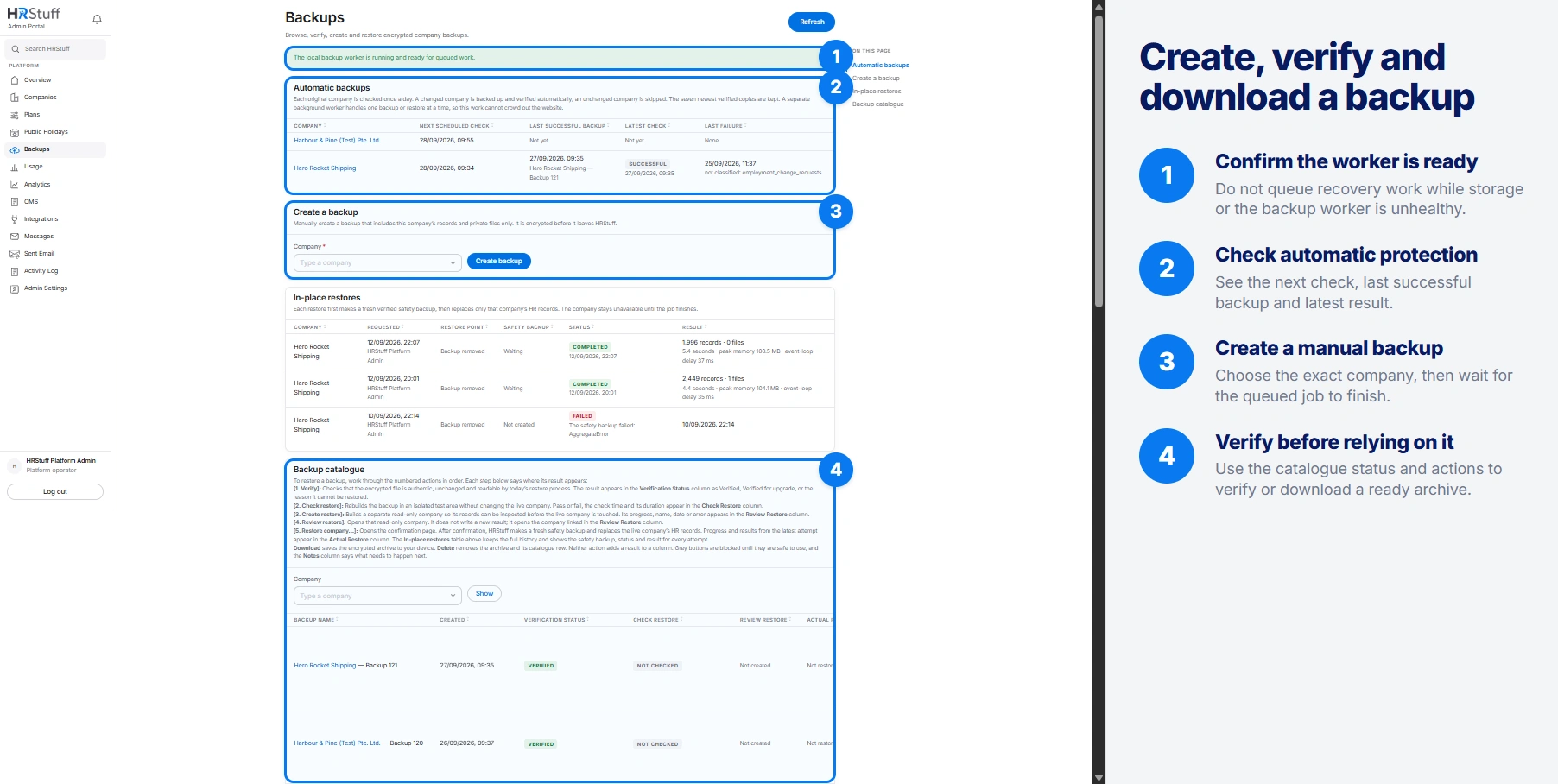
Understand automatic backups
Each original customer company is checked once a day. A company whose protected data changed is backed up and verified; an unchanged company is skipped. The schedule shows the next check, last successful backup, latest outcome and last failure.
HRStuff keeps the seven newest verified backups for each company. It processes one backup or restore job at a time in the background so large archives do not slow down the website.
Create a manual company backup
Check storage and worker health
Do not start recovery work while the page reports missing storage settings or an unhealthy worker. Use the offered restart action only after reading the reported state.
Choose the customer company
In Create a backup, search for the exact company. You cannot create a backup from a temporary recovery copy made for review.
Choose Create backup
The request is queued. The worker captures one company’s records and private files, encrypts the archive before it leaves HRStuff and uploads only the encrypted bytes to private backup storage.
Refresh and read the result
The catalogue shows status, record count, file count, size, creation time and creator. Do not assume Queued or Creating means the archive is ready.
Run 1. Verify
Choose 1. Verify on the stored archive and wait for the background worker. HRStuff checks that the file matches its catalogue record, has not been changed or damaged, and can be read by the current restore process.
Verified means the latest verification passed and the current restore process can read the archive.
Verified for upgrade means HRStuff can adapt the older supported archive during restoration. Read the compatibility detail.
Restore unavailable means the archive is authentic but the current process cannot safely rebuild it. Later restore actions remain blocked and the status explains why.
Verification required means an earlier result is no longer enough for the current restore process. Run Verify again before relying on it.
Download an archive
Download becomes available only when HRStuff has a stored archive in a state safe to download. The file remains encrypted; it is not a convenient folder of readable employee documents or a spreadsheet export.
Store the downloaded archive as highly sensitive company data. Keep it with the organisation’s approved recovery material and access controls. A downloaded copy does not receive later verification results automatically.
Read the backup catalogue
Verification Status describes the archive itself and current compatibility.
Check Restore records whether HRStuff successfully rebuilt the archive in an isolated test area.
Review Restore links to a separate suspended copy created for inspection.
Actual Restore shows the latest attempt to replace the original company, while In-place restores keeps the full attempt history and safety-backup reference.
Notes says the next safe action. A grey button is deliberately blocked until its prerequisites finish or pass.
Delete a backup only when authorised
Delete permanently removes the encrypted archive from private backup storage and removes its catalogue row. It cannot be used while creation, verification, a restore check, a review copy or an in-place restore still depends on the backup.
Read the backup name, snapshot time, status and size on the confirmation page. Deletion cannot be undone, and a downloaded copy is not managed by HRStuff’s retention or verification controls.
Understand company deletion and backup retention
Deleting a company removes it from the live database. It does not automatically erase encrypted company backups taken beforehand or separate backups held by the database hosting service.
A retained backup can still contain the deleted company’s employee records, payslips, claims, receipts and documents until that copy is rotated out, reaches the end of its authorised retention period or is securely deleted.