
Understand billing and paying users
See the plan, renewal, billable seats and when staffing changes affect the next bill.
What this guide helps you do
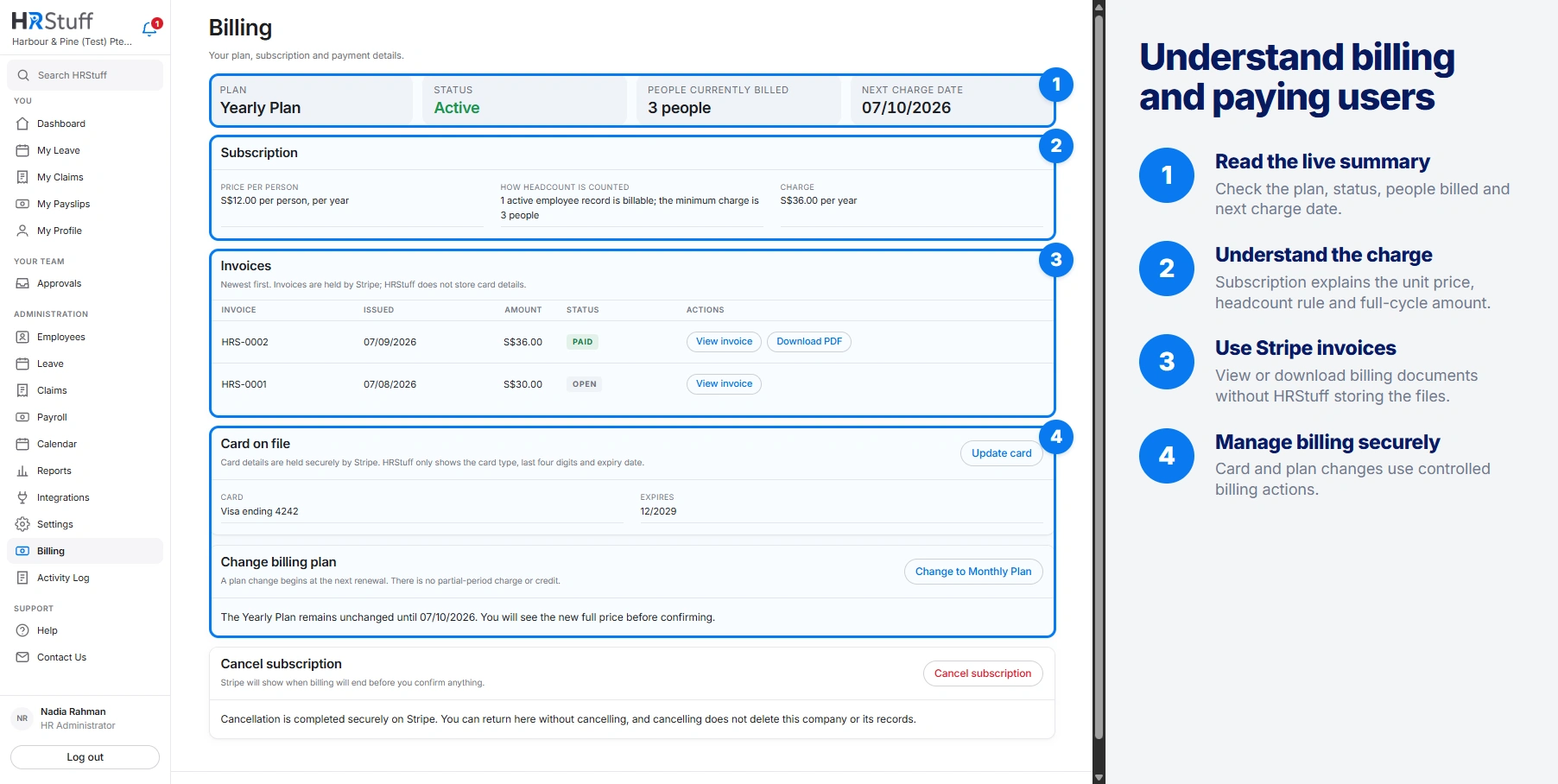
Billing shows the company’s live Stripe subscription, plan, renewal, paid employee quantity, invoice history and saved-card summary. It is available to the customer company’s HR administrators, but not during an HRStuff read-only support session.
Open ADMINISTRATION, then Billing. HRStuff reads the current price, number of paid seats, renewal date and card details from Stripe. If Stripe is temporarily unavailable, the page labels the last saved information as a fallback and prevents billing changes until Stripe is available again.
Read the billing summary
Plan shows Monthly Plan or Yearly Plan.
Status comes from Stripe and can show active, trial, payment overdue, unpaid, paused, cancelled or another payment state.
People currently billed shows the number of paid seats on the Stripe subscription. If this differs from the current number of active employees, the page explains the pending change.
Next charge date is the subscription renewal date. A subscription scheduled to cancel shows no further charge instead.
Subscription shows the unit price, how HRStuff counted the qualifying employees and the full charge for the current cycle.
Understand when headcount changes billing
An active employee record is billable even if the employee never signs in. HRStuff can still manage that person’s payroll, leave and claims, so login use is not the billing trigger.
If an administrator adds or imports more employees than the company has paid for, HRStuff saves the new employee records as drafts. Before activation, the review page shows the number currently paid for, the number after activation, the charge for the rest of the current billing period, and the expected renewal amount.
Stripe collects the charge for the rest of the billing period before HRStuff activates the extra employee records. If the payment cannot be completed immediately, those records stay as drafts and cannot be used for payroll, leave, claims or login access. Employees from one bulk import are combined into one headcount change and one charge.
Making an employee inactive removes them from the seat count at the next renewal. Disabling only their login does not make the employee record inactive. If a leaver still appears in billing, check both the login and employee status.
Increases are charged immediately for the remaining current billing period.
Decreases apply at the next renewal, without a mid-period refund or credit.
The Activity Log records employee activation and paid-headcount changes.
Read and download invoices
Invoices are listed newest first with issue date, amount, currency, status and the document actions Stripe makes available. An invoice may be Draft, Open, Paid, Uncollectible, Void or another Stripe status.
View invoice and Download PDF open secure Stripe addresses. HRStuff does not store the invoice document or full card details. If invoice history alone is temporarily unavailable, the rest of Billing remains usable and no payment change is made.
Update the saved card
Check Card on file
HRStuff shows the card brand, last four digits and expiry date when Stripe provides them.
Choose Update card
HRStuff opens Stripe’s focused billing page. Enter card details there; HRStuff does not receive or store the full number.
Return to Billing
Refresh the page and confirm the new card summary.
Change between monthly and yearly billing
Choose Change billing plan
The preview shows the current plan, new plan, start date, price per person, current billed quantity and the new full charge.
Read the effective date
The current paid plan continues until renewal. Nothing is charged today, and there is no partial-period charge or credit.
Schedule the new plan
Only one HRStuff plan change can be scheduled at a time. Billing then shows the pending plan and offers Keep current plan if you need to withdraw it before renewal.
Cancel the subscription without deleting records
Choose Cancel subscription to continue on Stripe, where the end date is shown before confirmation. You can return without cancelling.
Cancelling a subscription does not delete the company or its HR records. The Billing page shows the scheduled cancellation and no further charge date. Treat account closure or data deletion as a separate, explicitly authorised process.
Continue when payment is required
If a free trial ends, a renewal is not paid, or a previous subscription has ended, an HR administrator can open ADMINISTRATION, then Billing. Choose Monthly Plan or Yearly Plan, check the number of people billed and select Continue to secure payment.
Stripe collects the card securely. Company access returns only after Stripe confirms the new subscription and payment. An unpaid renewal shows its exact previous balance separately. An expired trial or ended subscription does not charge for the time when access was paused.