
Use the company activity log
Find who changed an important setting or record, what happened and when it happened.
What this guide helps you do
The Activity Log records important actions such as sign-ins, approvals, password resets, payroll publication, settings changes and platform support access. Only an HR administrator can open the company-wide log.
Open ADMINISTRATION, then Activity Log. The newest entries appear first, using the company time zone for the When column.
Read an entry
When is the recorded date and time shown in the company time zone.
Who shows the employee’s current name when the account still exists. For system work, deleted accounts and some older events, it shows the label saved with the event.
Action is the stable activity name, such as leave.approved or company.settings_updated. Similar-looking actions remain separate so the audit trail stays exact.
Details contains the useful context captured for that action, such as the record, old and new values, filters or reason. A dash means the action did not need additional text.
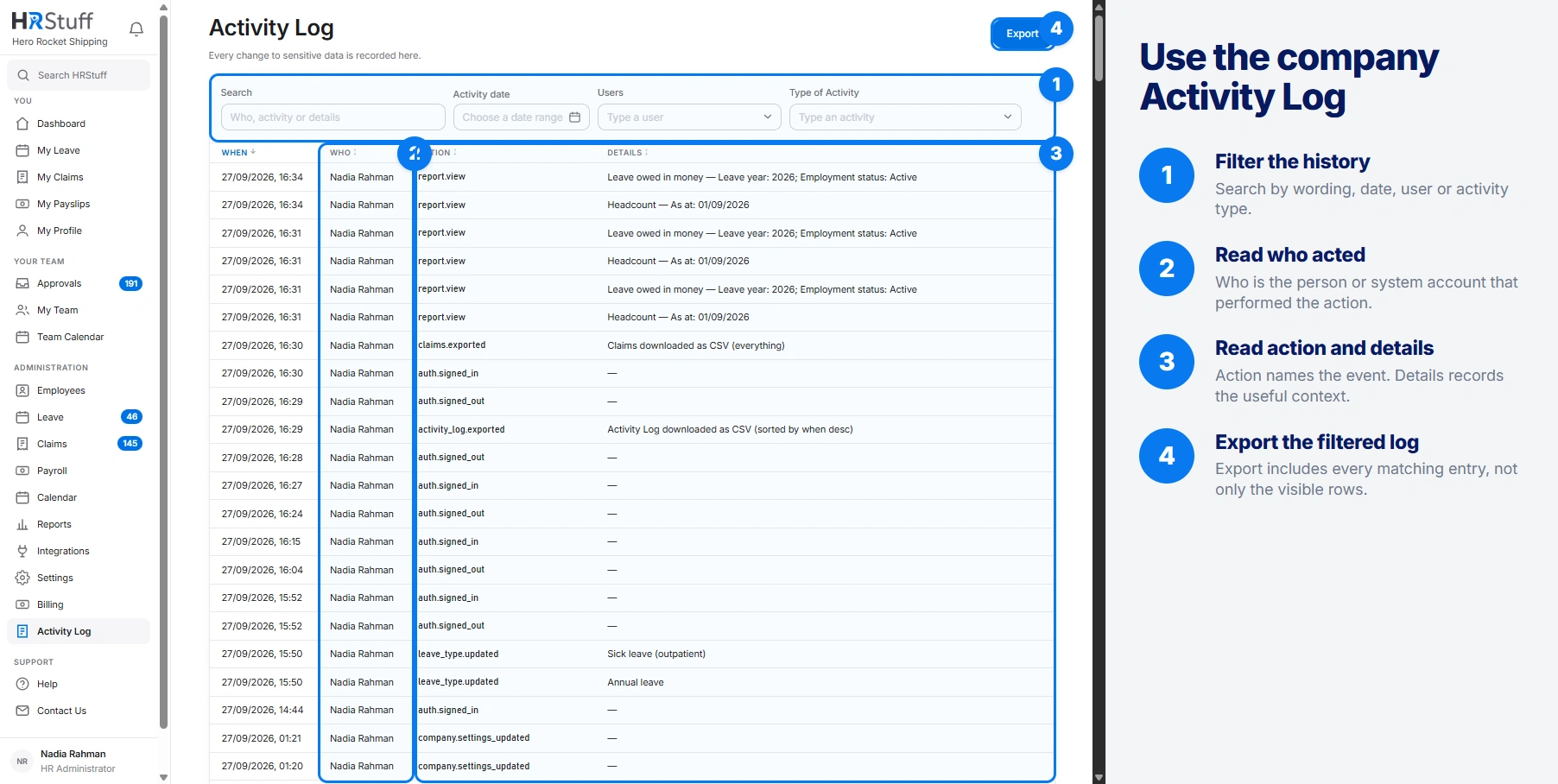
Find the event you need
Choose a user
The menu is built from this company’s own log. Historical email-labelled entries and newer employee-name entries for the same account are grouped under that person.
Choose a type of activity
Use this when you know the kind of change, such as a leave decision, claim payment or settings update.
Use both filters together when useful
The table then shows only that person’s matching activity. Choose Clear to return to the whole company history.
Move through the pages
Each page shows up to 300 entries. Page numbers retain the selected filters, and the line below the table says which portion of the matching history is visible.
Understand whose activity appears
The page contains only the current company’s entries. Another customer company cannot appear in the filters or table.
System and scheduled work can appear without an ordinary employee account.
When authorised HRStuff support staff begin or end a read-only support session, the customer company receives its own visible entry identifying HRStuff support access.
HRStuff’s separate support log does not replace the entry visible to the customer.
Why an action may be refused
For sensitive actions, HRStuff normally saves the change and its Activity Log entry together. If it cannot save the log entry, it cancels the change so the history is not left incomplete.
If that message appears, do not repeat the business action elsewhere to work around it. Try again after the service issue is resolved and confirm that exactly one entry and one business change exist.
Investigate a reported change
Start with the approximate date and record
Open the relevant employee, request, claim, payslip or setting first so you know what event to look for.
Filter by the likely person or action
Read nearby entries too; a correction can produce several related actions in sequence.
Compare with the source record
The log says what HRStuff recorded, while the source page shows the current result. Preserve both when escalating a support or compliance question.