
Check and update your own details
Review your employment and contact details, then change the fields you are allowed to maintain.
What this guide helps you do
My Profile is the private view of your own employee record. Only you and an HR administrator can open it. Your reporting manager does not receive access to this page, your salary, bank details or employment documents.
You can save personal contact details yourself. Changes to employment and payment details must be requested and approved by HR. Open My Profile from the You section of the menu.
Review Employment Details
Employment Details shows the information HR uses for your employee record, payroll and reporting. When no value has been saved, Employment Details shows Not recorded.
Full name, employee number, job title, department, reporting manager, employment type, employment dates, work email, residency status, salary and login information remain read-only. Ask HR to correct those fields.
You may request corrections to ID Card Number, Country, Nationality and Marital status.
You may request corrections to Number of Dependents and Number of children. These are separate fields and one should not be copied into the other.
You may request corrections to Bank name and Bank account number.
Request a correction to Employment Details
Choose Edit on Employment Details
The current read-only record stays visible above the fields you may request. This lets you compare the saved information before asking HR to change it.
Change only the incorrect fields
Enter the information exactly as it should appear. ID Card Number and Bank account number accept letters and numbers; spaces and dashes are removed. Leave a correct value unchanged.
Choose Request change
The request goes to active HR administrators as an in-app notification. Your employee record does not change yet. Employment Details shows Change requested while the request is waiting. You cannot submit another request until HR approves or rejects the current one.
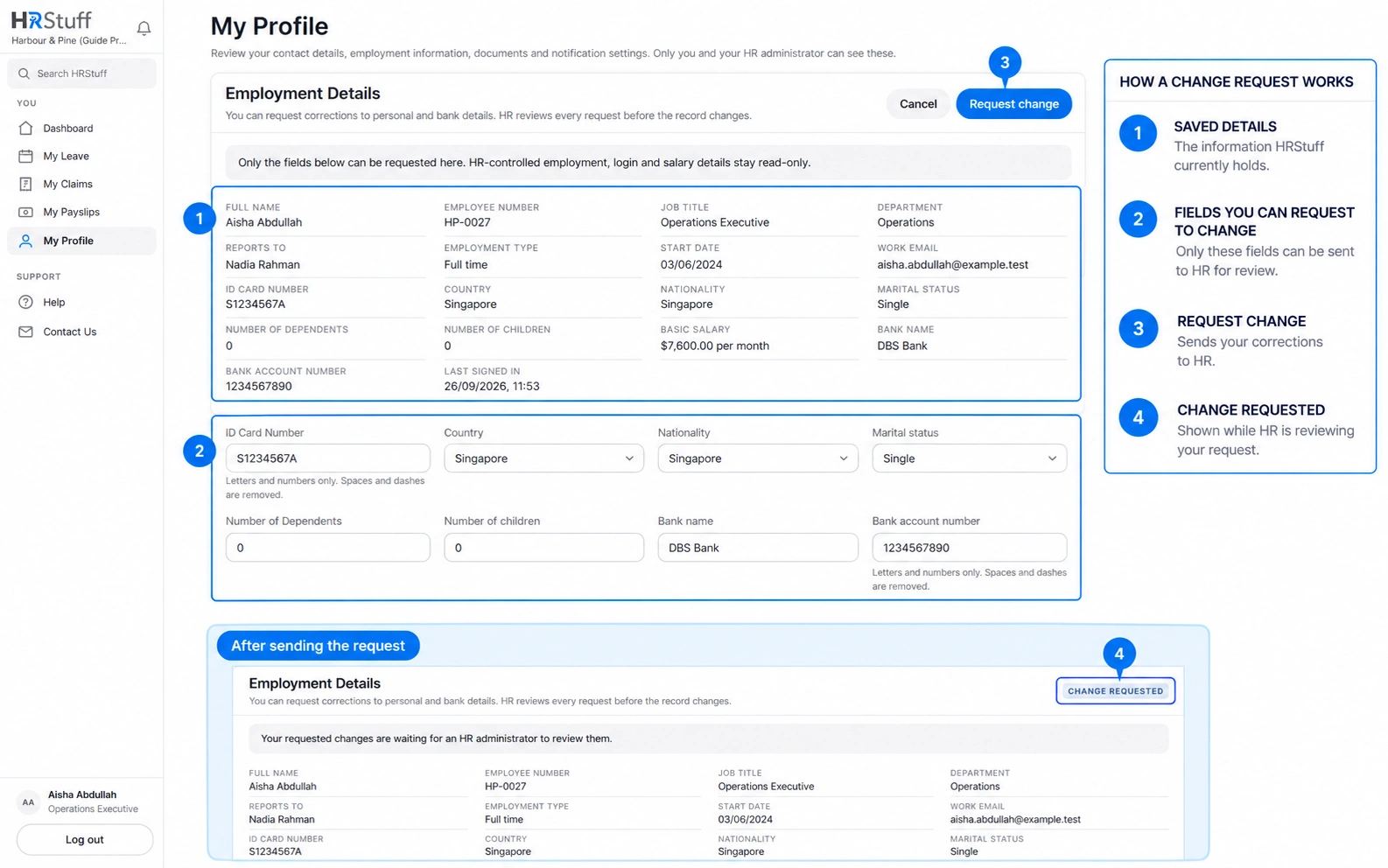
What HR reviews and what happens next
The HR review page shows each changed field with its Before and Requested values. A rejection requires a note; an approval note is optional.
If HR changes a field after you submit your request, the review page shows the latest value as Current now and prevents HR from approving an outdated change.
After approval or rejection, you receive an in-app notification linking back to Employment Details. An approval asks you to check that every updated detail is correct.
The request, decision and resulting employee update are recorded in the company Activity Log.
Update your personal contact details
Choose Edit on Personal Contact Details
The card opens the fields you are allowed to maintain: mobile number, personal email, emergency contact name, emergency contact number and home address.
Make the needed changes
Use an email address you personally control. HRStuff keeps it as a recovery contact if you lose access to your work email. A personal email must look like a valid email address before the form can be saved.
Choose Save
A confirmation says that the contact details were saved. The change is recorded in the company Activity Log. Choose Cancel before saving if you want to leave the stored details unchanged.
Open your documents
Employment Documents contains files attached specifically to your employee record, such as a contract. Only you and HR can open them; managers cannot.
Company Documents contains policies or reference files HR shared with employees. They are company-wide documents, not part of your personal employee record.
Open or download a document only on a trusted device. The browser or device may keep a local copy outside HRStuff after you download it.
Use the profile to change your password
Choose Change password at the top of My Profile. You need the current password and a new password of at least 10 characters. Changing it signs every other device out but keeps the current session open.
Use Forgotten your password? on the public Log in page instead when you no longer know the current password.
If the profile looks incomplete
A blank value usually means HR has not recorded it; it does not mean the page failed to load.
A login that is not linked to an employee record shows only its email address and Change password. Ask HR to connect it to the correct employee rather than creating another login.
The country-specific name of a residency field may differ between companies. HRStuff shows the choice recorded by your company.
In a recorded read-only support session, authorised HRStuff support staff see the customer company rather than their own profile and cannot edit customer records.