
Read and clear notifications
See what changed, follow links to the related record and understand when a notice becomes read.
What this guide helps you do
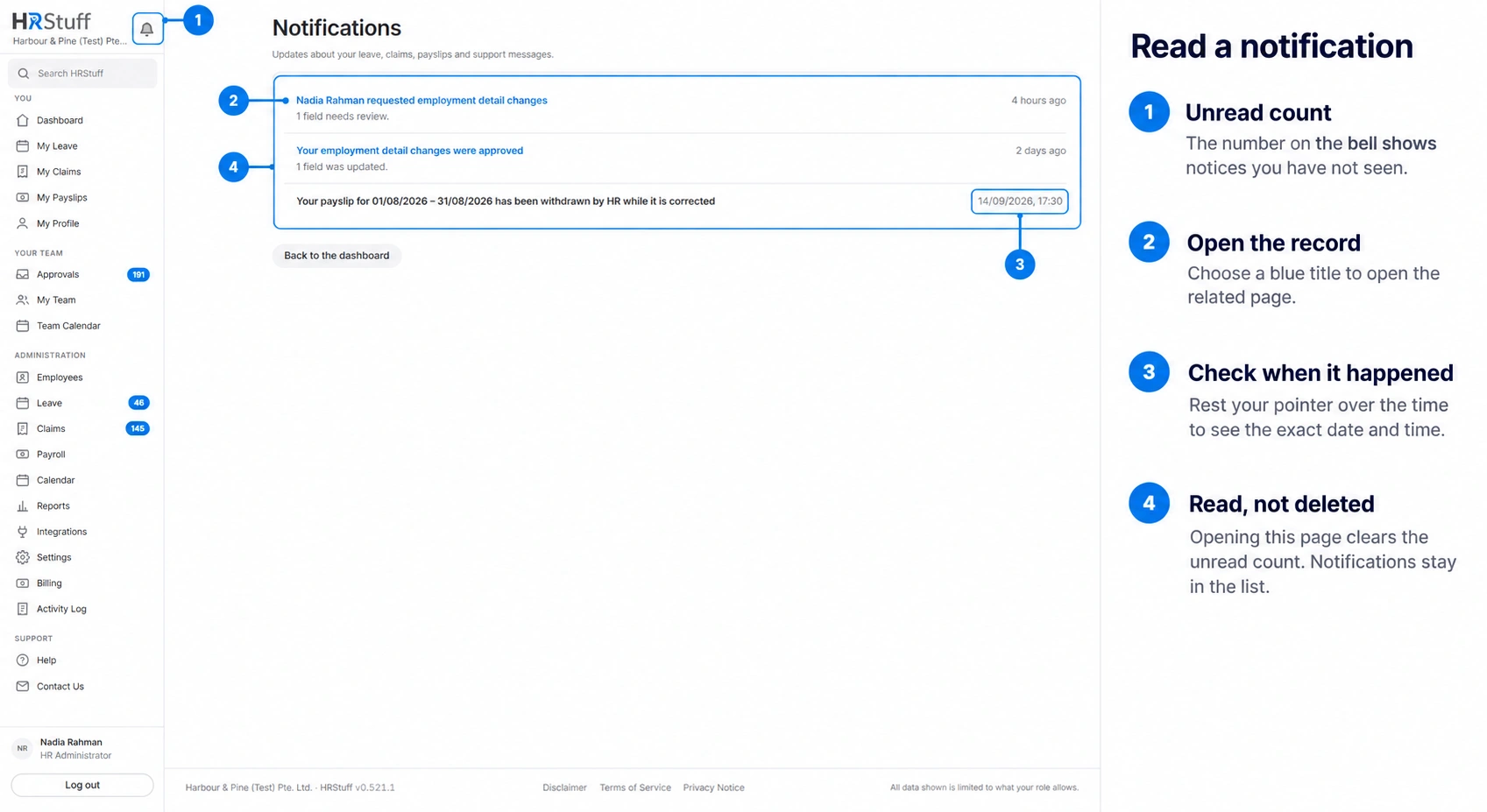
The bell beside the HRStuff logo shows personal alerts about changes that affect you. A number on the bell is the unread count. Choose the bell to open Notifications; the newest notices appear first.
Opening Notifications marks all of your notices as read automatically. There is no separate Clear or Mark as read button, and reading a notice does not delete it. New notices remain visually highlighted during that visit even though the bell count has been cleared.
Read a notification
Choose the bell
The bell is beside the logo rather than in the left-menu list. Its number shows how many personal notices have not yet been seen. On a narrow sidebar, the count may become a dot so it still shows that something is waiting.
Read the title and detail
Each row says what happened and roughly when. Rest a pointer over the time to see the exact date and time. A newly read row is highlighted during the visit so you can distinguish it from an older notice.
Open the linked record
When the title is a link, choose it to open the related page. Some notices are plain text because the related page is no longer available or you no longer have permission to open it.
What appears here
The exact mix depends on the company features and your role. HRStuff does not add a bell notice for every action you perform yourself, because you already saw its result on the page.
Leave that another person approved, rejected or cancelled.
A claim that was approved, rejected or marked paid.
A payslip that HR published or later withdrew for correction.
A reply to one of your support conversations.
For an HR administrator, selected operational warnings such as a claim category passing its configured limit or a payroll publishing problem.
Understand what “clear” means
Opening the Notifications page marks every currently unread notice as seen and clears the unread number on later pages.
Notices are not individually deleted. HRStuff shows up to the newest 50 on this page; older notices may fall out of the list as new ones arrive.
Opening Contact Us marks unread support replies as seen but leaves unrelated leave, claim and payslip notices unread.
Opening My Claims may clear that page’s own new-claim indicator. It is separate from the bell’s general unread count.
How notifications behave in the background
The underlying action comes first. If HRStuff cannot write a courtesy notification after leave was approved or a claim was paid, it does not undo the real approval or payment record. Check the source page when you are waiting for an important decision rather than relying only on the bell.
Notifications always appear in HRStuff. Depending on the company’s settings and each person’s preferences, the same event may also be sent by email or through a connected integration. Invitations, password resets and sign-in codes are separate essential emails.
If a notice is unexpected
Open the related record and check its current status; the record may have changed again since the notice was created.
A withdrawn-payslip notice means HR deliberately returned a published payslip to draft for correction. Wait for the replacement or ask HR.
If a notification names a request you do not recognise, do not share private details in an ordinary message. Contact your HR administrator or use Contact Us with only the information needed to investigate.