
Edit an employee record
Update work, personal, salary and reporting details using the employee record cards.
What this guide helps you do
An employee record brings the person’s work, personal, salary, bank, document, login and leave information together. Each editable card stays locked until you choose Edit, which helps prevent an accidental change while you are only reading the record.
Only an HR administrator can change the full employee record. Open ADMINISTRATION, then Employees, find the person and choose their name.
Open the right person and card
Find the employee
Open ADMINISTRATION, then Employees. Search by name, work email, employee number or job title, or narrow the list with the filters. Choose the person’s name to open their record.
Choose Edit on the card you need
Profile, Job Details, Salary and Bank Details, and Personal Contact each have their own Edit button. Choose it to unlock that card. Cancel closes the card without saving; Save keeps the changes and leaves you on the same employee record.
Read calculated fields instead of trying to type them
Age is calculated from Date of birth. Gross pay year to date is calculated from published payslips in the current payroll year. These figures cannot be edited directly; correct the date of birth or source payslips when a calculated figure is wrong.
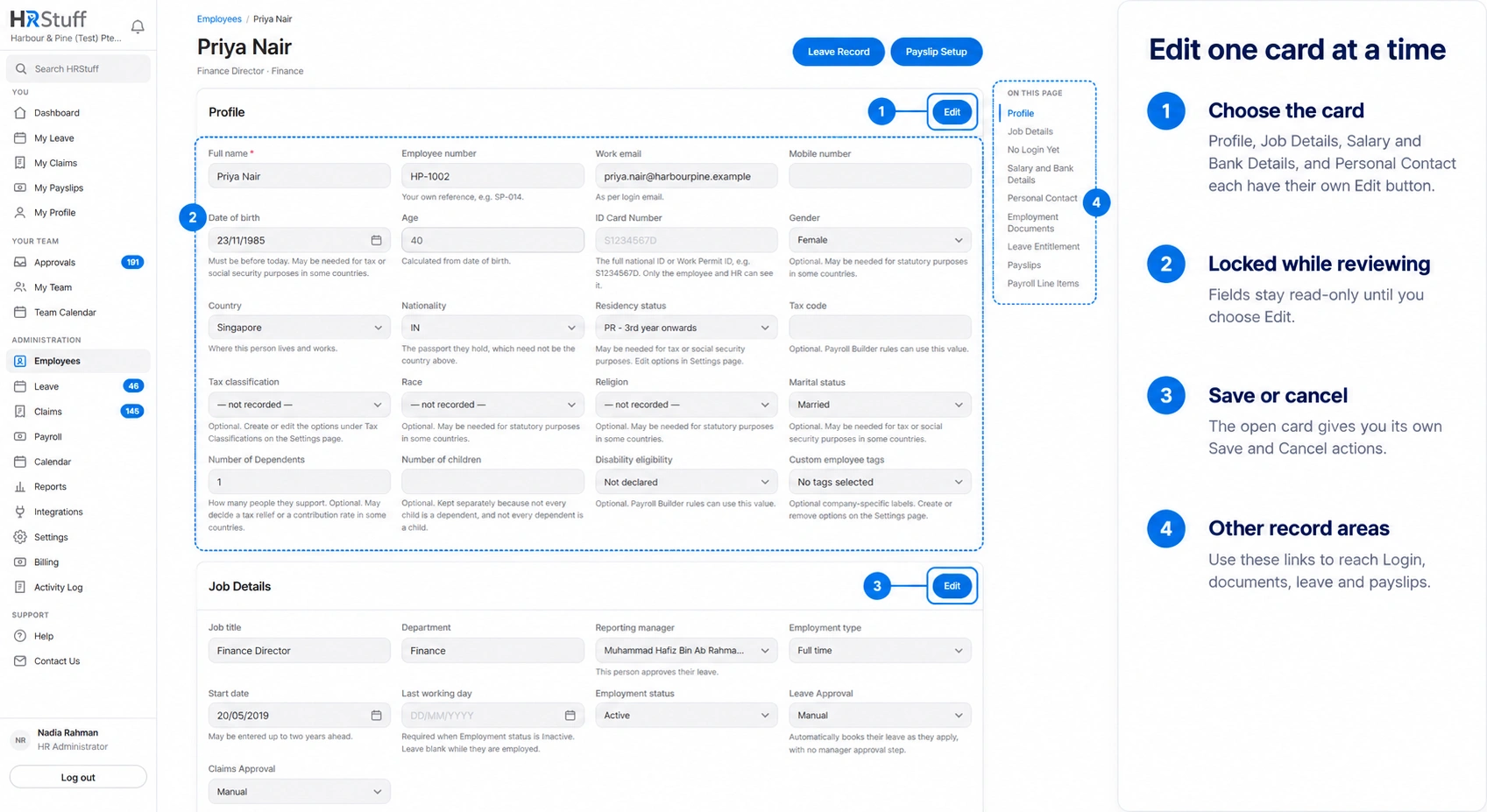
What these fields mean
Profile
Employee number is your company’s own unique reference. It is useful for imports and for distinguishing people with similar names.
Work email follows the Login email and is read-only on the Profile card. Change it from the Login card so the directory address and sign-in address stay together.
Country is where the person lives and works. Nationality is the passport or citizenship they hold.
Residency status comes from the list your company maintains in Settings. Payroll rules may use it for tax or social-security calculations.
ID Card Number can hold a national ID, work-permit or similar identifier. Only the employee and HR can see it.
Number of Dependents is the number of people they support. A blank means not recorded; 0 means none. Some country-specific tax or contribution rules may use it.
Number of children is a separate optional whole number. Do not copy Number of Dependents into it automatically: a child may not be a dependent, and a dependent may not be a child. Payroll Builder can test either field independently.
Job Details
Reporting manager controls where the employee’s leave and claim requests go when manager approval is enabled. Nobody means HR approves by default.
Employment type is a payroll and reporting classification. It does not grant a login role.
Last working day is required when Employment status is Inactive. Leave it blank while the employee still works for the company.
Leave Approval and Claims Approval can each be Manual or Automatic. Automatic skips the approval wait for that employee; paying an approved claim remains a separate HR action.
Salary and Bank Details
Basic monthly salary is the starting salary figure used for payroll periods.
Salary effective from is the date when a changed salary begins. Earlier salary periods keep the earlier amount.
SWIFT code identifies the bank for international payments. Bank code may be called a sort code, routing number, ABA or IFSC. Branch code identifies a branch only where the bank requires it.
Spaces and dashes are removed from bank numbers and codes when the record is saved. Payslips show only the last four digits of the account number.
Personal Contact
Personal email, emergency contact and home address are private employment details. They are not shown to the employee’s manager. The employee can maintain the personal contact fields available on their own profile, while HR remains responsible for the employment record.
Make and save a change safely
Change only what you can confirm
Use the stored value when it is still correct. For payroll-related classifications such as residency status, Number of Dependents or Number of children, leave an unknown answer blank instead of choosing a likely answer. Blank means not recorded; 0 is a deliberate recorded answer.
Choose Save on the open card
HRStuff checks the whole record before saving. If something is invalid, nothing is saved. The page lists every problem at the top and repeats it under the relevant field, while keeping what you typed.
Handle a simultaneous edit
If another administrator saved the record after you opened it, HRStuff does not overwrite their work. It brings their untouched changes into your form, keeps your typing and tells you when both of you changed the same field. Review the result, then save again.
Check the confirmation
A successful save returns to the employee record with a confirmation. Review the changed card and any warning shown above the record, especially payroll warnings about missing information.
Change login details or documents separately
Use the Login card to change the sign-in email and role together, reset the password, or disable and enable access.
Disabling a login stops access without changing the employee’s employment status or deleting their history.
Use Employment Documents to add or remove contracts and employee files. These remain visible only to the employee and HR.
Leave entitlement, personal entitlement and the Standard Payslip have their own controls on the record because they change balances or payroll sources rather than ordinary employee details.
When the employee leaves or returns
Record the last working day
In Job Details, enter the Last working day and change Employment status to Inactive. Saving disables the login, signs the person out and keeps their employee, leave, claim, document and payslip history.
Do not delete the record just to close it
Delete Employee Record permanently removes the employee and the records filed against them. Use Inactive for ordinary offboarding so the company keeps its history.
Reactivate deliberately
If the person returns, change Employment status to Active and review the dates and manager. Their login stays disabled until an HR administrator chooses Enable login, so access is never restored by accident.