
Search and filter the employee directory
Find people by name, status, department, role or reporting manager.
What this guide helps you do
The Employees page is the HR administrator’s directory and starting point for employee records. It opens with Active employees and lists up to 100 matching records at a time.
Search and filters can be combined. The count, table, page controls and Export CSV button all use the same filters, so the list you export matches the list you asked to see.
Open the directory
Go to Employees
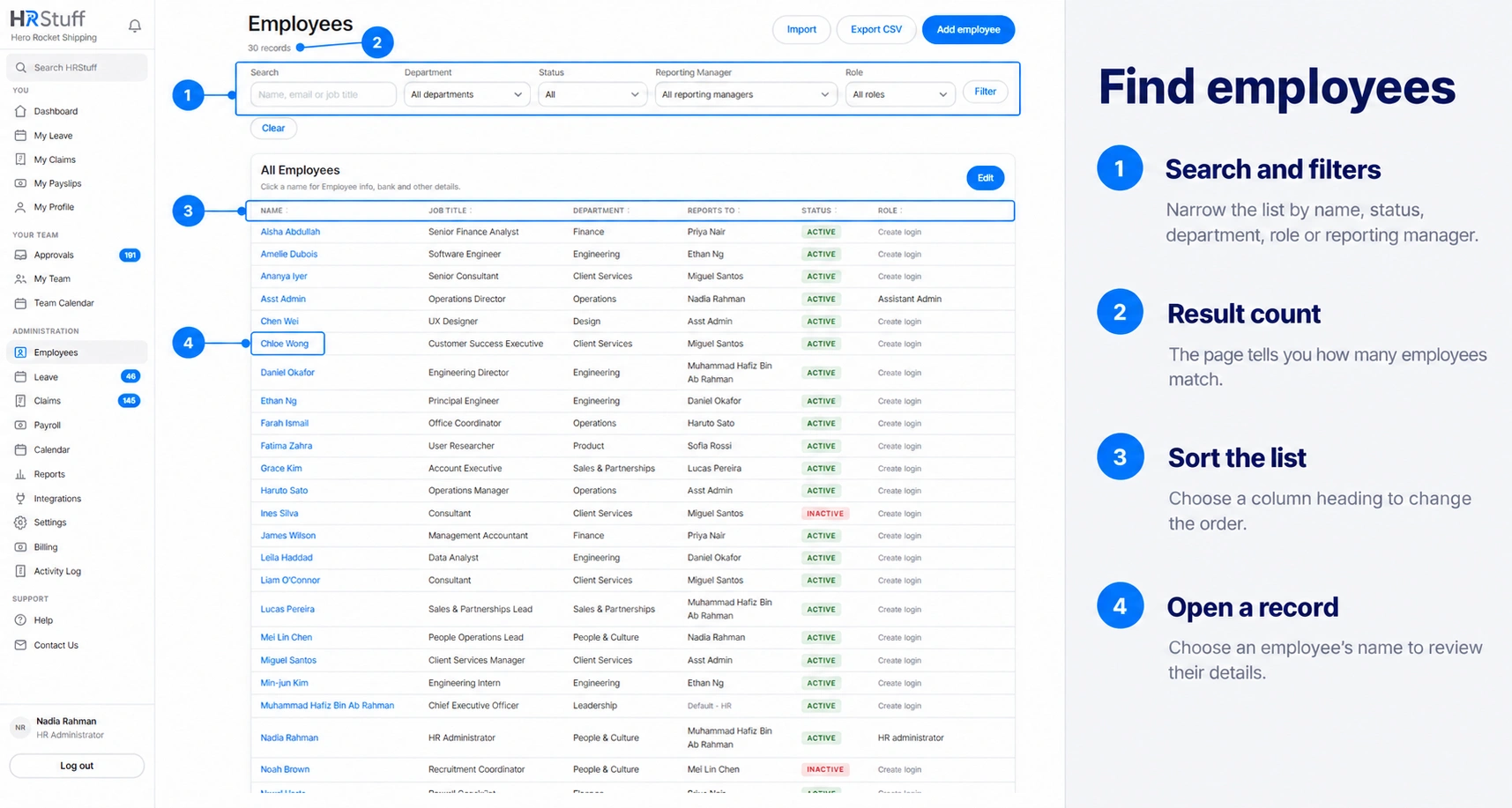
Open ADMINISTRATION, then Employees. The subtitle shows how many records match the current filters. By default, Employment status is Active.
Read the table
Choose a name to open the employee record. Job title, department, reporting manager, employment status and login role appear beside it. Default - HR under Reports to means no manager is assigned and HR handles manager-routed approval work.
Create login means the employee record exists but no user account has been created.
Cannot log in means a login exists but is disabled.
Role belongs to the login. A person without a login has no role to match in the Role filter.
Search for a person
Enter the part you know
Type all or part of a full name, work email, employee number or job title in Search. The match ignores capital letters and finds the text inside the stored value, so a surname or part of an employee number is usually enough.
Choose Show
The table and record count update together. If no record matches, clear the search or check whether the employee is Inactive.
Narrow the directory with filters
Choose a department
Department offers the department names currently used on employee records. The match is exact, which helps distinguish similarly named teams.
Choose employment status
Use Active for current employees, Inactive for leavers or All statuses for the complete record list. Inactive records remain available because their history is retained.
Choose a reporting manager
The list contains people who are currently named as somebody’s manager. Choose Default - HR to find employees with no reporting manager.
Choose a role
Role filters the user account attached to the employee record. It leaves out employees who do not yet have a login because they do not have a login role.
Combine filters
You can use search, department, status, reporting manager and role together. Choose Show after setting them. Choose Clear to return to the normal Active-employee list.
Move through or export the results
When more than 100 records match, use Previous, Next or a page number below the table. The message above the table shows the range on the current page.
Filters stay in place while you move between pages or enter the directory’s Edit mode.
Export CSV downloads all records matching the current search and filters, not only the 100 records on the visible page.
An empty result does not delete or hide records permanently. Clear the filters to return to the full active list.
Use the directory’s quick edit carefully
Choose Edit above the table when several visible employees need simple directory changes. You can change job title, department, reporting manager and status on the current page, then Save.
Only the records on the current page are submitted.
Save before moving to another page.
Use the individual employee record for a last working day, salary, personal details, login, documents or leave entitlement.
If an employee is leaving, record the Last working day on their own record before setting them to Inactive.
If you cannot find somebody
Change Status from Active to All statuses.
Clear Role when the person may not have a login.
Clear Reporting Manager if reporting lines may have changed.
Search using employee number or work email instead of a shortened name.
Choose Clear and add one filter at a time to find which filter removes the record.