
Import employees from a spreadsheet
Map columns, preview every change and confirm only when the review is correct.
What this guide helps you do
The employee import can add new employee records and update existing ones from a CSV file or Excel .xlsx workbook. It does not create logins. After the import, give access only to the people who should sign in.
The import has three deliberate stages: choose the file, map its columns, then review the exact additions and changes. Nothing is saved until you confirm the review.
Prepare the spreadsheet
Start with a supported file
Use a CSV file or an Excel .xlsx workbook no larger than 16 MB. Put the column headings in the first row and one employee on each row beneath it. You can download a blank template from the Import Employees page.
Include a reliable identifier
The file needs Full name, Employee number or Work email. First name and Last name can be used instead of Full name and are joined in first-middle-last order. For updates, use Employee number whenever possible because it must be unique within the company.
Employee number, then Work email, then a unique Full name is the matching order for people already in HRStuff.
A name is used only when exactly one existing employee has that name. Use employee numbers or work emails when names repeat.
Columns not included in the file are left unchanged on existing records.
Use values HRStuff can understand
Dates follow the company’s date format. Choice fields such as Employment type, Employment status, Country and Residency status must match the choices shown by HRStuff. Salary uses the company currency and number format. Number of Dependents and Number of children are separate optional whole-number columns; map each only to its matching field.
Upload the file
Open the import
Go to ADMINISTRATION, Employees and choose Import. Choose the spreadsheet, then select Map Columns.
Check the file summary
HRStuff shows the file name, number of columns and number of people found. If the file is empty, has only headings or cannot be read, correct the file and upload it again.
Use the column mapper
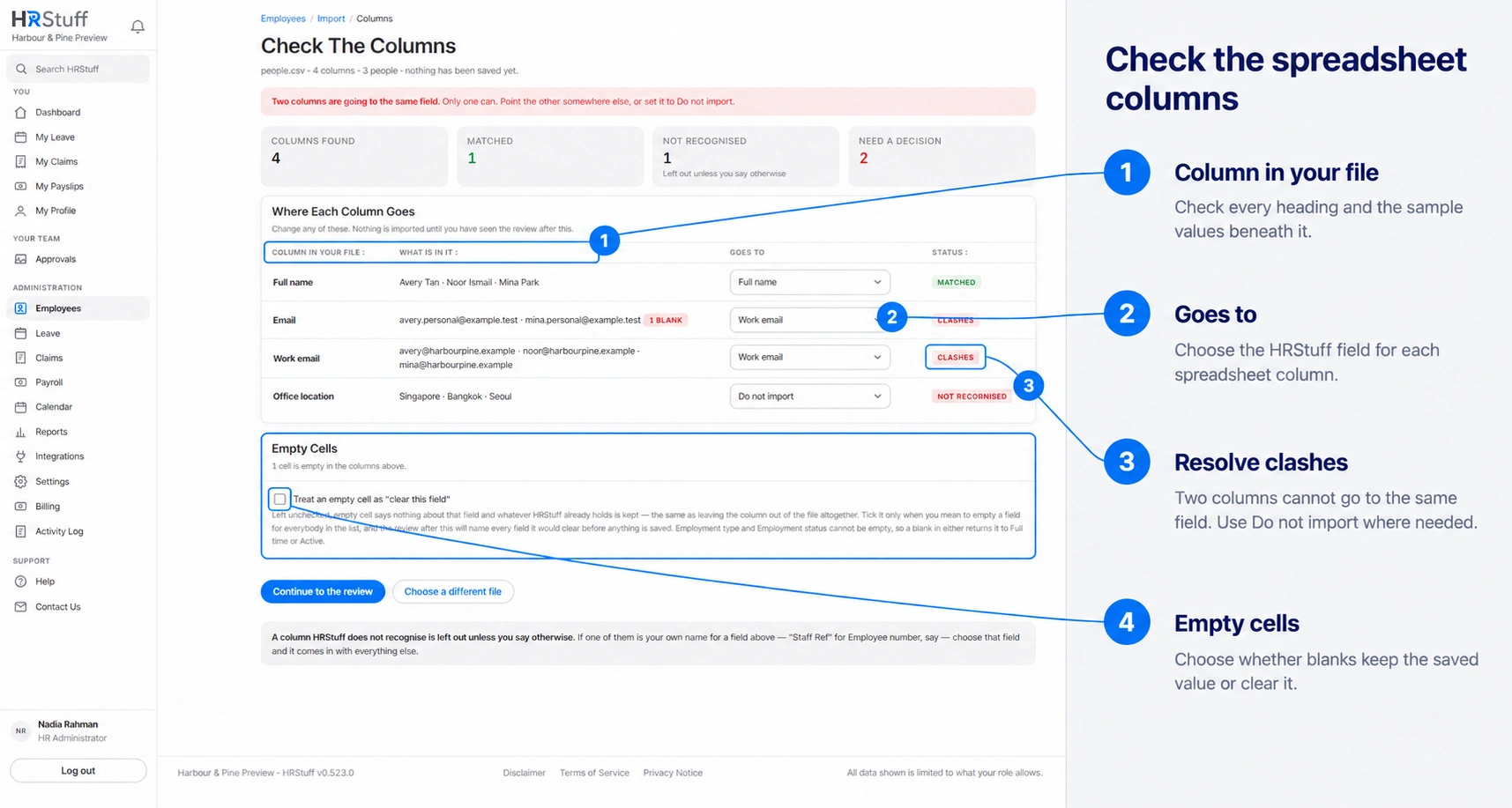
The mapper answers a simple question for every heading in your file: which employee field should receive this column? HRStuff makes a first guess, but you remain in control.
Read the sample values
For every source column, What is in it shows up to three real values and the number of blank cells. Read the samples as well as the heading. A column called Joined, for example, could be a start date or something entirely different.
Check the suggested destination
Goes to shows HRStuff’s suggested employee field. Matching ignores capital letters, spaces and underscores, and recognises common alternatives such as Staff ID for Employee number, Team for Department and DOB for Date of birth.
Correct custom or unrecognised headings
Open Goes to and choose the right HRStuff field. This is how a company heading such as Staff Ref can become Employee number without editing the spreadsheet. Choose Do not import for a column that does not belong in the employee record.
Resolve clashes
Two spreadsheet columns cannot both go to the same employee field. Point one somewhere else or set it to Do not import. This prevents one column from silently replacing the other.
Check how names will be joined
If there is no Full name column, HRStuff joins First name, Middle name and Last name in that order. The review shows the completed name for every row, so check the order before importing.
Review every proposed change
Read the totals
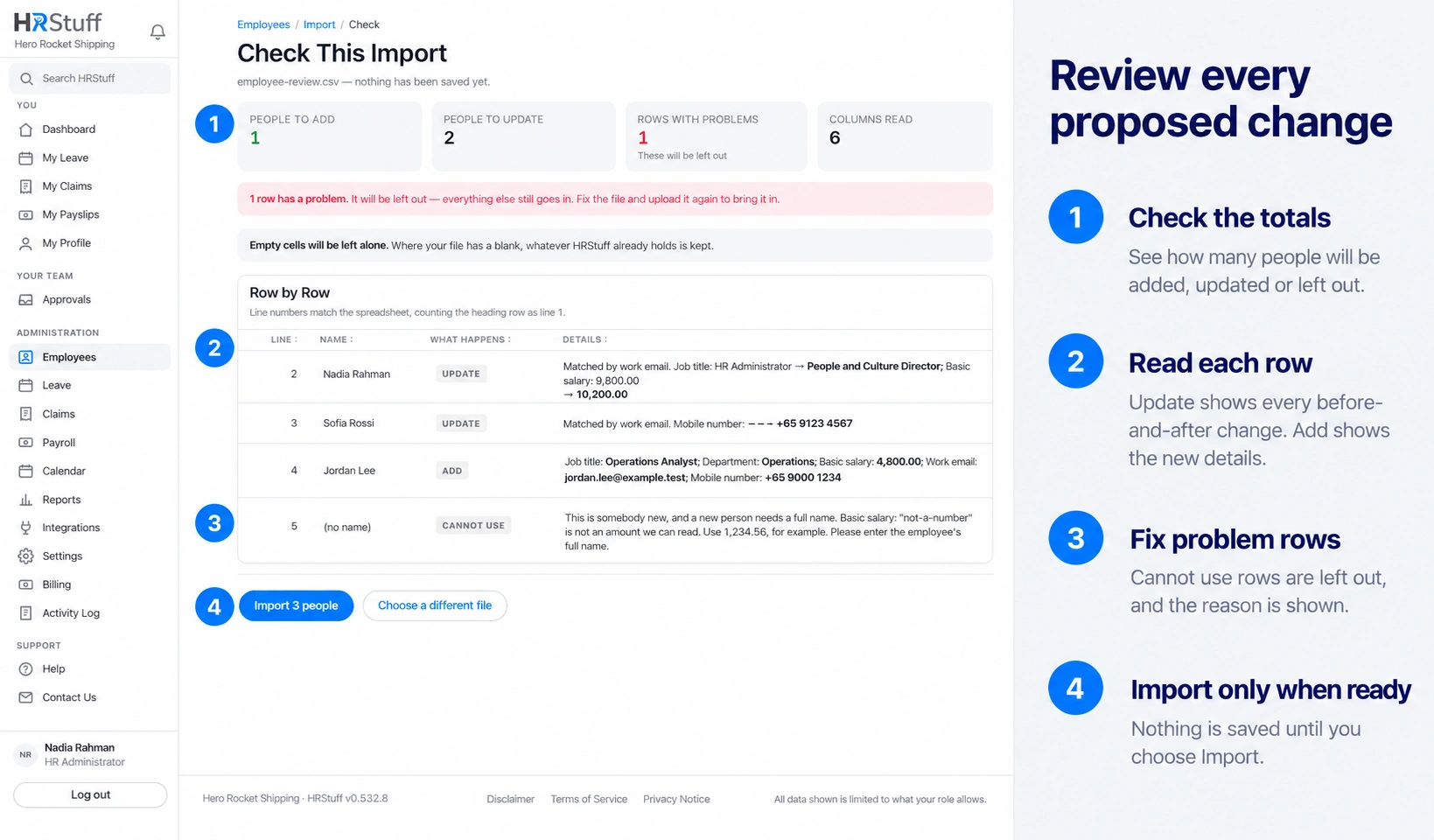
The review counts people to add, people to update, rows with problems and columns read. It also says when existing records already match the file and need no change.
Read Row by Row
Each line shows the spreadsheet line number, employee name, what will happen and the details. New records list the values that will be added. Updates show how the person was matched and every before-and-after change. Fields that would be emptied are marked clearly. Check Number of Dependents and Number of children separately when either column was mapped.
Understand rows and cells with problems
A row whose identity cannot be trusted is left out. If an optional cell contains an invalid value, HRStuff may ignore that cell and import the other usable values from the row. The review identifies the ignored cell and explains why it cannot be used. Rows with problems are never quietly imported.
Check work-email notes
For an employee who already has a login, Login email owns Work email. An import leaves that address alone and tells you so. Change it from the employee’s Login card instead.
Confirm or go back
Correct anything unexpected
Choose a different file when the names, matches, changes, blanks or problem rows are not what you intended. Edit the spreadsheet and map it again.
Import the usable people
When the review is correct, choose Import people and confirm updates to existing records. HRStuff saves all usable rows in one operation. If any row cannot be saved, none of the rows are saved, so the employee list is not left partly updated.
Read the result
The confirmation reports how many people were added, updated, already matched, left out or had a problem cell omitted. Open a few employee records and check sensitive classifications, salary and bank details before using the data for payroll.
Finish after an import
Set reporting managers manually; the employee spreadsheet does not import reporting lines.
Create logins from each employee record only when the person should receive access.
Check personal leave entitlement and the Standard Payslip where company defaults do not fit the individual.
Keep the reviewed source file according to your company’s data-retention policy, especially when it contains identity or bank information.