
Understand read-only HRStuff support access
See how a platform administrator can inspect a company for 30 minutes without changing it, with the reason and session recorded.
What this guide helps you do
HRStuff platform staff do not have ordinary access to a customer company. When investigation requires looking at the company’s screens, a platform administrator must start an explicit read-only support session for that company.
The session requires a reason, lasts no more than 30 minutes and is recorded in the customer’s Activity Log. It lets support view the same company-wide pages as an HR administrator, but never change company data.
Know when support access is used
A customer may report a problem that cannot be understood from the description, screenshot, audit entry or calculation explanation alone.
Only an HRStuff platform administrator can start the session. A company administrator cannot silently enable it, and HRStuff support staff cannot enter customer pages without one.
The operator must enter a specific reason of at least five characters. That reason is permanently recorded and shown to the customer in the Activity Log.
An operator can have only one company support session open at a time. They must end it before starting one for another company.
Understand what the operator can see
The session opens the customer’s navigation as a read-only HR administrator. This lets support inspect the company-wide pages and records relevant to the reported problem.
The operator can view company-wide pages but does not become an employee or receive an employee record. Personal pages such as My Leave, My Claims and My Payslips are unavailable.
Because an administrator view can include sensitive HR information, support should use the session only when the investigation genuinely needs it and only for the company named in the banner.
A support session is not remote control of an employee’s browser and does not require an employee or administrator password.
Recognise an active session
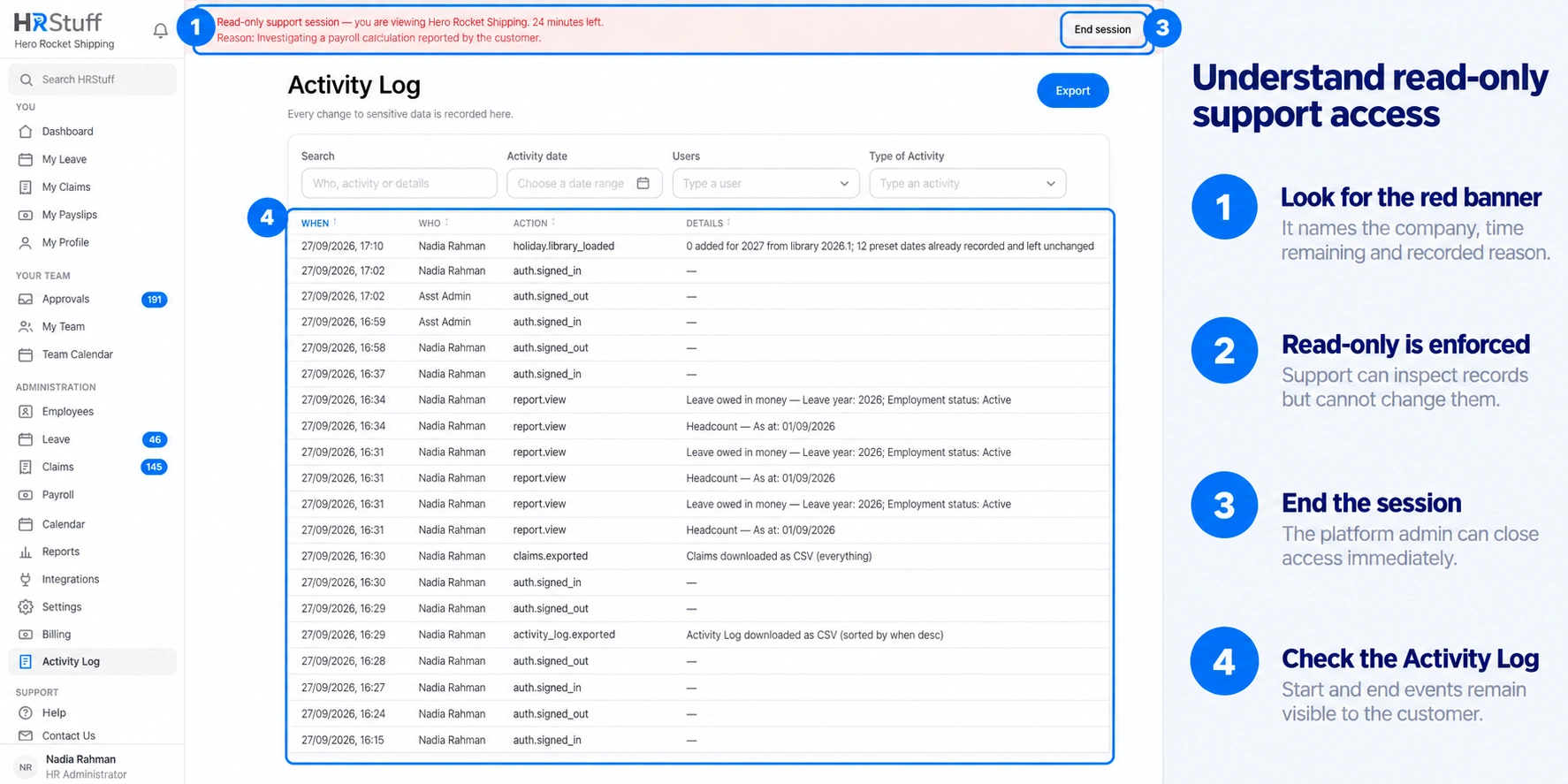
A banner at the top of every customer page says Read-only support session, names the company, shows the minutes remaining and displays the recorded reason.
The operator may move between pages to inspect information, filters and calculation explanations.
Any attempt to create, edit, approve, reject, delete, upload, publish or otherwise change data is blocked in read-only support mode.
End session and Log out are the only actions that can change data during the session.
See how access ends
The operator can choose End session from the banner. Access to customer pages is removed immediately.
If it is not ended manually, the session expires automatically after 30 minutes. The expiry time, not a later visit, is recorded as the end.
If the company is deleted while a session exists, the session is closed as part of that deletion and the reason for its ending is retained.
Review the customer-visible audit trail
Open ADMINISTRATION → Activity Log
An HR administrator can inspect the company’s permanent activity history.
Find support.access_started
The entry identifies HRStuff support and records the reason supplied when the session began.
Find support.access_ended
A second entry records a manual end, automatic expiry or other closure. The Activity Log should always contain both a start entry and a matching end entry.
What the customer should do
Start with a bug report that names the affected page, expected result and actual result. A good report may remove the need for support access altogether.
If HRStuff says a read-only session is needed, do not share a password or verification code. HRStuff provides access through the recorded support session, so no customer password is needed.
Afterwards, use the Activity Log to confirm the reason and the start and end of the session.