
Understand your leave balance
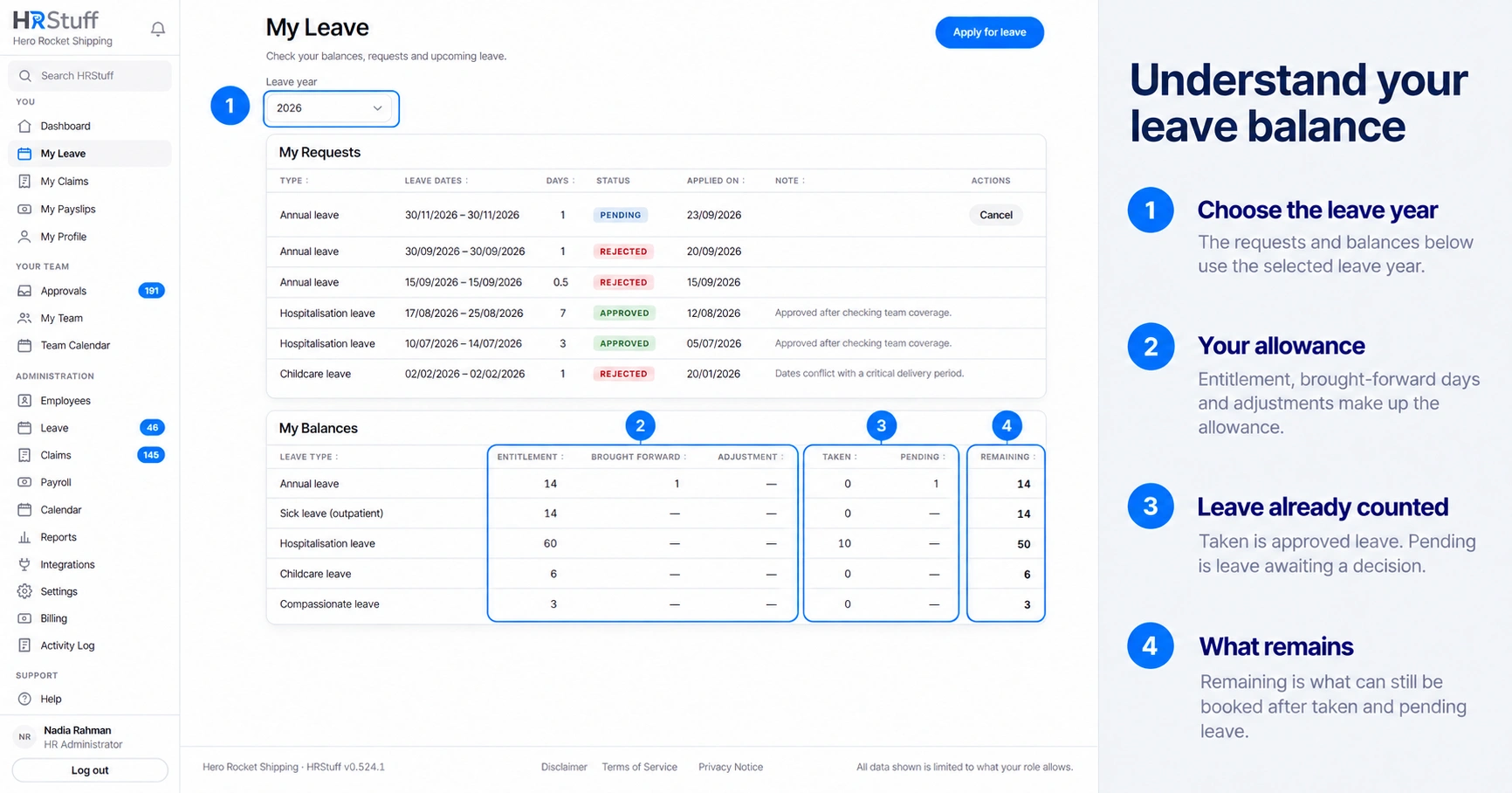
Read entitlement, brought forward, adjustments, pending, taken and remaining days.
What this guide helps you do
My Leave shows a separate balance for each tracked leave type in the selected leave year. The figures answer two different questions: what allowance applies to you, and how much of it is still available after approved and pending requests.
Open My Leave, choose the Leave year, then read My Balances. Changing the year also changes the requests shown above the balance table.
Read each balance column
Entitlement is the allowance that applies for the year. It normally follows the company default, unless HR has set a personal figure for you.
Brought Forward is unused leave that HR has recorded from an earlier year. It is available only for leave types that allow carry-forward. A closed leave year keeps the amount already recorded, even if the policy later changes.
Adjustment is a one-year correction entered by HR. A positive adjustment adds days; a negative adjustment removes them.
Taken is leave already approved in that leave year.
Pending is leave submitted but still waiting for a decision.
Remaining is Entitlement plus Brought forward plus Adjustment, minus Taken and Pending.
Understand where Entitlement comes from
The Default Leave Policy gives a standard annual figure for each leave type. HR may set a personal ongoing figure when your contract or working arrangement is different. A personal figure replaces the default for that type; it is not added on top.
In the leave year you join, HRStuff reduces the annual allowance according to the calendar days left and rounds it to the nearest half day. Your last working day determines whether you are included in a leave year. HRStuff does not automatically reduce your allowance for the year you leave; HR must enter an adjustment if company policy requires one.
Know when there is no balance
Some leave types are not balance-tracked. They can still record an absence, but there is no annual allowance to spend, so they do not behave like Annual Leave in the balance table. The leave type can still have date, overlap, working-day and approval rules.
Choose the correct leave year
A leave year may start in a month other than January. The year shown in the selector is the year in which that leave year starts. A request cannot cross two leave years, so a period spanning the boundary must be entered as two requests.
Once an old leave year is closed, HRStuff keeps the figures that applied to it. A later change to company policy or a personal entitlement does not rewrite that closed history.
If a figure looks wrong
Check the year and leave type
Make sure you are comparing the same leave year and the same kind of leave.
Open the requests above it
Look for pending or approved requests. Pending days are easy to overlook because they are not yet final.
Check your employment dates
A start date inside the leave year may explain a prorated entitlement.
Ask HR to check the source
HR can see whether the figure follows company policy, a personal entitlement, brought-forward days or a one-year adjustment. Do not submit a duplicate request simply to test the number.