
Add a payroll line item
Create a recurring payment, deduction or employer contribution.
What this guide helps you do
A payroll item creates one named payment, employee deduction or employer contribution. For a payment, Category decides whether it appears under Basic Pay or Additional Pay. If the item contains only employee deductions, HRStuff places it under Deductions automatically. Employer contributions remain separate from employee deductions on the payslip.
Open ADMINISTRATION, then Payroll, choose Payroll Settings and select Add Payroll Item.
Plan the item before entering it
Give the item the name employees and reviewers should see, such as Transport allowance or Employee pension contribution.
For money added to an employee, decide whether the company treats it as Basic Pay or Additional Pay. This can differ between countries and company policies.
Decide whether the item adds to employee pay, deducts from employee pay, records an employer contribution, or includes both employee and employer amounts.
Identify the people who qualify and the employee fields needed to decide that.
Decide how the amount is calculated: a fixed amount, a percentage of Basic Pay, Basic salary, gross pay, net pay, Additional Pay or another payroll item.
Confirm the effective date, any end date, rounding method and monthly or payroll-year limit.
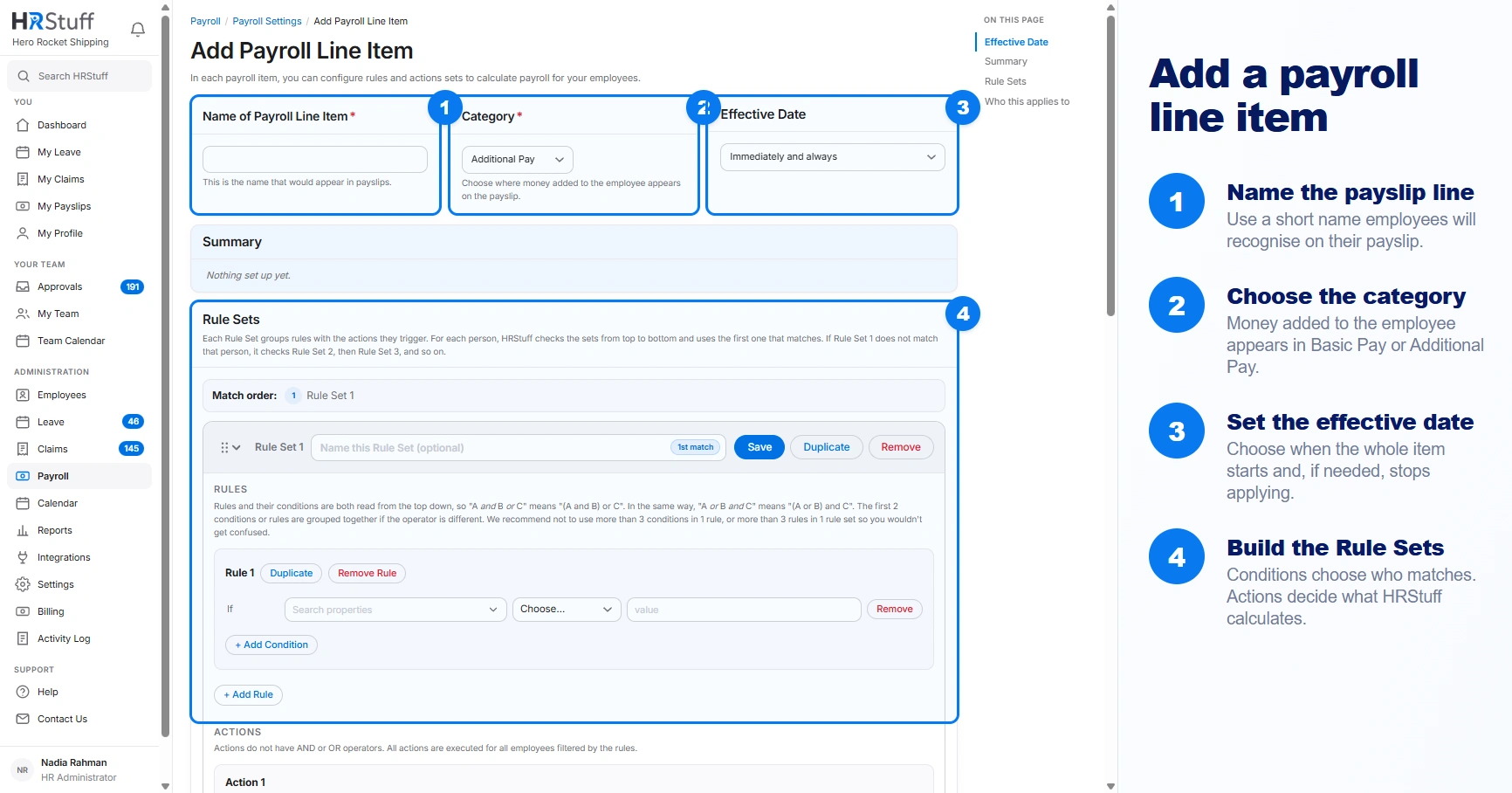
Enter the item name, category and effective date
Name the payroll line item
Use Name of Payroll Line Item for the label that will appear throughout Payroll Settings and on payslip calculations. Prefer the recognised company or statutory name over an internal code.
Choose its category
Choose Basic Pay or Additional Pay for money added to the employee. If the item only deducts from the employee, HRStuff changes the category to Deductions automatically. When different first-match Rule Sets can either add or deduct, the category applies to additions and every deduction still appears in Deductions.
Choose when it applies
Immediately and always applies the current rule whenever a draft is recalculated, including drafts for past periods. A dated option applies only when the first day of the salary period is within its date range. You can use past, current or future dates. Published payslips do not change.
Understand dated versions
Every draft uses the rule and effective dates currently saved in Payroll Builder. Immediately and always applies whenever a draft is recalculated. A dated item applies only when the first day of the salary period falls within its date range. Published payslips keep the calculation explanation saved when they were issued.
Build the first Rule Set
Name the set
The name is optional, but a useful name such as Citizens under 55 or Standard allowance makes summaries and payslip explanations easier to review.
Add the rule and conditions
Choose the employee, money or date field, then its operator and value. Use Every employee when the item has one universal result. Add another rule only when a short condition cannot express the policy clearly.
Number of Dependents and Number of children are separate employee fields. For a combined current-payslip amount, choose Selected payroll line items and select the exact built-in figures or earlier custom items. For published payroll history, choose the appropriate Payroll categories or Payroll line items year-to-date group.
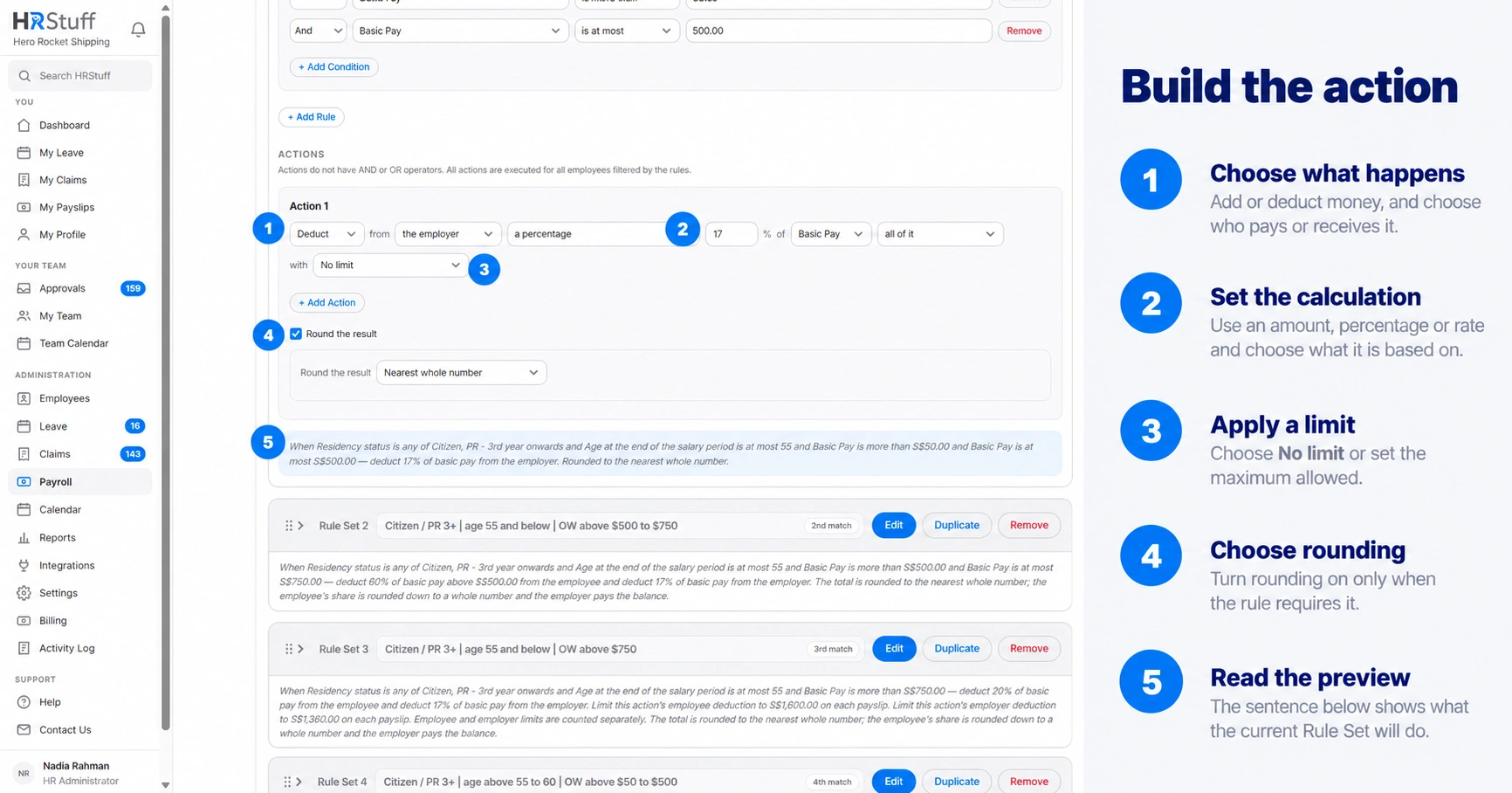
Add the action
Choose Add, Deduct or Do nothing; the employee or employer; and a fixed amount, percentage or custom amount input each month. For a percentage, choose exactly which pay or earlier item it is calculated from.
Add limits or rounding only when the rule requires them
A floor calculates only the part above a threshold. Limit on each payslip caps one draft. Limit for the payroll year uses the employee’s published history in that payroll year. Round the result only according to the source rule.
Add alternatives and a fallback
Use Add Rule Set when different groups receive different outcomes. Put specific exceptions before broad groups. HRStuff uses only the first matching set.
An exemption can be a first Rule Set whose action is Do nothing.
Age or service bands normally run from the narrowest or highest-priority case toward a final default.
A final Every employee set prevents an eligible person from falling through unintentionally when the policy has a general outcome.
A person who matches no Rule Set receives no line from this item. That can be correct, but check it deliberately in Who this applies to.
Create and test the item
Choose Create item
A new item must contain at least one Rule Set with an action. After you create it, HRStuff places it at the end of the appropriate calculation group.
Review Summary and Who this applies to
Confirm the saved sentences, the employees matched by each set and the previewed amounts. Unsaved browser edits are not included in Who this applies to.
Check the item order
Return to Payroll Settings. If this item relies on another payroll figure, confirm the source appears before it and resolve any warning before running payroll.
Create a test draft
Use an employee whose expected result you can calculate independently. Open the draft’s calculation explanation and compare the matched Rule Set, base, percentage, limit and rounding with the source rule.
If the item is not ready
Pause the item to keep it in Payroll Settings without applying it to new payslips.
Change the effective date when the rule is correct but should start later.
Correct missing employee data when the rule is right but Who this applies to names a blank field.
Correct and recalculate drafts before publication. Published payslips are frozen until deliberately moved back to draft.
When removing an item, read the dependency warning. Update or pause every item that depends on it before calculating new payslips.