
Set the payroll year and payment timing
Choose payroll-year boundaries, salary month and the normal payment date.
What this guide helps you do
Company Settings tell HRStuff when the payroll year starts, whether a normal payment covers the current or previous salary month, and which payment date to suggest. These are defaults for new payroll work. They do not send instructions to a bank or change published payslips.
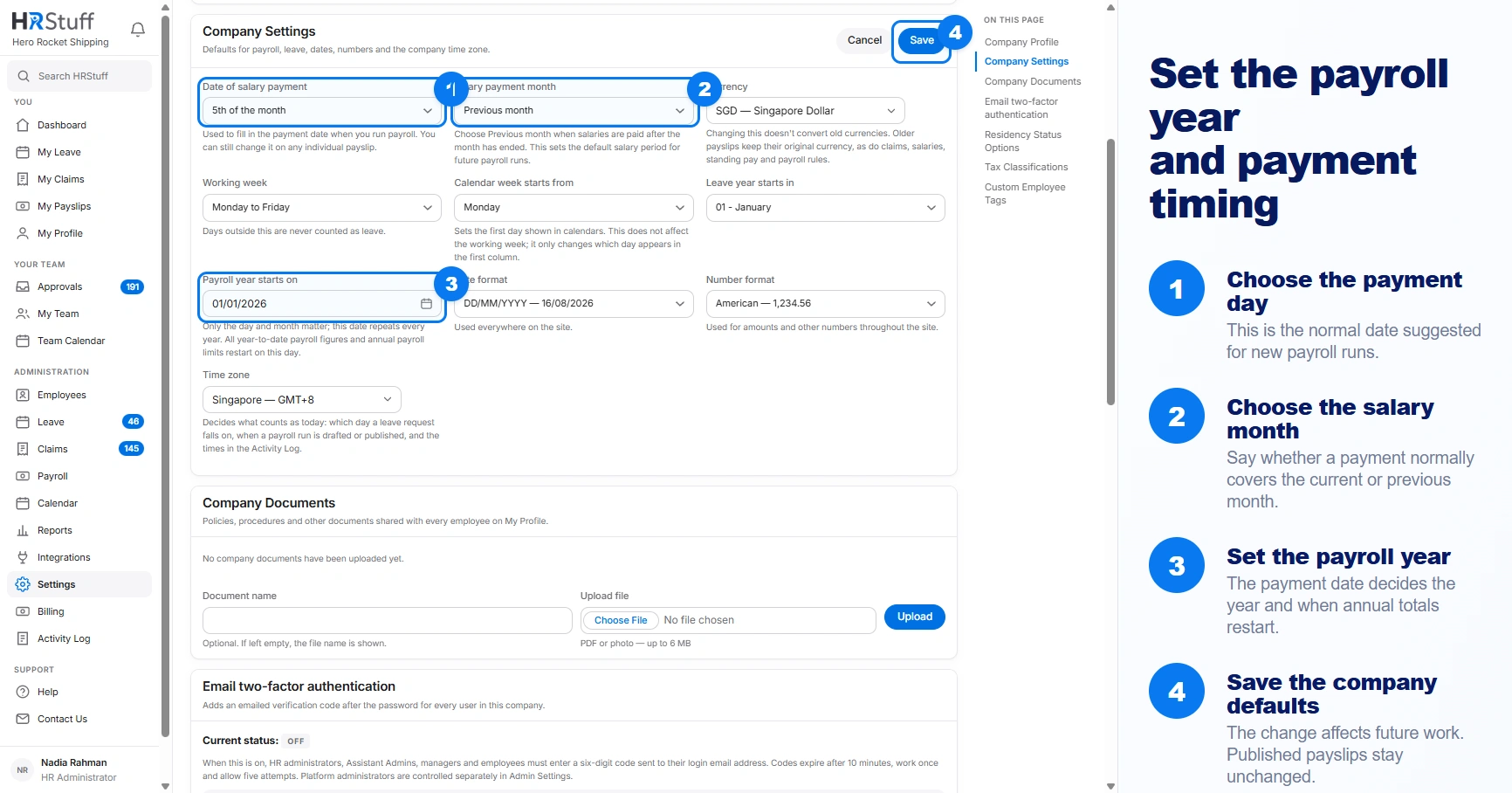
Open ADMINISTRATION, then Settings. In Company Settings, choose Edit. The three fields covered here are Payroll year starts on, Salary payment month and Date of salary payment.
Set the payroll-year boundary
Choose Payroll year starts on
Enter the first day of the company’s payroll year. Only its day and month matter; HRStuff repeats that boundary every year. A company using the calendar year chooses 1 January. A year running from 1 April to 31 March chooses 1 April.
Understand the label you will see
A payroll year is named for the year in which it starts. For example, Payroll year Apr 2026 – Mar 2027 begins on 1 April 2026. The Payroll and My Payslips filters use this same definition.
Understand what restarts at the boundary
Gross pay year to date, net pay year to date, payroll-item year-to-date figures and annual limits restart on the chosen day. Only published payslips count toward these totals or reduce the annual limit available to later payslips.
Choose which month the payment covers
Salary payment month sets whether a new payment normally covers the current month or the previous month. It does not transfer money, and you can still change the salary period on a draft.
Current month means a payment made in September normally covers September salary.
Previous month means a payment made in September normally covers August salary. Use this when salaries are normally paid after the salary month has ended.
This choice is used when HRStuff prepares a new pay run or scheduled draft. The resulting draft still shows its salary month and payment date for review.
Changing the setting affects future defaults. It does not relabel old payslips or move a published payslip into another period.
Choose the normal payment date
Choose Date of salary payment
Select the 1st through the 28th, or Last day of the month. HRStuff deliberately offers dates that exist in every month, plus a last-day choice that becomes 28, 29, 30 or 31 as appropriate.
Check the first affected draft
When a new payslip is created, HRStuff fills its payment date from this setting and the Salary payment month rule. Open the draft and check the actual date before publishing.
Override an exceptional month on the payslip
A holiday, bank cut-off or one-off company decision may require a different date. Change the individual draft’s payment date instead of changing the company default for every future run.
Save and check the effect
Choose Save in Company Settings and read the confirmation.
Open ADMINISTRATION, then Payroll, and check the payroll-year and salary-month filters.
Create or open one draft and confirm its salary month and payment date before processing a full pay run.
Review any rules with a yearly limit, because the payroll-year boundary decides when their allowance restarts.
Published payslips keep their issued figures and currency. Changing company timing does not recalculate them.
If a month or yearly total looks wrong
Check the payslip’s payment date first. That date assigns the payroll year.
Check whether Salary payment month is Current month or Previous month; it controls the proposed salary period.
Remember that drafts do not count in year-to-date totals. Publish only after the figures have been reviewed.
Check the currency on the payslip. HRStuff does not combine amounts in different currencies into one year-to-date total.
Correct the company default for future runs, but correct an exceptional draft on the draft itself.