
Build and order payroll rule sets
Understand the Rules and Actions system of the Payroll Builder. Choose who a rule and action applies to, how it calculates and when it becomes effective.
What this guide helps you do
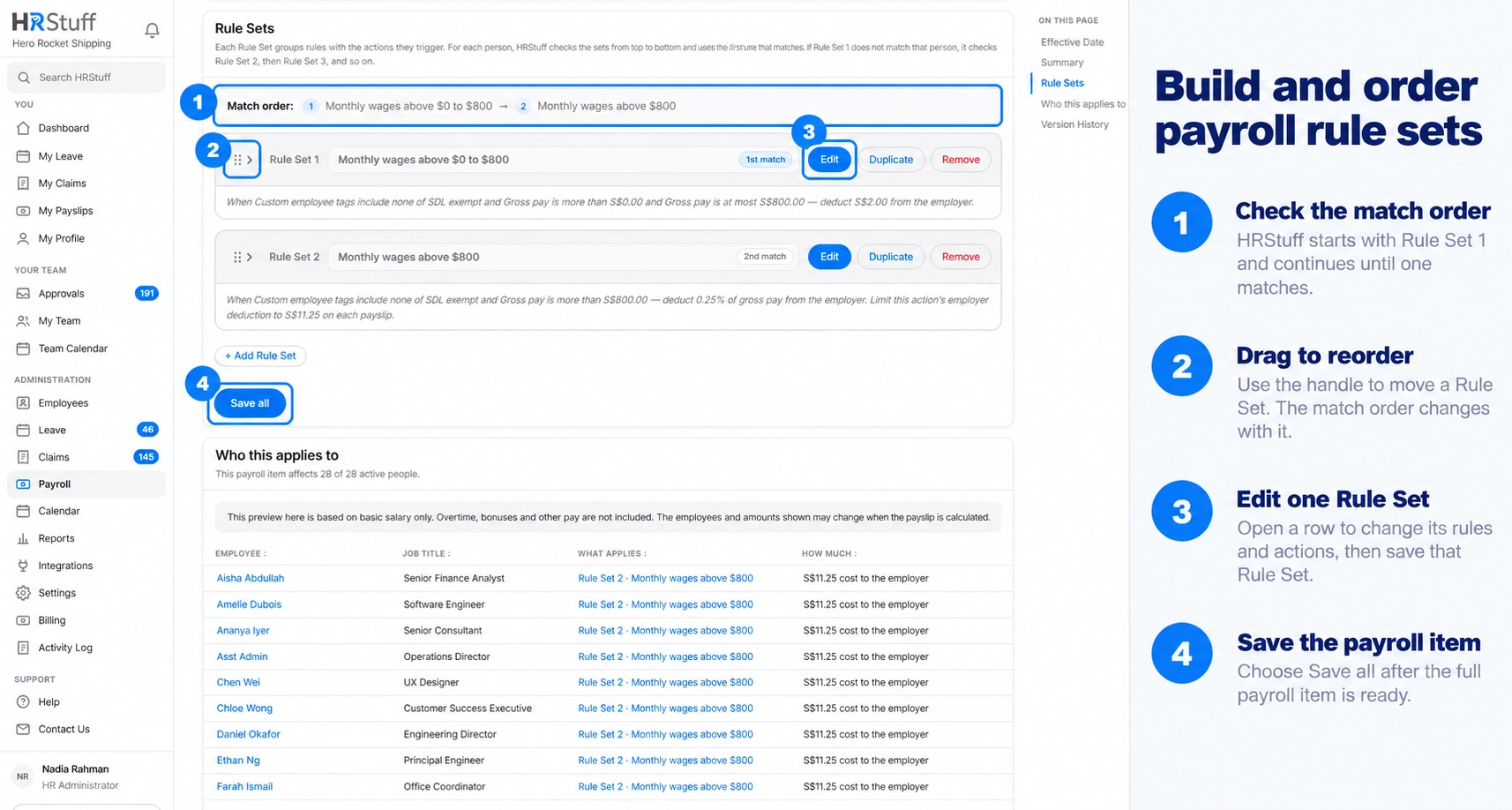
Rule Sets let one payroll item produce different outcomes for different employees. HRStuff checks them from top to bottom and uses the first set whose rules are true. It does not add the results of several matching sets together.
Open ADMINISTRATION, Payroll, Payroll Settings, then choose the payroll item. Each saved Rule Set can be opened with Edit, changed and saved without discarding the other stored sets.
Turn the policy into an ordered decision
List the possible outcomes
Start with every amount, rate or Do nothing result the item can produce. Create a separate Rule Set for each different result.
Write the exception first
If a group is exempt, create a Rule Set for that group with Do nothing and place it above the paying or charging sets. The match stops there.
Order specific groups before general groups
A department-specific rate must sit above Every employee. An age band must not be hidden below a broader age condition that already catches the same person.
Decide whether a fallback is required
Use a final Every employee Rule Set when the policy gives everybody else a known result. Leave it out only when no matching set is intentionally supposed to produce no payroll line.
Build clear rules and conditions
Employee details include employment type, residency status, employment status, employee number, date of birth, age, years of service, months of service, Number of Dependents, Number of children, department, job title, country and nationality.
Number of Dependents and Number of children are different optional whole-number fields. Blank means not recorded; 0 means the company deliberately recorded none.
Payroll categories on this payslip include Basic Pay, Additional Pay, Gross pay and Net pay.
Payroll line items on this payslip include Basic salary, Selected payroll line items and earlier custom payroll items.
The Selected payroll line items option adds the built-in figures and earlier custom items you choose. Select Gross pay or Net pay on its own because each already includes several amounts. Do not combine Basic Pay or Additional Pay with an individual payment already included in that category.
Payroll categories year to date reads whole-category totals from published payslips in the current payslip’s payroll year.
Payroll line items year to date includes Basic salary, this item’s totals and an earlier custom item’s year-to-date amount. Drafts and the current unpublished payslip are excluded.
Date fields include the salary-period date, month and year.
Is empty and Is not empty are useful when the decision depends on whether HR has recorded a field. A missing value does not equal zero or a chosen category.
Understand the two grouping levels
A condition is one line, such as Where Age is at least 55. Every condition after the first in the same numbered rule has its own AND or OR choice joining it to the lines above.
A rule is a numbered block containing one or more conditions. Add Rule starts another numbered block. That new block also has an AND or OR choice joining it to the numbered rules above.
Read AND and OR from top to bottom
HRStuff gives AND and OR the same priority and reads them from top to bottom. It combines each new condition with the result of the conditions above it. The same method is used when numbered rules are joined.
Use AND when the same employee must satisfy both statements.
Use OR when either statement is enough.
When every joining word is AND, or every joining word is OR, the grouping does not change the answer.
When AND and OR are mixed, the Summary writes out the brackets so you can check the exact meaning before payroll is run.
Follow the editor’s practical limit: no more than three conditions in one rule and no more than three rules in one Rule Set where possible.
Check what a mixed rule really means
Suppose a numbered rule says:
Use numbered rules as brackets
A numbered rule is worked out on its own before it is joined to the numbered rules above it. Use separate numbered rules when one part of the policy needs its own brackets.
To write (A OR B) AND (C OR D), put A OR B in Rule 1, put C OR D in Rule 2 and join Rule 2 to Rule 1 with AND.
Do not keep adding conditions to one numbered rule when you need brackets around only the conditions on the right. Start another numbered rule instead.
Know where grouping stops
One Rule Set provides two grouping levels: conditions inside a numbered rule, then numbered rules inside the Rule Set. A numbered rule cannot contain another numbered rule.
Three numbered rules joined as Rule 1 AND Rule 2 OR Rule 3 are read as (Rule 1 AND Rule 2) OR Rule 3.
When the policy needs deeper grouping, use separate Rule Sets. HRStuff checks them in order and stops at the first match, so later sets can provide alternative results.
Keep each numbered rule and Rule Set short enough that another person can check it without rebuilding the logic on paper.
Configure the actions the set triggers
A fixed amount adds, deducts or records the same amount whenever this Rule Set matches.
A percentage needs a base. Choose gross pay, net pay, Basic Pay, Basic salary, Additional Pay or a named earlier payroll item.
A custom amount input each month creates a placeholder on the draft. It stays off the final payslip until HR enters a figure.
The only the part above option calculates the percentage only on the amount above the threshold. It does not limit the final result.
Limit on each payslip caps that action in one draft. Limit for the payroll year subtracts the employee’s published amount already used in that payroll year.
When employee and employer shares belong to one scheme, choose whether to round the combined total before splitting it or round each share independently.
Reorder and save safely
Move the Rule Set
Use the six-dot control to drag a set. With the keyboard, focus the control and use Alt with the up or down arrow. The Match order strip shows the proposed sequence.
Use Save inside one Rule Set for that set only
Save inside an existing Rule Set saves only that set. An unfinished field in another set does not block it. It does not save a new Rule Set or changes to the item name, effective dates or Rule Set order.
Use Save all for shared or structural changes
Choose Save all after renaming the item, changing effective dates, adding or removing Rule Sets, or reordering them. The Order changed message remains visible until this whole-item save succeeds. Read every validation message before leaving the page.
Read the plain-language summary again
Confirm both the audience and the money movement. When a rule mixes AND and OR, the Summary writes the brackets out. The Summary and payroll calculation use the same grouping logic, so unexpected brackets are a sign to split or simplify the rule before payroll is run.
Check Who this applies to
This table uses saved data. Verify the expected people match the intended set and investigate any named missing field before creating payroll.
Understand effective dates and history
Effective Date applies to the whole payroll item, not to an individual Rule Set. Every draft uses the rule and dates currently saved in Payroll Builder. Immediately and always applies whenever a draft is recalculated. A dated item appears only when the first day of the salary period falls within its date range. Published payslips keep their saved figures and explanations.
Immediately and always includes every draft payslip when it is recalculated, even when its payroll period and payment date are in the past.
Effective on and after a date includes drafts whose payroll period starts on or after the chosen date.
Effective on and between dates gives the item an inclusive range based on each payroll period’s first day.
The item history records saved changes in readable form. Use it with the published payslip’s own calculation explanation when investigating an old result.
A later rule change does not silently recalculate a published payslip.
Test before using the rule in payroll
Check at least one employee expected to match each Rule Set and one expected to match none.
Test values directly below, on and above every age, salary, service, floor or ceiling boundary.
Create a draft and read How Each Figure was Calculated; the employee preview is not a substitute when the rule depends on overtime, bonuses or other live payslip figures.
Confirm annual limits against published history in the correct payroll year.
Keep evidence of the official rule or company decision used to configure the item.