
Understand the Payroll Builder
Learn how HRStuff’s Rule Sets, conditions and actions decide which payroll amounts to add, deduct or record for each employee.
What this guide helps you do
To open Payroll Builder, go to ADMINISTRATION → Payroll → Payroll Settings. An employee’s basic salary comes from their employee record. Payroll Builder can add other items to Basic Pay or Additional Pay, deduct money from the employee and record employer costs.
A new company does not include ready-made tax, social security or other legally required payroll rules. You must create the rules your company needs and check that the rates, dates, eligible employees and calculated amounts are correct.
Understand the five parts
Payroll item: the named line, such as Housing allowance, Pension or Social security.
Effective Date: when the whole item starts and, if required, stops applying.
Rule Set: a version of the payroll item for a particular group of employees.
Rule and condition: a rule contains one or more conditions. Each condition asks a question about the employee, such as whether they are a citizen or at least 18 years old.
Action: what HRStuff does when the Rule Set matches, such as adding an allowance or deducting a percentage of basic salary.
Read the two kinds of order
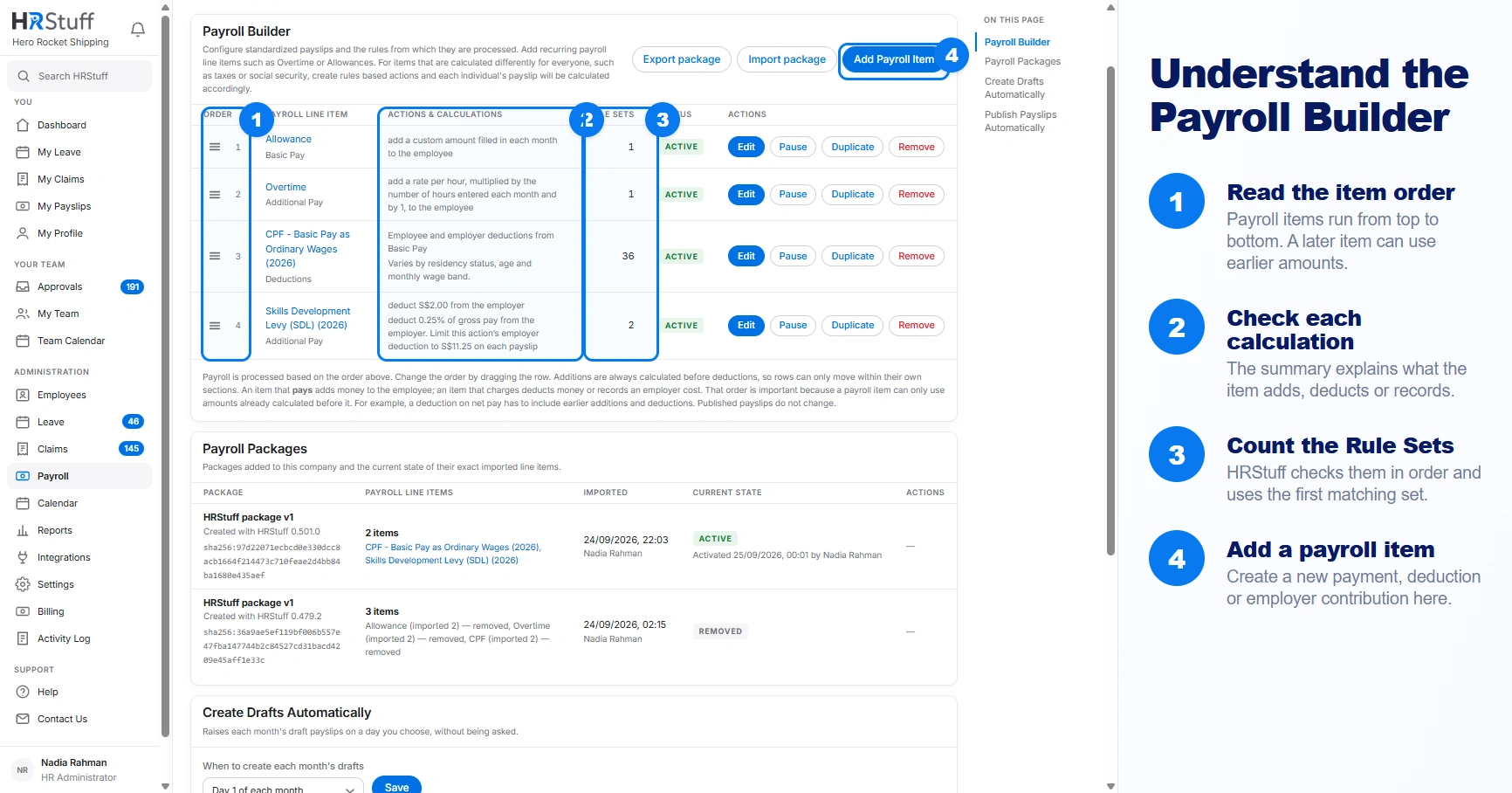
HRStuff calculates payroll items and checks Rule Sets in a fixed order. Changing either order can change the result.
HRStuff calculates payments first. It then calculates the remaining payroll items in the order shown in Payroll Settings. A rule can use only amounts that have already been calculated.
Rule Set order decides which result the item uses for each employee. HRStuff stops at the first matching set and ignores later sets for that item.
If a deduction uses net pay, it uses the net pay calculated up to that point, not the employee’s final net pay. If one payroll item uses an amount from another item, the other item must be calculated first.
Drag payroll items to change their order. If one item uses an amount from another item, place the item providing that amount first. HRStuff warns you if the order is incorrect.
Choose who a rule applies to
Conditions decide whether a Rule Set applies to an employee. They can use employee details, dates, amounts on this payslip, totals from earlier published payslips and amounts from payroll items calculated earlier. The editor shows all available employee fields.
Choose the Every employee condition when the Rule Set should apply to everyone. This is often used for the final Rule Set, which catches anyone who did not match an earlier set.
If information required by a condition is missing from an employee’s record, that Rule Set will not match the employee. The Who this applies to card tells you which information is missing.
Number of Dependents and Number of children are separate whole-number fields. Blank means not recorded and is different from 0, so choose the field named by the real policy.
HRStuff checks conditions and rules from top to bottom. AND means every connected condition must be true. OR means at least one of them must be true. When both are used, the page shows which conditions are grouped together.
Keep each rule short enough to check easily. HRStuff recommends no more than three conditions in one rule and no more than three rules in one Rule Set.
Use current-payslip and year-to-date conditions carefully
Choose the period first
Choose Payroll categories on this payslip for whole-category totals, or Payroll line items on this payslip for Basic salary and specific payroll items. Choose either year-to-date group for totals from published payslips in the same payroll year. Draft payslips are not included in year-to-date totals.
Choose one built-in pay figure when that is the rule
Basic Pay, Additional Pay, Gross pay and Net pay are available under Payroll categories on this payslip. Basic Pay includes the employee’s basic salary and any earlier payroll items assigned to that category. Net pay means the amount calculated up to this point. It does not include deductions that come later in the item order. Moving payroll items can therefore change the result.
Add several payslip amounts together
Choose Selected payroll line items when a condition needs the total of several amounts. Select the amounts you want HRStuff to add together. Gross pay and Net pay are already totals, so either one must be selected by itself. HRStuff also prevents you from counting the same payment twice.
Use an earlier item’s year-to-date figure only for published history
Payroll categories year to date includes the whole-category totals, including Gross pay and Net pay. Payroll line items year to date includes Basic salary, this item’s totals and the year-to-date amount of an earlier custom payroll item. If you rename the earlier payroll item later, HRStuff still knows which item the rule uses.
Choose what happens when a set matches
Choose Add to increase the employee’s pay, Deduct to reduce it, or Do nothing to leave it unchanged. Put a Do nothing Rule Set first when a particular group of employees must be excluded.
Choose Employee when the amount affects the employee’s pay. Choose Employer when the amount is recorded for the company without changing the employee’s net pay.
Method: a fixed amount, a percentage or a custom amount entered on each month’s draft.
For a percentage, choose the amount it is calculated from: gross pay, net pay, Basic Pay, Basic salary, Additional Pay or an earlier payroll item.
You can apply the calculation only to the amount above a threshold, set a maximum for each payslip or payroll year, and choose how HRStuff rounds the result.
A Rule Set can contain more than one action, such as the employee and employer shares of one contribution scheme.
Use the summary and employee preview
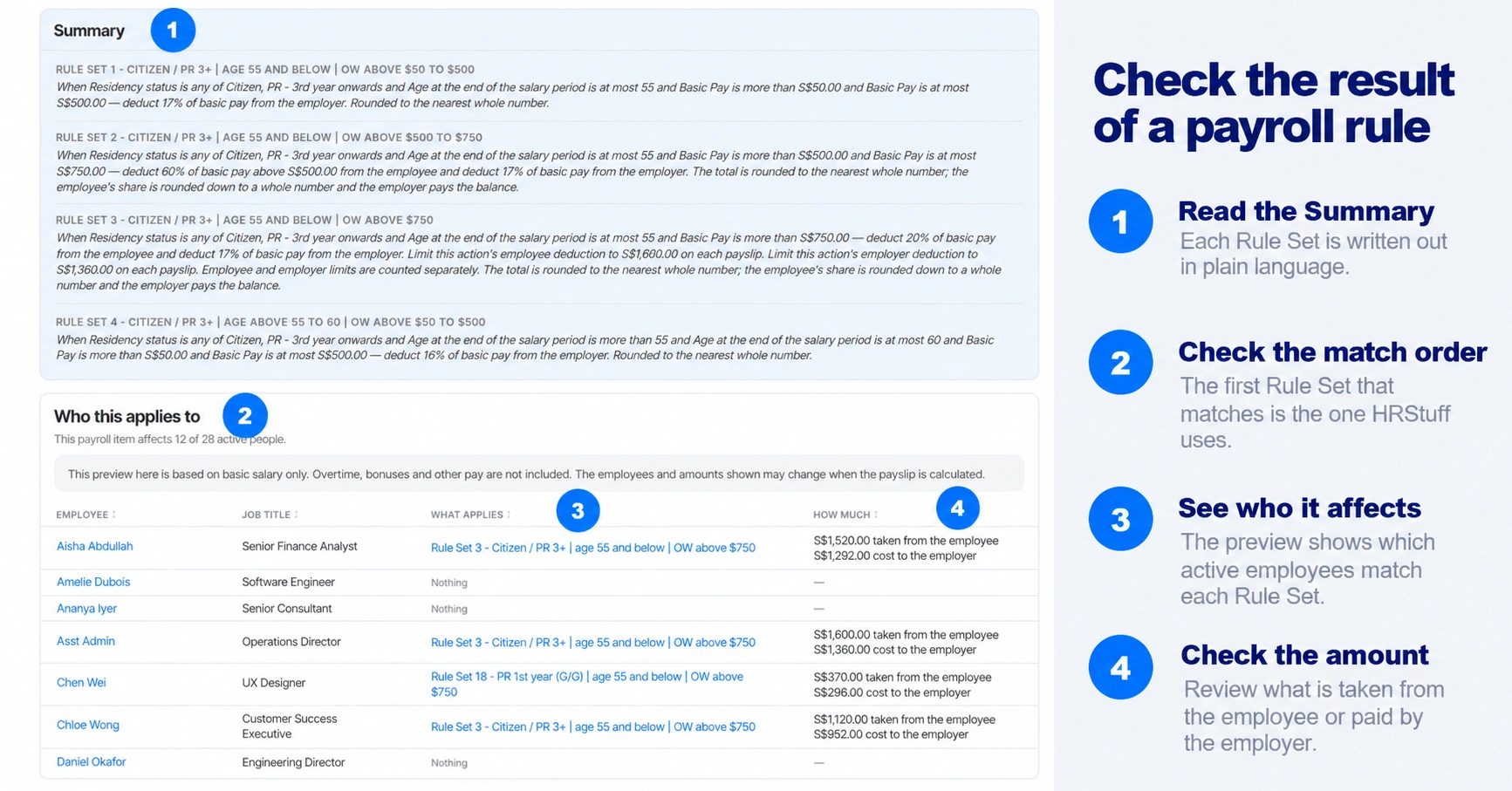
Read Summary
The Summary card turns each saved Rule Set into a plain-language sentence. Check that the Rule Set adds or deducts the correct amount, starts from the correct pay figure, uses the correct limit and applies to the correct employees.
Read Who this applies to
After saving, this card lists active employees, the first Rule Set each person matches and the amount the rule would produce in the stated preview. The card shows only rules you have saved. Save your latest changes before checking it.
Understand what the preview assumes
The preview assumes that the employee receives only their basic salary, with no overtime or bonus. A real payslip may therefore match a different Rule Set or produce a different amount. Always check a draft payslip before publishing.
Follow the safe workflow
Name the payroll item and choose when it starts. Create Rule Sets for special cases first. Put the broadest or default Rule Set last so it catches employees who did not match an earlier set.
Read the Summary and Who this applies to after saving.
Check where the item appears in Payroll Settings. If HRStuff shows a dependency warning, the item is trying to use an amount that has not been calculated yet. Move the item that provides that amount above it.
Create a draft payslip for an employee whose expected pay you know. Open How Each Figure Was Calculated. Check which Rule Set matched, which amount the calculation started from, any threshold or maximum, and how the result was rounded.
If the result is wrong, correct the employee’s information or the Payroll Builder rule, then recalculate the draft. Avoid manually replacing the amount just to make one payslip look correct, because the same error may return next month.
Publish only after the company has completed its payroll review. HRStuff does not send the bank payment or file a statutory return.