
Use one payroll figure in another calculation
Order dependent items safely and understand why a missing source blocks calculation.
What this guide helps you do
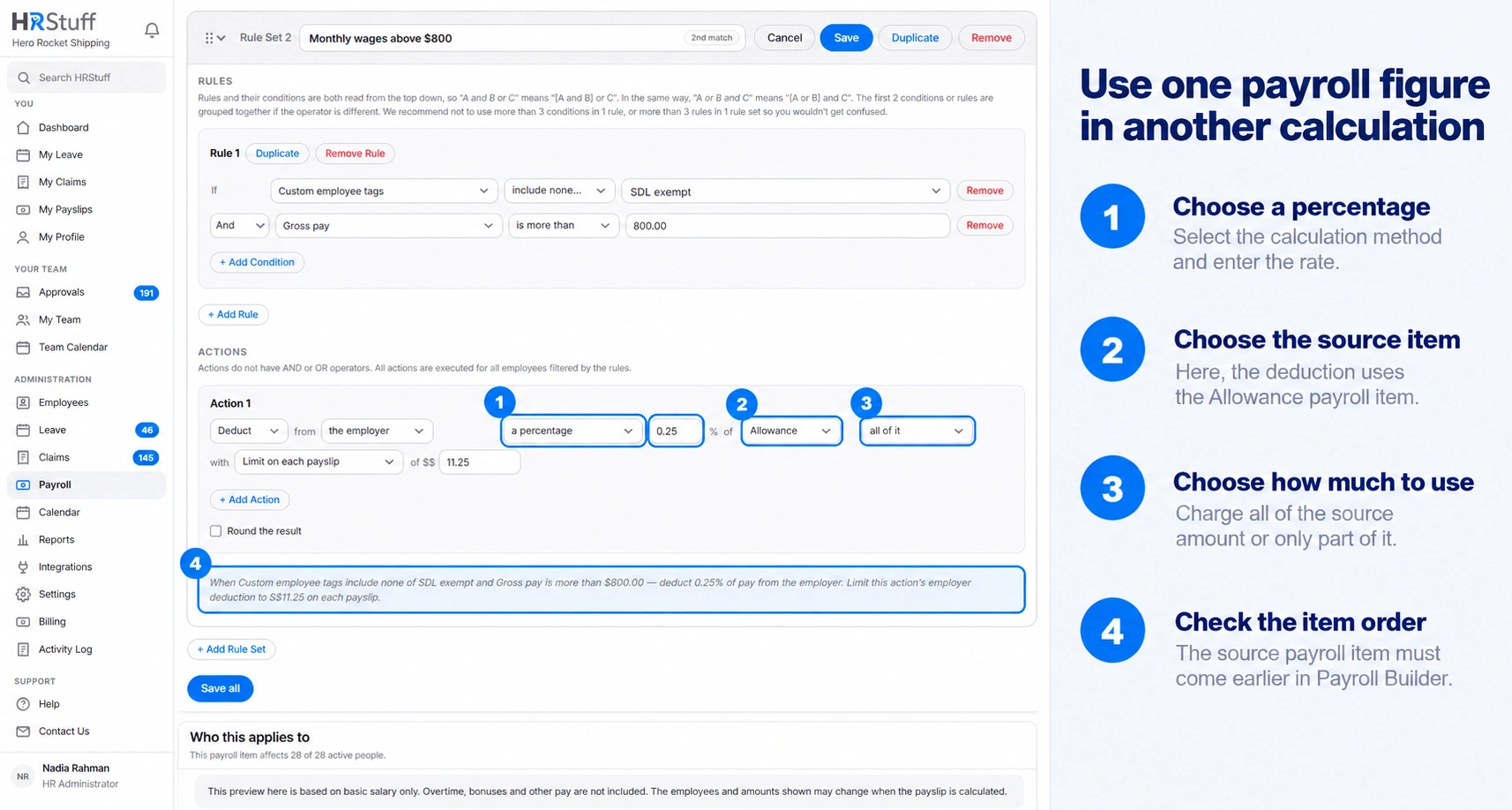
One payroll item can use an amount calculated by another item. For example, Employee pension may deduct a percentage of Pensionable allowance. Pensionable allowance is the source, and Employee pension depends on it.
HRStuff calculates items in a visible order and offers only earlier items as available sources. This prevents a new rule from relying on a figure that does not exist yet.
Understand the calculation order
Items that add money to the employee run first, because later deductions may need that pay.
Within the payment group and within the remaining items, HRStuff uses the order shown on Payroll Settings.
A percentage can use gross pay, net pay, Basic Pay, Basic salary, Additional Pay or a named payroll item that runs earlier.
A condition can test one earlier item, the published year-to-date amount of an earlier item, or a selected group of built-in and earlier line items.
The Selected payroll line items option follows the same order rule: HRStuff must calculate a custom item before it can include that item in the selected total.
A deduction based on net pay sees deductions already made before it, so order can matter even when no named item is selected.
Create a dependency deliberately
Create and test the source first
Build the item that produces the figure, save it and confirm its place in Payroll Settings. Create a draft or use Who this applies to so you know when it produces money and when it produces nothing.
Open the dependant item
Edit the item that depends on the source. For a percentage, select the earlier payroll item as the amount to calculate from. For a condition, choose its current amount under Payroll line items on this payslip or its published total under Payroll line items year to date. Use Selected payroll line items when the condition needs several specific figures added together.
Check why an item is not offered
The editor lists only active items calculated before the current item. If the source is missing from a single-item or Selected payroll line items choice, return to Payroll Settings and check its status, effective dates and order.
Save and read the summary
Confirm that the plain-language Summary names the intended source. Then create a draft and check the source amount in How Each Figure was Calculated.
Reorder dependent items safely
Find the source and dependant
On Payroll Settings, use the Calculation summary and any warning shown beneath the affected row. The warning names the source that must run earlier.
Move the source above the dependant
Move the source within its calculation group by dragging it or using the keyboard controls. Items that add to pay remain before deductions and employer contributions because those later items may need the completed pay figure.
Save the order
Do not rely on the temporary visual position. Save the order, reload Payroll Settings and confirm the warning is gone.
Recalculate affected drafts
A draft made before the correction keeps its stored lines until recalculated or saved through the payroll workflow. Open it and verify the dependency explanation before publication.
Pause or remove a source without hiding the impact
Pausing or removing a source can leave active dependant items unable to calculate. HRStuff names those dependants in the confirmation so you can cancel and correct them first.
Cancel when the source is still required by an active item.
Update the dependant to use another valid base, remove the dependency or pause the dependant before continuing.
Removing the source does not change published payslips. New draft calculations remain blocked until every active item that depends on the source is updated or paused.
Warnings use the payroll-item names people recognise rather than exposing internal codes.
Check effective dates as well as order
The source must be active for the salary-period date being calculated.
A future source cannot support a dependant that starts earlier.
An item with an effective end date cannot support later salary periods after that date.
When replacing a source, coordinate both items’ dates so there is no gap and no period in which the dependant points at an unavailable figure.
Published payslips keep the lines and explanations saved when they were issued. Fix a future dependency without changing an older published payslip.
When a dependency blocks payroll
Read the complete error
It names the dependant and the unavailable or too-late source. Start with those items instead of changing the draft amount by hand.
Check the source item
Confirm it is present, active, effective for the salary period and capable of producing the expected figure for that employee.
Check the order and the dependant rule
Make sure the source runs earlier and the action or condition still names the intended item. Reordering cannot repair a source that is paused or outside its effective dates.
Fix the rule, then recalculate
Update or pause the dependant, save, and recalculate the draft. Confirm the calculation explanation shows the correct source and amount before publishing.