
Change somebody’s login role
Move between employee, manager, assistant administrator and administrator access safely.
What this guide helps you do
A login role controls which HRStuff pages and records a person may open. Change it when their responsibility changes, then separately check reporting lines and approval settings because those are not rewritten by a role change.
Role and Login email are edited on the same Login card. If either the new role or email address is invalid, neither change is saved.
Compare the four roles before changing one
Employee: their own enabled profile, leave, claims and payslips only.
Manager: Employee access plus direct-report team pages, permitted reports and eligible approvals. No payroll, salaries, bank details, private identity records, settings or ADMINISTRATION.
Assistant Admin: company-wide leave, claims and calendar administration, including decisions, deletions, claim payments and claims import or export. No payroll, salary, private employee records, reports or settings.
HR administrator: full access to this company’s employee, access, payroll, report and settings areas. No access to other companies or the HRStuff platform portal.
Change the role safely
Open the employee’s Login card
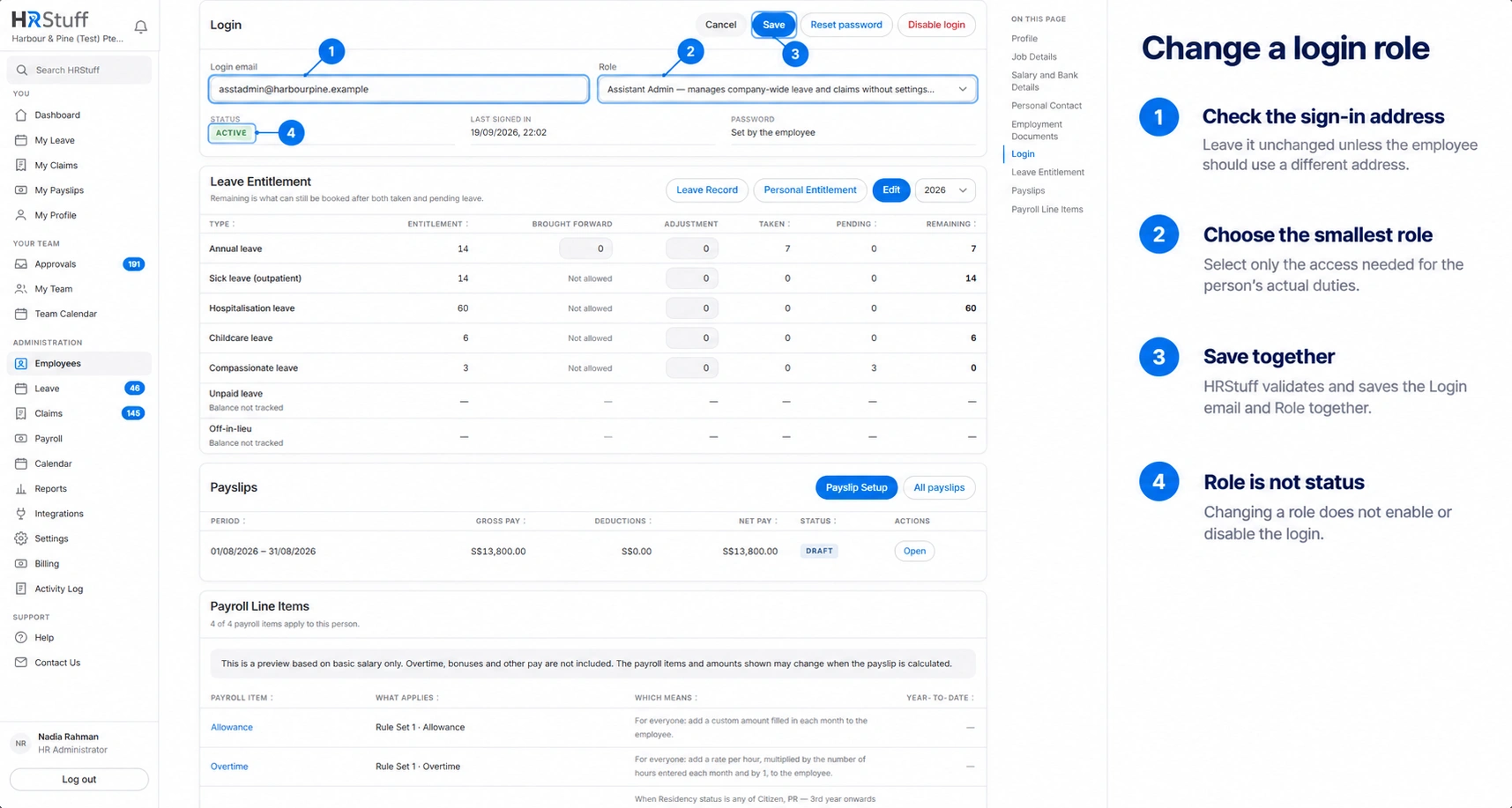
Open ADMINISTRATION, Employees, then the employee. Find Login and choose Edit. If the page says No Login Yet, the employee does not have a role yet; create a login instead.
Check Login email before saving
The sign-in address is editable in the same card. Leave it unchanged unless the person should use a different address. Changing it also updates Work email and invalidates outstanding password setup or reset links tied to the old address.
Choose Role
Select the smallest role that covers the person’s actual duties. For somebody who only approves their direct reports, Manager is normally sufficient. For company-wide leave and claims operations without private HR or payroll access, consider Assistant Admin.
Choose Save
HRStuff validates the email and administrator safeguards before saving either field. The Activity Log records the role change.
Verify the practical result
Check the person’s reporting lines, then ask them to refresh or reopen the pages they need. Their role is only one part of access; reporting lines and the company’s enabled features also affect which pages appear.
Understand the administrator safeguards
You cannot remove your own HR administrator role. This prevents the signed-in administrator from accidentally locking themselves out of ADMINISTRATION.
You cannot demote the only active HR administrator. Promote another trusted person first, confirm that their login is active, then change the original administrator.
Do not share an administrator login. Give each administrator their own employee record and login so the Activity Log can show who performed each action.
A disabled administrator does not count as an active administrator for this safeguard. Check status as well as role when preparing a handover.
Complete the related setup
After changing somebody to Manager, assign direct reports from each employee’s Job Details. The role alone creates no reporting lines.
After moving somebody away from the Manager role, review the employees who still report to them. Those reporting lines remain and may continue to give the person limited access to their direct team.
Assistant Admin does not change reporting lines and does not grant access to the employee directory, salaries or payroll.
Changing role does not activate or disable a login. Use Disable login when the account itself should stop working.
Changing role does not mark somebody as a leaver. Record a Last working day and set Employment status to Inactive when employment ends.
If the new role does not behave as expected
Confirm the employee is using the Login email shown on this record, not a second account.
Confirm the login Status is Active.
For Manager access, confirm the employee is actually named as Reporting manager on the direct reports’ records.
Check whether the relevant leave, claims, payroll or report feature is enabled for the company.
Open ADMINISTRATION, then Activity Log. Filter by the administrator who made the change or by the role-change activity to confirm what was saved.