
Check and edit public holidays
Review preset national dates, add company holidays and preserve dates that HR has already changed.
What this guide helps you do
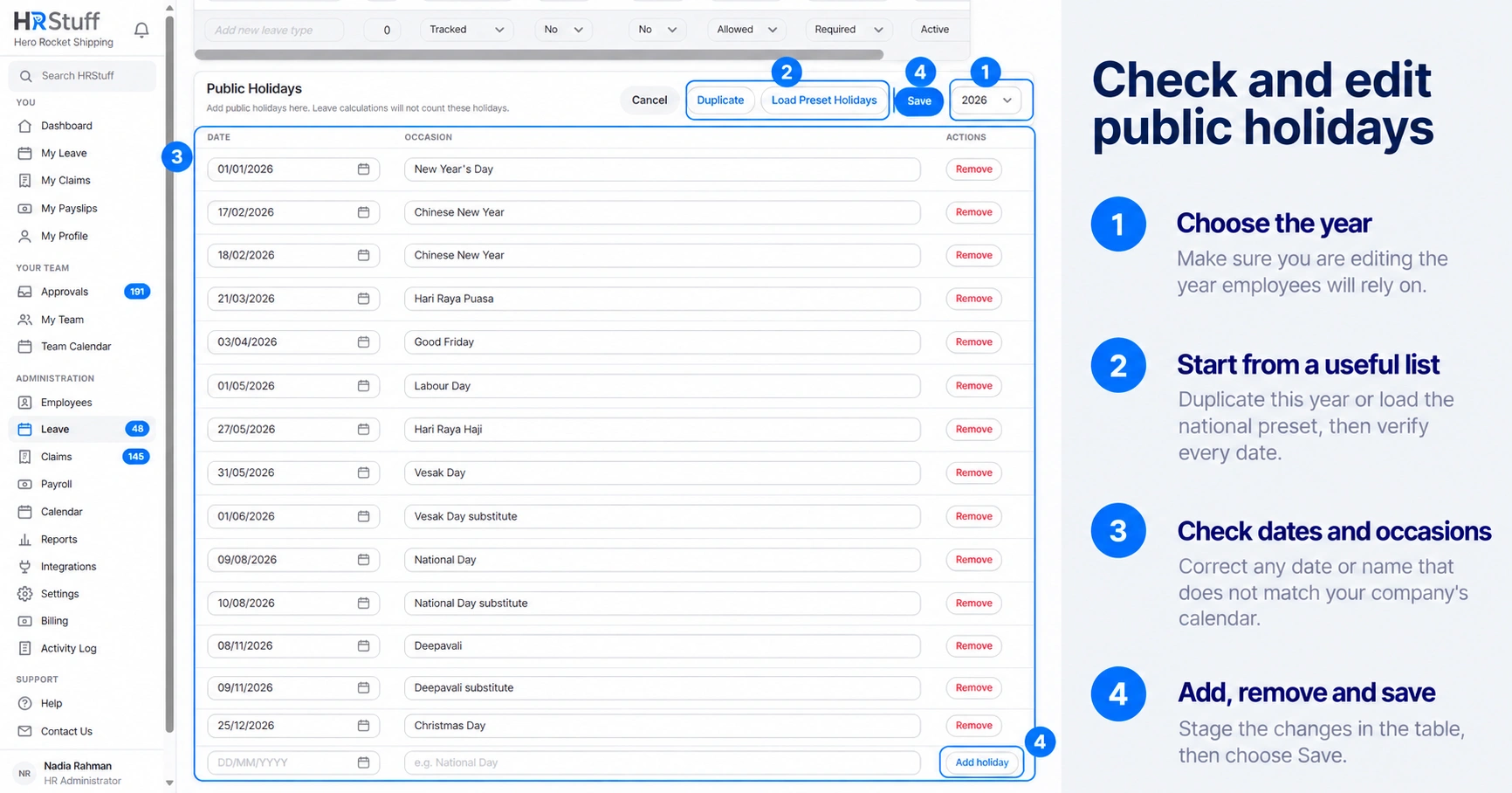
Company public holidays are excluded from leave day calculations and shown on HRStuff calendars and private calendar feeds. Open ADMINISTRATION, Leave, Leave Settings, then find Public Holidays.
Maintain the dates that apply to this workforce. A national preset is a starting list, not legal advice and not a substitute for checking an official source.
Load a national preset
Confirm the company country
The preset follows the country in Company Profile. If that country changes, review the existing holiday list rather than assuming it changed with the setting.
Choose the year
Use the year selector in the Public Holidays card.
Choose Load Preset Holidays
Read the confirmation, then load the national dates from HRStuff’s holiday library. Existing company holidays are not changed or removed.
Verify every date
Compare every date with an official source for the country. Choose Mark as reviewed only after you have checked the full list.
Add or edit a holiday
Choose Edit
The date and occasion fields unlock, together with the new holiday row.
Enter the date and occasion
Use the day employees should not be charged leave and a name they will recognise. Only one company holiday can occupy a date.
Remove any incorrect dates
Remove a date only if employees should work that day as normal.
Choose Save
HRStuff saves all changes to the card together. If a changed date affects a Pending or Approved request that has not started, HRStuff recalculates its leave days. Past leave and leave in closed years stay unchanged. The change is recorded in the Activity Log.
Start next year from this year
Choose Duplicate, select the destination year and copy. HRStuff keeps any holiday already present on a destination date, skips an impossible 29 February and reports what it copied or left alone. It never silently moves a date to make it fit.
Understand what a holiday changes
New leave requests do not spend a day on that date.
Pending and Approved requests that have not started are recalculated after an edit if the changed date falls within the request.
The Team and Company calendars show the holiday.
Private calendar subscriptions include it as a confirmed all-day event.
A holiday does not by itself change the company working week or create a leave entitlement.