
Choose integration events, recipients and timing
Control which leave, claim, payroll and delegation events each destination may receive without sending private record details.
What this guide helps you do
HRStuff uses the same list of events for email, Slack, Microsoft Teams, Telegram, Zapier and Make. First choose which events a destination may receive. Then use that destination’s controls to choose who receives them and when.
An integration event is a prompt to open HRStuff, not a copy of the full HR record. The leave request, claim, payslip or approval page remains the official place to read details and take action. There is no single master switch that configures every provider; each connected destination keeps its own saved rules.
Choose from the ten supported events
New leave requests waiting for approval.
New expense claims waiting for approval.
Leave requests approved.
Leave requests rejected.
Expense claims approved.
Expense claims rejected.
Expense claims marked as paid.
Payslips published.
Scheduled payroll failed or needs attention.
Approval delegation activated because a manager is on leave.
See who receives each personal notification
HRStuff can send a personal notification only when that person has a connected destination. Slack matches active employees by exact work email. Email and Telegram use the connection and preference saved in the person’s profile.
A new leave request goes to its responsible approver.
A new expense claim goes to its responsible approver.
An approval, rejection or paid-claim outcome goes to the employee who made the request.
A published payslip goes to the employee whose payslip was published.
Scheduled-payroll attention and approval-delegation events go to active HR administrators.
Use the control provided by each destination
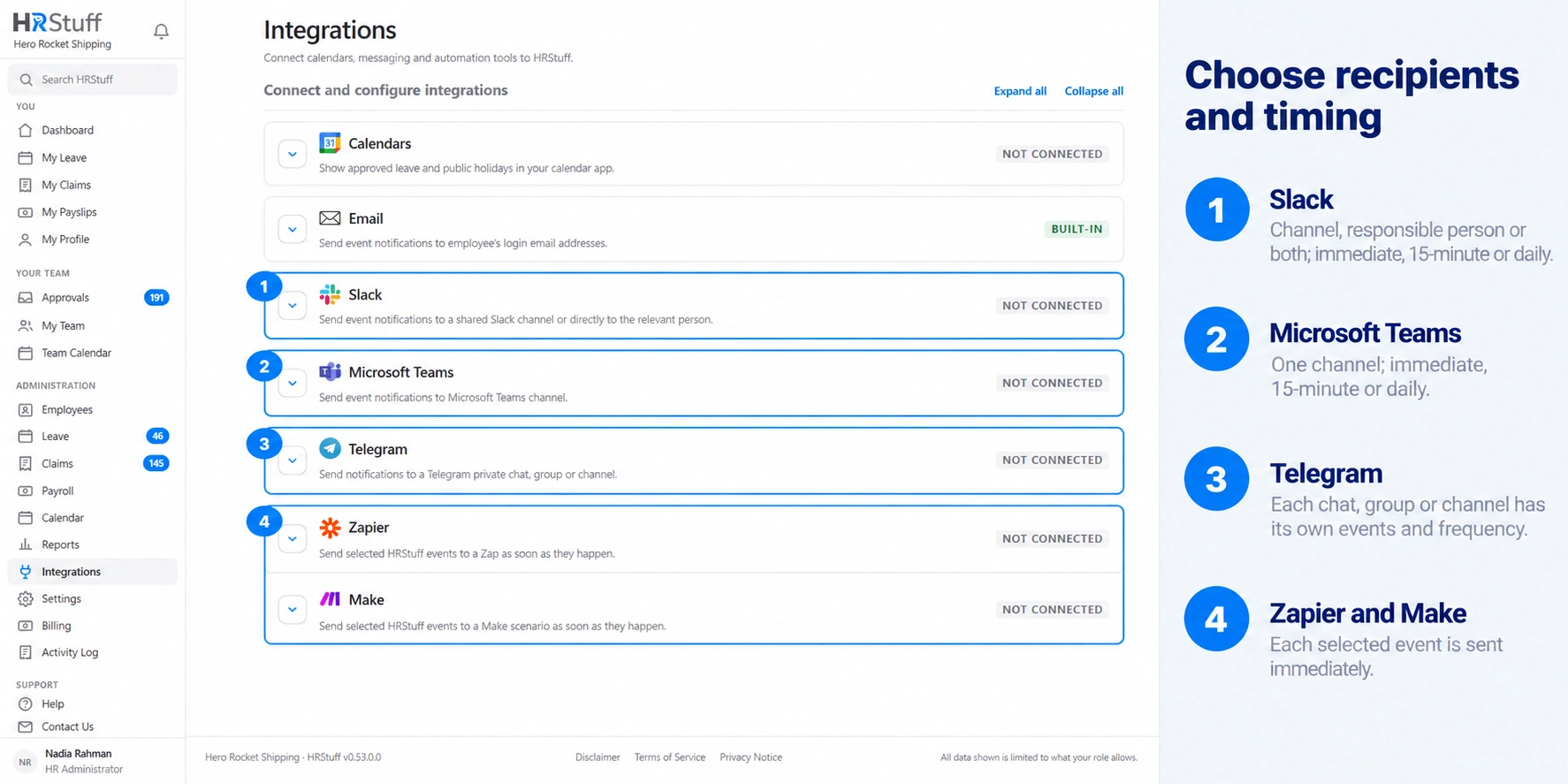
Email: in ADMINISTRATION → Integrations → Email, HR chooses the optional company event list. Each person separately chooses Immediately, 15 min notification summary, Once per working day or Off under My Profile → Notifications.
Slack: in Slack notification rules, every event has its own Send to and Timing fields. Send to can be Off, personal, shared or both.
Microsoft Teams: on the connected Teams card, choose one Notification frequency for the channel and select its Events allowed to be sent.
Telegram: every connected private chat, group or channel has its own Notification frequency, event list and Save Telegram settings action.
Zapier and Make manual webhooks: select the event types sent to that one saved webhook in HRStuff. Each selected event starts its own immediate automation delivery.
Zapier and Make installed apps: each New HRStuff Event or Watch HRStuff Event trigger watches the one event selected inside that Zap or scenario.
Choose the timing deliberately
Immediately is useful when a person must act promptly. For Slack, Teams and Telegram, HRStuff waits until there have been no matching events for 10 seconds, then sends one message for that group.
A 15-minute summary reduces interruptions by combining events due within the same window and destination.
Once per working day sends at 09:00 in the company’s time zone. The company working week and public holidays decide which date is eligible.
Off pauses ordinary event delivery without deleting the external connection. A test message may still send immediately.
Zapier and Make receive one event at a time so each automation handles a single event.
Changing a frequency controls future notification delivery. It does not change the leave request, claim, payslip or other business record that created the event.
Configure one destination from beginning to end
Decide who needs to act
Start with one event, such as New leave requests waiting for approval. Identify the responsible person, whether a shared team also needs awareness and how quickly action is required.
Avoid selecting every destination by default. Every extra shared copy reveals an employee name and event type to another group of people.
Open the correct provider card
Open ADMINISTRATION → Integrations and expand Email, Slack, Microsoft Teams, Telegram, Zapier or Make. For personal email or personal Telegram, the individual instead opens My Profile → Notifications.
Choose the event and route
Select the event in that destination’s event list. For Slack, also choose Send to on the same row. For an installed Zapier or Make app, select the event inside the provider trigger rather than the manual webhook event list.
Choose the timing
Choose the least disruptive timing that still lets the recipient act in time. Slack has a timing on every event row; Teams and each Telegram destination use one frequency for all of their selected events; email uses the recipient’s personal frequency.
Save the correct form
Choose Save Email settings, Save Slack settings, Save Teams settings or Save Telegram settings as appropriate. For a manual Zapier or Make webhook, use Save Zapier settings or Save Make settings. A native Zap or Make scenario is saved and activated in that provider.
Test the connection, then one route
Send the provider’s safe test message or event and confirm it reaches the intended destination. A connection test does not prove every event choice or personal recipient.
After the test succeeds, use one low-risk real event to check the selected route and timing. Do not repeat or reverse an HR decision merely to generate another notification.
Know what may leave HRStuff
Shared-channel and automation events always include a link back to HRStuff. Depending on the event, they may also include employee, requester and approver names. Automation events also include an event identifier, type, status, version, time and company details.
Claim amounts, receipts, leave reasons, attachments, payslip contents, bank details and other private record fields are not sent through integrations. A link back to HRStuff does not grant access; normal sign-in and role permissions still apply.
Change notification rules safely
Start with the business action
Ask who needs to act, who merely needs awareness and how quickly. Do not send every event everywhere simply because it is available.
Review shared-channel membership
Before enabling a shared copy, confirm that everyone in the channel or group may know the employee name and event type.
Save one destination at a time
Write down the previous choice when changing a business-critical route. Save the provider’s settings, send a test where available and wait for one real low-risk event before widening the setup.
Check that Off means what you intend
Off pauses ordinary notifications for that channel or destination; it does not necessarily disconnect the external account. Essential account and security email can still be immediate, and provider test messages can still be sent.
Recheck after people or policy changes
Refresh Slack employee matches after work-email changes. Review rules when approvers, payroll responsibilities, working days, time zones or shared-channel membership change.