
Connect a Microsoft Teams channel
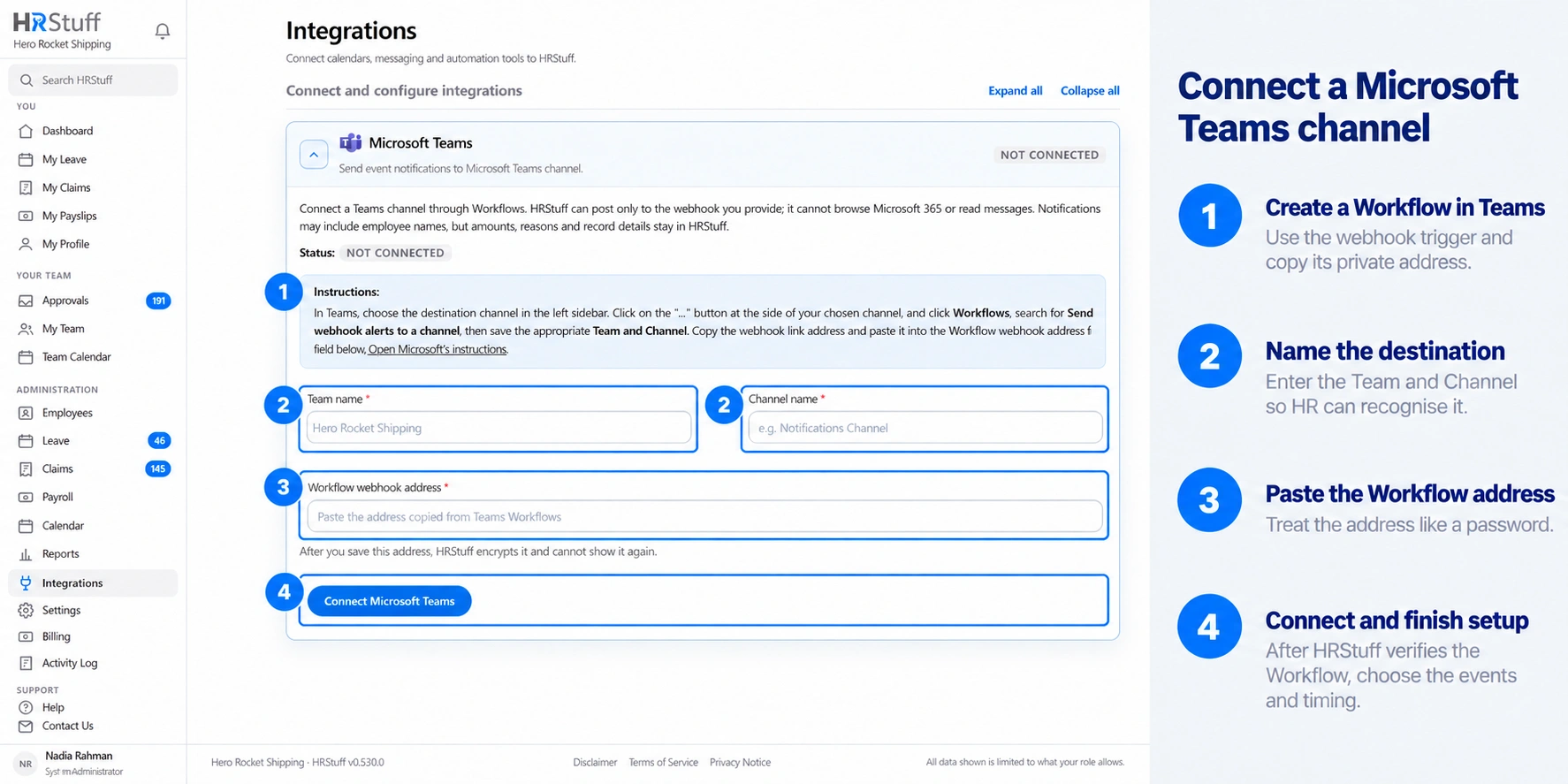
Create a Teams Workflow webhook, choose the allowed events and set when the channel receives them.
What this guide helps you do
HRStuff sends notifications to a Microsoft Teams channel through a Microsoft Workflow. You create the Workflow in Teams and paste its private web address into HRStuff. HRStuff cannot browse Microsoft 365, choose a channel for you or read Teams messages.
The company uses one primary Teams channel connection. Its event selection and notification frequency are managed from ADMINISTRATION → Integrations.
Create the receiving Workflow in Teams
Open the intended channel
In Microsoft Teams, find the Team and channel that should receive HRStuff notifications. Check the channel’s membership before continuing because notifications may contain employee names and event types.
Choose More options (…) beside the channel name, then choose Workflows. If Workflows is missing, ask your Microsoft 365 administrator whether the Workflows app or Power Automate is available for your account.
Choose the incoming-webhook template
In the Workflows window, search for Send webhook alerts to a channel and select that template. Do not create a legacy Office 365 Connector; Microsoft is replacing those connectors with Workflows.
Sign in to or confirm the Microsoft account shown for the workflow connection when Teams asks.
Select the Team and Channel
Choose Next if the template shows an introduction. Select the exact Team and Channel that should receive the messages, then choose Add workflow or Save, depending on the Teams version.
Wait for confirmation that the Workflow was added. When HRStuff sends a notification, the Workflow posts it to the selected channel.
Copy the workflow address
Teams shows a long HTTPS webhook address after the workflow is created. Choose Copy and keep the complete value temporarily. Do not copy the ordinary browser address of the Teams channel.
If you close the confirmation before copying it, open Workflows and manage the newly created workflow to retrieve or recreate the trigger address.
Add a co-owner for business continuity
Microsoft ties a Workflow to its owners rather than to the Team or channel itself. Add an appropriate co-owner in Power Automate so the workflow does not become unmanaged if its creator leaves the organisation.
A co-owner should be somebody authorised to manage this HR notification route. They can view run history, repair connections, disable the workflow or update it.
Connect the Teams channel in HRStuff
Open the Microsoft Teams card
In HRStuff, open ADMINISTRATION → Integrations and expand Microsoft Teams. If no channel is connected, the connection form appears. If a channel is already connected, choose Change channel to reveal the replacement form.
Enter Team name and Channel name
Enter the names as they appear in Teams so another administrator can recognise the destination later. These names are only labels in HRStuff; HRStuff cannot browse Microsoft 365 or check them against Teams.
The webhook address decides where messages really go, so a typo in either label does not redirect delivery. It can, however, mislead somebody maintaining the connection later.
Paste the Workflow webhook address
Paste the complete address copied from the Teams Workflow into Workflow webhook address. HRStuff accepts only a secure Microsoft Workflows address.
After saving, HRStuff encrypts this address and cannot display it again. If you later change channels or workflows, copy the complete new address from Teams and use Change channel.
Connect and verify the channel
Choose Connect Microsoft Teams or Change Teams channel. HRStuff sends a sample message before it saves the connection.
Open the intended Teams channel and confirm that the sample arrived. Return to HRStuff and check that the card says Connected and shows the Team and Channel labels you entered.
Choose events and one channel frequency
Immediately waits until there have been no matching events for 10 seconds, then sends one message for the group.
15 min notification summary combines events from the same window.
Once per working day sends at 09:00 in the company time zone and skips non-working days and public holidays.
Off keeps the workflow connected but pauses new event notifications. Send test message still works immediately.
Choose Notification frequency
Open the connected Microsoft Teams card and choose one frequency for the whole channel. Unlike Slack, Teams does not have a different timing setting on every event row.
Choose Events allowed to be sent
Open Events allowed to be sent and choose the HRStuff events this channel may receive. Select only events whose employee names and event types are appropriate for every channel member.
Save and send a test
Choose Save Teams settings, then choose Send test message. Confirm the sample reaches the intended channel. The test is immediate even when Notification frequency is Off or grouped.
The sample proves that the current webhook accepts a message. Use one low-risk real event later to confirm that the selected event and summary timing meet the team’s needs.
Understand what Teams receives
A Teams notification may contain employee, requester or approver names and a link back to HRStuff. Claim amounts, leave reasons, attachments, payslip contents and other record details stay inside HRStuff.
The link does not bypass permissions. The person opening it must sign in to HRStuff and must already be allowed to see the destination page or record.
Test, change or disconnect the channel
Choose Send test message after changing the Teams workflow or if the card says Needs attention.
Choose Change channel to enter a replacement Team name, Channel name and workflow address. The old saved address is replaced; it cannot be recovered from HRStuff.
Choose Disconnect to stop HRStuff deliveries. This does not delete or disable the Workflow in Teams, so remove that Workflow separately if it is no longer needed.
If Teams refuses a test, open the Workflow in Teams or Power Automate. Check that it is enabled, its owner and connections are active, and its recent run history does not show an error. Copy a fresh workflow address, then use Change channel when the old trigger cannot be restored.
Review Workflow ownership when the person who created it changes role or leaves. HRStuff cannot repair or transfer a Microsoft-owned workflow.