
Connect Slack channels and personal notifications
Authorise a workspace, choose the shared channel and route each event to the channel, the responsible person or both.
What this guide helps you do
The Slack connection can send HRStuff notifications to one shared Slack channel, directly to the responsible people, or to both. A company HR administrator controls the connection and can choose a different destination and timing for every supported event.
HRStuff uses Slack sign-in to connect the selected workspace and channel. It requests only the permissions needed to post messages and match active employees by work email. It cannot read Slack messages or private conversations.
Prepare Slack and the employee records
Sign in to the Slack workspace you intend to connect. Your Slack organisation may require a workspace owner to approve or install apps.
Choose the shared notification channel before starting. HRStuff connects one primary shared channel for the company.
If the destination is a private Slack channel, the person authorising HRStuff must already be a member of that channel before it can appear in Slack’s channel picker.
For personal messages, make sure each active employee’s HRStuff Work email exactly matches the email on their Slack account.
Only an HR administrator can connect or change the company integration. A read-only support session cannot do it.
Connect Slack
Open the Slack connection
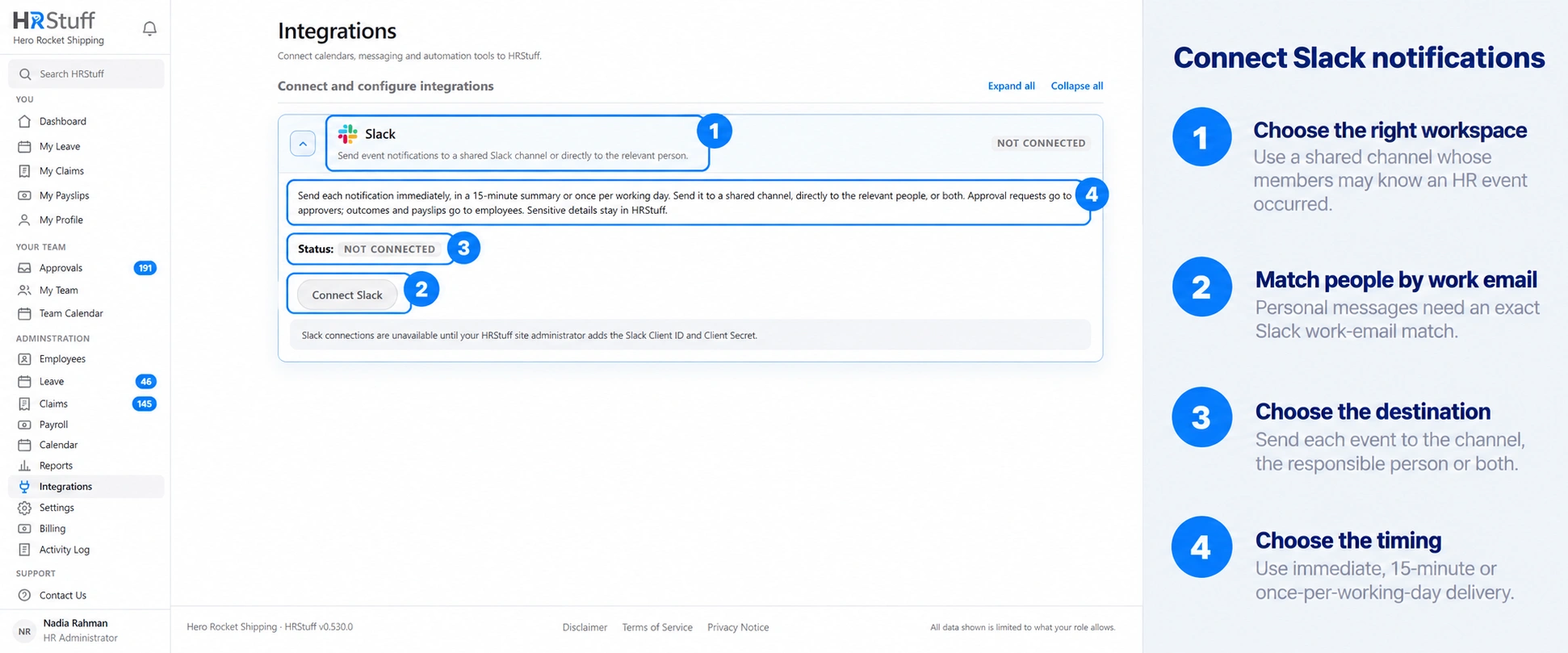
In HRStuff, open ADMINISTRATION → Integrations and expand Slack. Choose Connect Slack. HRStuff opens Slack’s authorisation page using a temporary secure connection request.
If the button is unavailable, the HRStuff installation has not been configured for Slack or your current support session is read-only. An HRStuff site administrator must resolve that before a company connection can be created.
Select the intended Slack workspace
At the top of Slack’s authorisation page, check the workspace name. If the wrong workspace is shown, use Slack’s workspace selector or sign in to the correct workspace before continuing.
If Slack says the app requires approval, submit the request to a workspace owner or app manager. Return to HRStuff and begin Connect Slack again after approval.
Review the requested permissions
Slack shows that HRStuff may post to one selected channel, send messages as the HRStuff app and read member names and email addresses for matching. HRStuff does not ask to read channel history or private conversations.
Choose the channel that may receive shared HR notifications. Select a channel whose members are allowed to know employee names and event types, then choose Allow or the equivalent authorisation action.
Confirm the returned connection
Slack returns you to ADMINISTRATION → Integrations. The Slack card should show Connected followed by the workspace and shared-channel names.
If either name is wrong, choose Reconnect Slack and repeat the authorisation. Do not rely on notification rules until the displayed destination is correct.
Send a channel test
Choose Send test message and open the selected Slack channel. Confirm that the HRStuff connection message appears there.
The test checks the shared-channel connection only. It does not create a leave request, claim or payroll event, and it does not prove that every employee can receive a personal Slack message.
Understand the Slack permissions
Incoming webhook lets HRStuff post to the selected shared channel.
Post messages lets HRStuff send a direct notification to a matched Slack member.
Read users and email addresses lets HRStuff match an active employee by exact work email.
HRStuff does not request permission to read channel messages or private conversations.
HRStuff securely stores the Slack connection details and does not display them after the connection is saved.
Check personal-message matching
The Slack card shows how many active employees matched and lists anyone who cannot receive a personal Slack message. Choose Refresh employee matches after correcting a work email or adding a person to Slack.
If HRStuff cannot match the intended recipient, it warns administrators and does not copy that private message into the shared channel. A shared copy is sent only when that event’s rule explicitly includes Shared channel.
An older Slack connection may support only the shared channel. If HRStuff says personal messages need a newer connection, choose Reconnect Slack. The existing shared rules remain until the replacement succeeds.
Choose where and when each event is sent
Off sends that event nowhere in Slack.
Personal message only sends it to the responsible approver, requester or HR administrator when that person can be matched.
Shared channel only posts it to the connected channel.
Personal message and shared channel sends one copy to the responsible person and one to the shared channel.
Immediately waits until there have been no matching events for 10 seconds, then sends one message for the group. In a 15-minute summary combines events from the same window. Once per working day sends at 09:00 on the next eligible company working day.
Open Slack notification rules
Each row represents one HRStuff event. The row also states who the responsible personal recipient is, such as the responsible approver or the employee who submitted the request.
Choose Send to for every row
Choose Off, Personal message only, Shared channel only, or Personal message and shared channel. A personal option is unavailable when the connection cannot match Slack members by work email.
Choose Timing for every active row
Choose Immediately, In a 15-minute summary, or Once per working day. The timing applies separately to the personal and shared copies created by that row.
Save and check delivery
Choose Save Slack settings. Then choose Refresh employee matches if employee emails or Slack membership changed.
Use Send test message to verify the shared channel, then use one low-risk real event to confirm delivery to the responsible person. Do not repeat an approval or payroll action merely to force another notification.
Know what a Slack notification contains
Approval summaries can name the requester and approvers. Outcome, payment, payslip and delegation notices can name the affected employee. The message contains a link back to HRStuff so an authorised user can open the real record.
Claim amounts, receipts, leave reasons, attachments, payslip figures and other private record details are not included in Slack notifications. Being able to read a Slack notification does not give someone access to the linked HRStuff record; they must sign in and have permission to open it.
Reconnect or disconnect Slack
Choose Reconnect Slack when the workspace or shared channel must change, personal messaging must be enabled, Slack requests new permissions, or Slack has ended the connection. The existing connection remains in place until the replacement succeeds.
Use Send test message after a Slack permissions or channel change. A successful test clears the current connection warning.
Choose Disconnect and confirm to stop both shared and personal Slack notifications in HRStuff. The saved Slack connection and delivery settings are removed.
Disconnecting in HRStuff does not remove the HRStuff app from the Slack workspace. If the workspace should no longer authorise the app, a Slack owner or app manager must remove it separately from Slack’s installed-app management page.