
Set up email notification summaries
Let HR choose which company events may create email, while each person chooses their own summary frequency.
What this guide helps you do
Email notifications are built into HRStuff. There is no outside account to connect. Two settings work together: the company decides which optional event types may create email, and each person decides how often their own emails should arrive.
Email notifications contain a short status message and a link back to the protected HRStuff record. They are sent to the person’s HRStuff login address. Leave reasons, claim amounts, attachments and payslip contents are not included. Optional email notifications start as Off for a new user.
Choose which optional events the company permits
New leave requests waiting for approval.
New expense claims waiting for approval.
Leave requests approved or rejected.
Expense claims approved, rejected or marked as paid.
Payslips published.
Approval delegation activated because a manager is on leave.
Open the Email settings
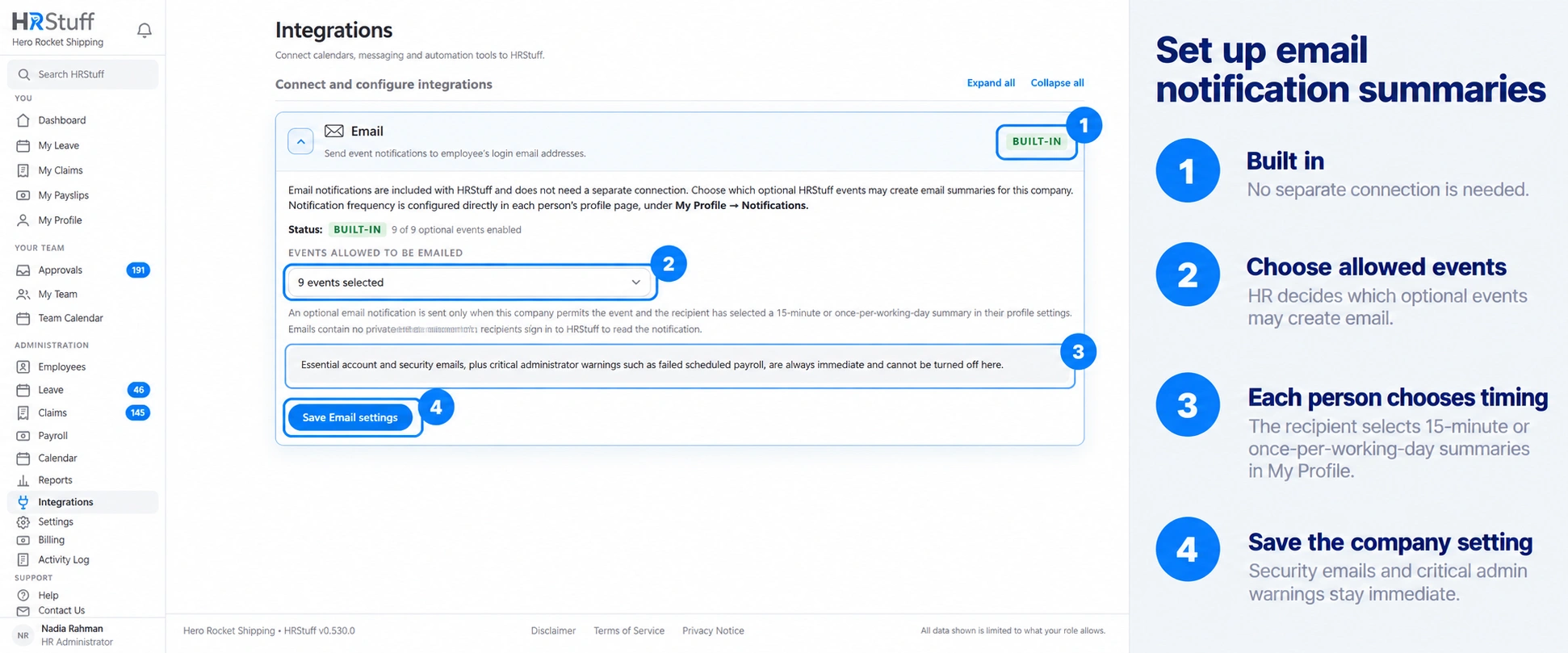
Sign in as an HR administrator and open ADMINISTRATION → Integrations. Expand Email. The card says Built-in because HRStuff sends the email itself; there is no provider account, password or webhook to connect.
Open Events allowed to be emailed
Choose the field to open the event list. Select each optional event that the company permits HRStuff to email. Clear an event when it should remain only as an in-app notification.
This company setting controls which events may be emailed. It does not choose the recipient or override anyone’s personal frequency.
Save the company selection
Choose Save Email settings. The Email card shows how many optional event types are enabled. Turning an event off also prevents its queued or failed optional emails from being sent later; it does not remove the HRStuff event or its in-app notification.
Let each person choose their email frequency
Open My Profile
Each person signs in to their own HRStuff account, chooses My Profile from the left navigation and opens the Notifications card. An administrator should not make this choice by signing in as somebody else.
Check the receiving address
The Email section states the login address that will receive notifications. This can differ from a Personal email or Work email stored on the employee record. To change the login address, use the account-management process rather than editing an employee contact field.
Choose Email notifications
Immediately sends one privacy-safe email as soon as each permitted ordinary notification is created.
15 min notification summary waits and groups notifications that become due within the same summary window.
Once per working day groups them for 09:00 on the next eligible company working day.
Off pauses optional personal email without changing the in-app notification list or essential account messages.
Save the preference
Choose Save notification preferences at the top of the Notifications card. The choice applies only to that login. The company event list cannot override an individual’s Off selection.
Check the setup with one safe event
Choose an event that is allowed
Use an event enabled under ADMINISTRATION → Integrations → Email and identify the person HRStuff should notify. For example, a test leave request can notify its responsible approver.
Check both settings before creating it
Confirm that the intended recipient’s Email notifications preference is not Off and that the login address shown in My Profile is correct. If testing a summary, note the expected delivery window instead of creating the same event repeatedly.
Create one low-risk event
Use a test employee or harmless record where possible. Then check the recipient’s HRStuff notification list first. For Immediately, check email shortly afterwards. For a 15-minute or daily summary, wait until the stated due time.
Do not repeat the HR action to force another email
If the HRStuff event already exists, keep that record and troubleshoot the email settings. Reapproving leave, republishing a payslip or repeating another business action can change the official record or create duplicates.
Understand once-per-working-day timing
Daily summaries are due at 09:00 in the company’s time zone. HRStuff uses the company working week and public holidays. If 09:00 has passed, or today is not a working day, the summary moves to the next working day.
A notification that is read in HRStuff before a pending summary is due may be omitted from that summary. Email is a reminder; the notification list and the underlying HR record remain the source of truth.
Know which emails are not optional
Essential account and security emails remain immediate. Critical administrator warnings, including a failed scheduled payroll, also bypass the optional event list and personal summary schedule. This prevents an important operational warning from being hidden by an ordinary notification preference.
Turning off an optional event on the Integrations page stops queued or failed optional emails of that type from being sent later. It does not remove the corresponding HRStuff record or in-app notification.
If an expected email does not arrive
Check that the event exists in HRStuff and that the correct person is its approver, requester or HR recipient.
Ask the recipient to check My Profile → Notifications and confirm that Email notifications is not Off.
Check that the company still permits that event in ADMINISTRATION → Integrations → Email.
Confirm the login email address shown in My Profile. Changing another email field on the employee record does not change the login destination.
Check the in-app notification. If it is missing too, check the source event and intended recipient before investigating email delivery.
For a daily summary, check the company time zone, working week and public holidays, then allow for the next 09:00 working-day delivery.
Check junk-mail filtering only after the HRStuff settings above are correct.