
Connect Telegram chats, groups and channels
Use the HRStuff bot with private HR admin chats, groups or channels, each with its own events and frequency.
What this guide helps you do
HRStuff uses one official shared Telegram bot. Your company does not need to create a bot, paste a bot token or find a Chat ID. An HR administrator can connect several private chats, groups and channels, and each destination keeps its own event selection and frequency.
A newly connected destination starts with every supported event selected and 15-minute summaries. Review and save its settings before relying on it.
Before you start
Use the Telegram account that should own or administer the destination.
For a group or channel, you must be a Telegram administrator there.
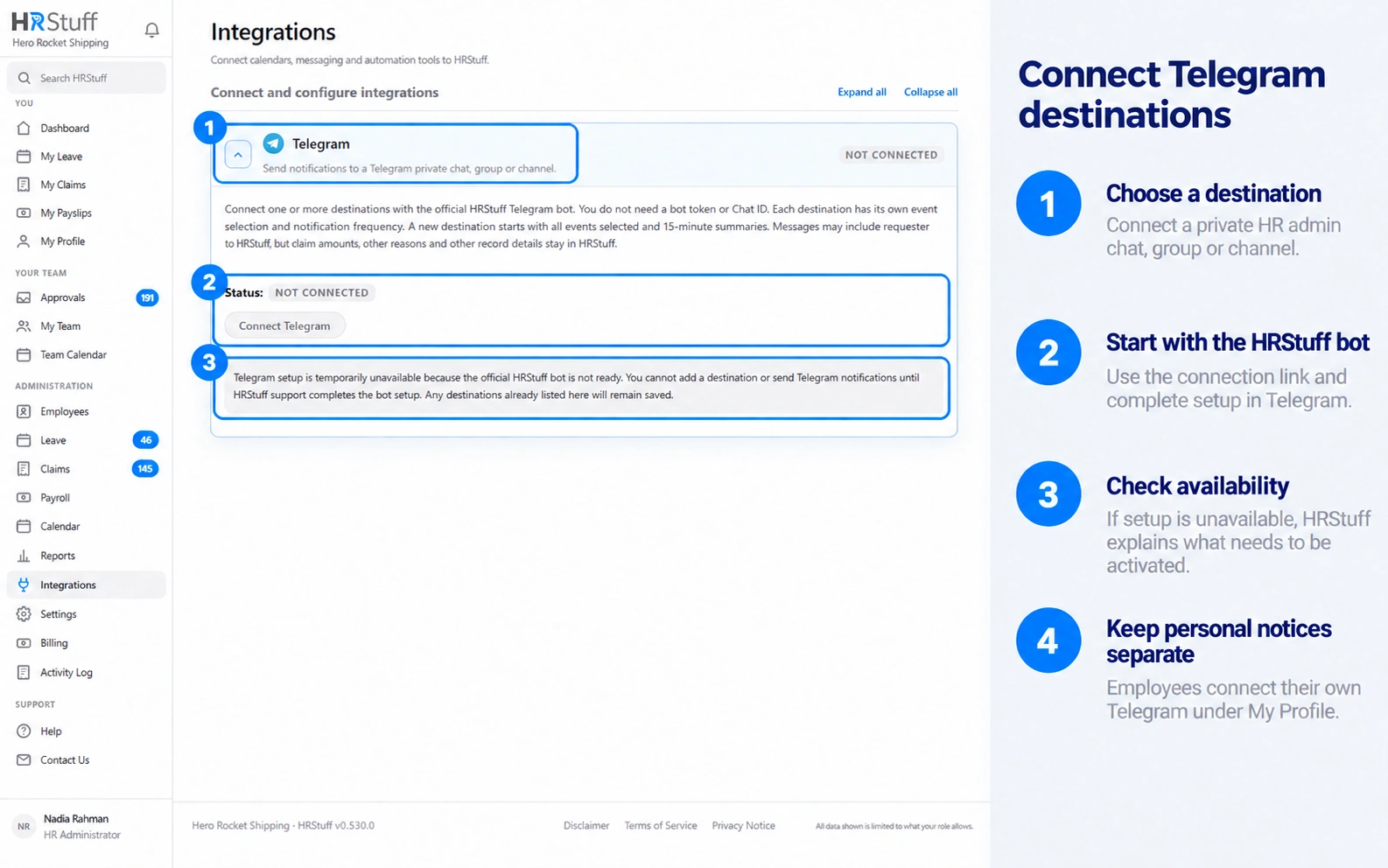
The Telegram card must show that the HRStuff bot is ready. If a Connect button is unavailable, saved destinations continue to work, but HRStuff support must restore the Telegram service before you can add another.
Each connection button creates a secure one-time link for this HRStuff company. It expires after 15 minutes and cannot be reused.
Decide whether this is a company destination or one person’s private notification channel. Company chats, groups and channels are added from ADMINISTRATION → Integrations; personal notifications are connected from My Profile → Notifications.
Connect an HR administrator’s private chat
Choose Connect HR admin chat
In HRStuff, open ADMINISTRATION → Integrations, expand Telegram and choose Connect HR admin chat. Telegram opens a private conversation with the official HRStuff bot through a one-time company link.
Check the Telegram profile currently signed in before continuing. This chat will receive company-level events selected by an HR administrator, not only events relating to that Telegram user.
Press Start in Telegram
Choose Start in the bot conversation. Telegram passes the one-time code to the bot; HRStuff verifies the code and connects only that private chat.
Wait for the “HRStuff is connected” confirmation. If the link has expired or was already used, return to HRStuff and choose Connect HR admin chat again to create a new one.
Return to HRStuff and configure it
Return to ADMINISTRATION → Integrations and refresh the page. The new private-chat destination appears by its Telegram name.
Choose its Events allowed to be sent and Notification frequency, then choose Save Telegram settings. Choose Send test message and confirm the sample reaches the same private chat.
Add HRStuff to a Telegram group
Check your group administrator rights
Open the group in Telegram and confirm that your account is an administrator. The one-time link asks Telegram to add the bot to a group, so ordinary members cannot complete this company connection.
For a discussion group linked to a channel, open Admin rights and switch off Remain anonymous before starting. Otherwise Telegram may hide the administrator identity HRStuff needs to verify.
Choose Add to a group
In HRStuff, choose Add to a group. Telegram opens a chooser containing groups where your current account can add the bot. Select the intended group and approve adding the official HRStuff bot.
The bot receives the one-time company code, verifies the administrator and group, and posts the connection confirmation. If the wrong group was chosen, disconnect it in HRStuff rather than reusing the old link.
Return to HRStuff and test the group
Refresh ADMINISTRATION → Integrations and find the group destination. Review the selected events and frequency before choosing Save Telegram settings.
Choose Send test message and confirm the sample appears in the intended group. Check group membership before enabling events whose employee names should not be visible to every member.
Connect a Telegram channel
Add the HRStuff bot as a channel administrator
Open the channel’s administrator settings in Telegram, add the official HRStuff bot and allow it to post messages. The bot does not need permission to edit the channel’s other messages.
Your own Telegram account must also be an administrator of that channel. HRStuff refuses the connection if it cannot verify your role or the bot cannot post.
Choose Connect a channel
In HRStuff, choose Connect a channel. Telegram opens the bot’s private chat through a one-time link. Choose Start, then use Telegram’s channel chooser to select the intended channel.
The bot verifies your administrator role, its own posting permission and the one-time company code before saving the destination.
Return, configure and test
Refresh ADMINISTRATION → Integrations and find the channel destination. Choose its events and frequency, then choose Save Telegram settings.
Choose Send test message and confirm the sample appears under the channel’s name. If it does not, check the bot’s channel administrator permission before disconnecting and starting again.
Configure each destination separately
Every Telegram destination has its own Notification frequency and Events allowed to be sent fields. Changing one private chat, group or channel does not change the others.
A new company destination begins with every supported event selected and a 15-minute summary. Review both fields before relying on the default, then choose Save Telegram settings for that destination.
Immediately waits until there have been no matching events for 10 seconds, then sends one message for the group.
15 min notification summary combines events from the same window.
Once per working day sends at 09:00 in the company time zone and skips non-working days and public holidays.
Off leaves the destination connected but pauses ordinary event messages. A test can still be sent immediately.
Send test message posts a sample and does not create a leave, claim, payroll or approval event.
Know what Telegram receives
Messages may include requester, approver or employee names and links back to HRStuff. Claim amounts, leave reasons, attachments, payslip contents and other record details remain inside HRStuff. The link still requires a permitted HRStuff login.
HRStuff owns and protects the shared bot token. The company never sees or stores it. The one-time link connects the chosen Telegram destination only to the company that created the link.
Repair or disconnect a Telegram destination
Start with Send test message. It checks the one destination shown on that card and clears its current warning when Telegram accepts the sample.
If the bot is removed from a group or loses the ability to post, HRStuff pauses that destination and marks it as needing attention.
For a private chat, open the official HRStuff bot and make sure the user has not blocked it. A bot cannot send to a user who has blocked or stopped it.
For a group, add the bot back. For a channel, restore its administrator and posting rights. Then choose Send test message.
If the test still fails, disconnect that destination and create a fresh one-time connection.
Disconnect stops HRStuff notifications for that destination but does not remove the bot from Telegram. Remove it separately from the group or channel when it is no longer needed.