
Connect leave calendars to Google Calendar, Outlook or Apple Calendar
Create, replace or disconnect a private read-only company or team feed for leave and public holidays.
What this guide helps you do
A private calendar subscription lets a supported calendar app display leave and company public holidays from HRStuff. It is read-only: changing an item in Google Calendar, Outlook or Apple Calendar does not change the HRStuff record.
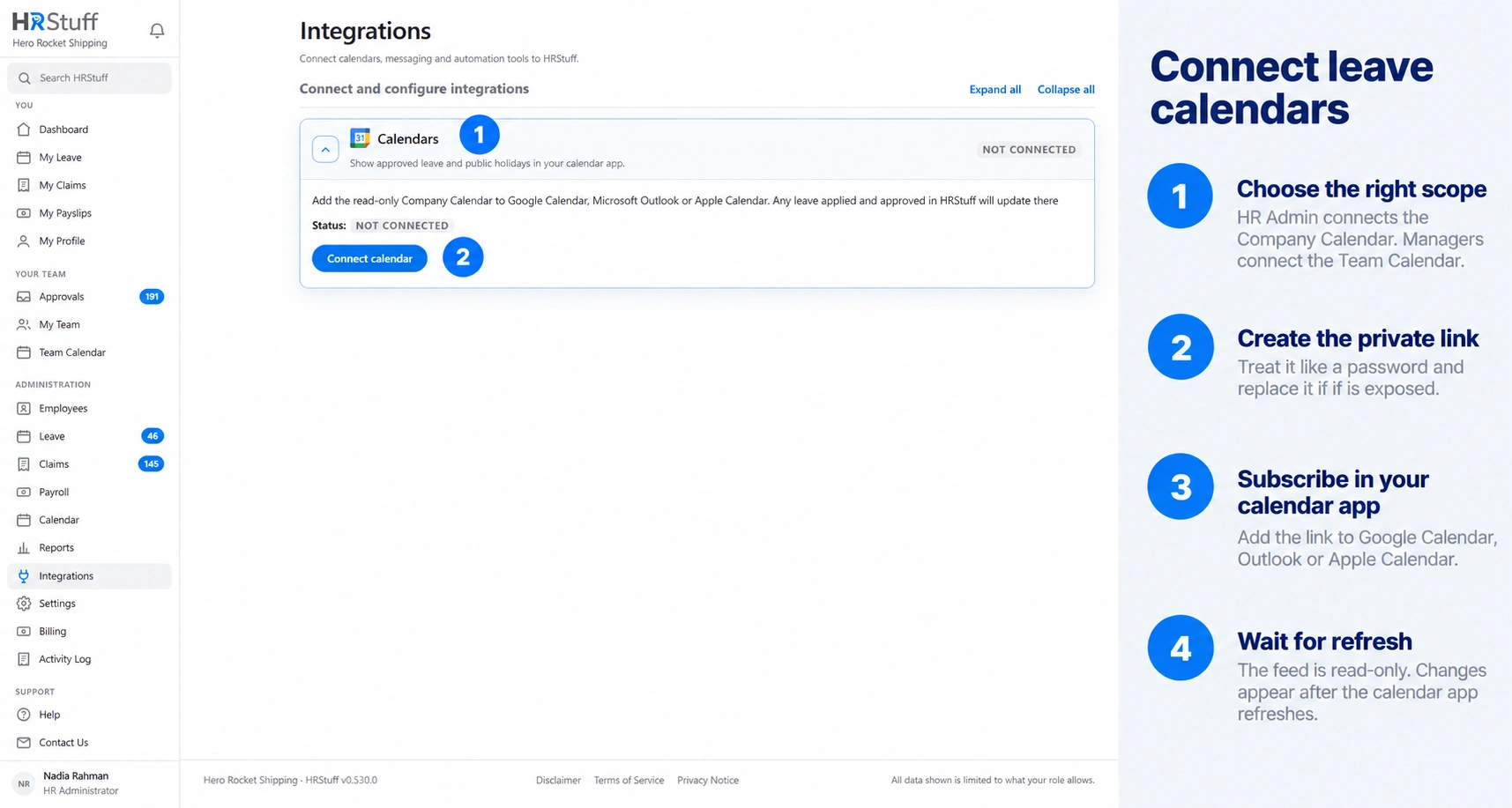
Who appears depends on the calendar you connect. HR administrators can connect the Company Calendar from ADMINISTRATION → Integrations or from the Company Calendar page. Assistant Admins connect it from the Company Calendar page. Managers connect their Team Calendar from the Team Calendar page. Whenever the calendar app refreshes, HRStuff checks what the link owner is currently allowed to see.
Choose the right calendar scope
Company Calendar is available to HR administrators and Assistant Admins. Both see active employees across the company.
Team Calendar is for a manager. It includes the manager and the active employees who currently report to them.
If somebody changes manager, role or employment status, the next calendar refresh uses the new access. The feed does not preserve a wider old view.
Leave management must be turned on before a Company Calendar can be connected from Integrations.
Add the subscription to a calendar account controlled by the intended viewer. Do not add a company-wide link to a shared or personal account whose other users should not see the calendar.
Create the private link
Open the connection
For the Company Calendar, use either of these two routes: open ADMINISTRATION → Integrations, expand Calendars and choose Connect calendar; or open the Company Calendar page and choose Connect Calendar at the top right. Both routes open the same Connect Company Calendar dialog.
For a team calendar, open My Team → Team Calendar and choose Connect Team Calendar. If the company connection is unavailable, check that Leave management is enabled. If the Team Calendar option is missing, confirm that your login is a manager and that employees currently report to you.
Choose Create private link
HRStuff creates a long, random iCal address and shows it under Private iCal Link. Your calendar app uses this address to connect. No separate username or password is needed.
The complete address is shown only on this screen. HRStuff cannot display it again. If you lose it, choose Replace link to create a new one.
Copy the complete address
Choose the copy button beside Private iCal Link. Keep the HRStuff dialog open until you have added the subscription and confirmed that it appears in the calendar app.
Do not shorten the address or copy only the visible beginning. If you close the dialog before saving the complete link elsewhere, HRStuff cannot reveal it again and you will need to choose Replace link.
Add the subscription to your calendar app
Google Calendar
Use Google Calendar in a computer browser; Google does not provide the From URL setup in its mobile app. On the left, beside Other calendars, choose +, then From URL. Paste the complete private iCal link into URL of calendar and choose Add calendar.
The subscription appears under Other calendars. You can rename or recolour it in Google Calendar without changing HRStuff.
Microsoft Outlook
Open Outlook Calendar in a browser or the new Outlook. Choose Add calendar, then Subscribe from web. Paste the complete private link, enter a recognisable calendar name and choose Import.
Choose Subscribe from web, not Upload from file. A subscription checks for later changes; an imported .ics file is only a snapshot.
Apple Calendar
On a Mac, open Calendar and choose File → New Calendar Subscription. Paste the complete private link and choose Subscribe. Enter a name, choose its colour and account location, set an Auto-refresh interval, then choose OK.
The calendar is read-only in Apple Calendar. Edit or decide the underlying leave request in HRStuff instead.
Check that the subscription was added
Find a current pending or approved leave request, or a company public holiday, that should be visible to this link owner. Confirm that the item appears in the new calendar. If the subscription was just added, allow the calendar app time to perform its first refresh.
Understand what appears in the calendar
Pending leave appears as tentative; approved leave appears as confirmed.
An entry shows the employee name, leave type, dates and any half-day wording. It may also show the employee’s job title.
Leave reasons are not included in the private calendar feed.
Company public holidays appear as confirmed all-day events.
Rejected and cancelled requests are not included.
Events are informational and do not block time in the calendar app.
Allow for calendar refresh time
HRStuff always produces the latest permitted information when the calendar app asks for it. The calendar app decides when to ask. A new approval, cancellation or public-holiday change can therefore appear in HRStuff before it appears in Google Calendar, Outlook or Apple Calendar.
If an entry looks stale, first open HRStuff and check the leave request there. HRStuff is the official record. Then wait for or trigger a refresh in the calendar app if that app provides a refresh control. Microsoft notes that an Outlook web subscription can sometimes take more than 24 hours to refresh.
If the calendar cannot be added or looks empty
Copy the complete Private iCal Link again. Do not use the ordinary HRStuff page address from the browser bar.
Choose a subscription option such as From URL, Subscribe from web or New Calendar Subscription. Importing a file does not create a live connection.
Confirm that the link owner can currently see the expected people in HRStuff. A Team Calendar with no active direct reports may correctly contain only the manager and public holidays.
Check the date range displayed by the calendar app. A valid subscription can look empty if the visible month contains no permitted leave or public holidays.
If the app reports that the address is invalid, replace the HRStuff link and paste the new complete address. The old subscription will stop immediately.
Replace or disconnect a private link
Replace a link that may have been exposed
Open the same calendar connection and choose Replace link. Confirm the warning. The old address stops working immediately and HRStuff displays one new address.
Copy the new address and replace the subscription in every legitimate calendar app. Remove the old subscription so users do not keep an empty duplicate calendar.
Disconnect a calendar that is no longer needed
Open the connection, choose Disconnect and confirm. The old address stops returning calendar data immediately.
Removing the calendar only in Google Calendar, Outlook or Apple Calendar hides it from that account but does not revoke the HRStuff link. Disconnect it in HRStuff as the security cleanup, then remove the old subscription from the calendar app.
Close access when a user leaves
Disabling the login, making the linked employee inactive or removing the role that permits the calendar also closes the old feed when it is next requested. Replacing or disconnecting it remains the clearest deliberate cleanup.