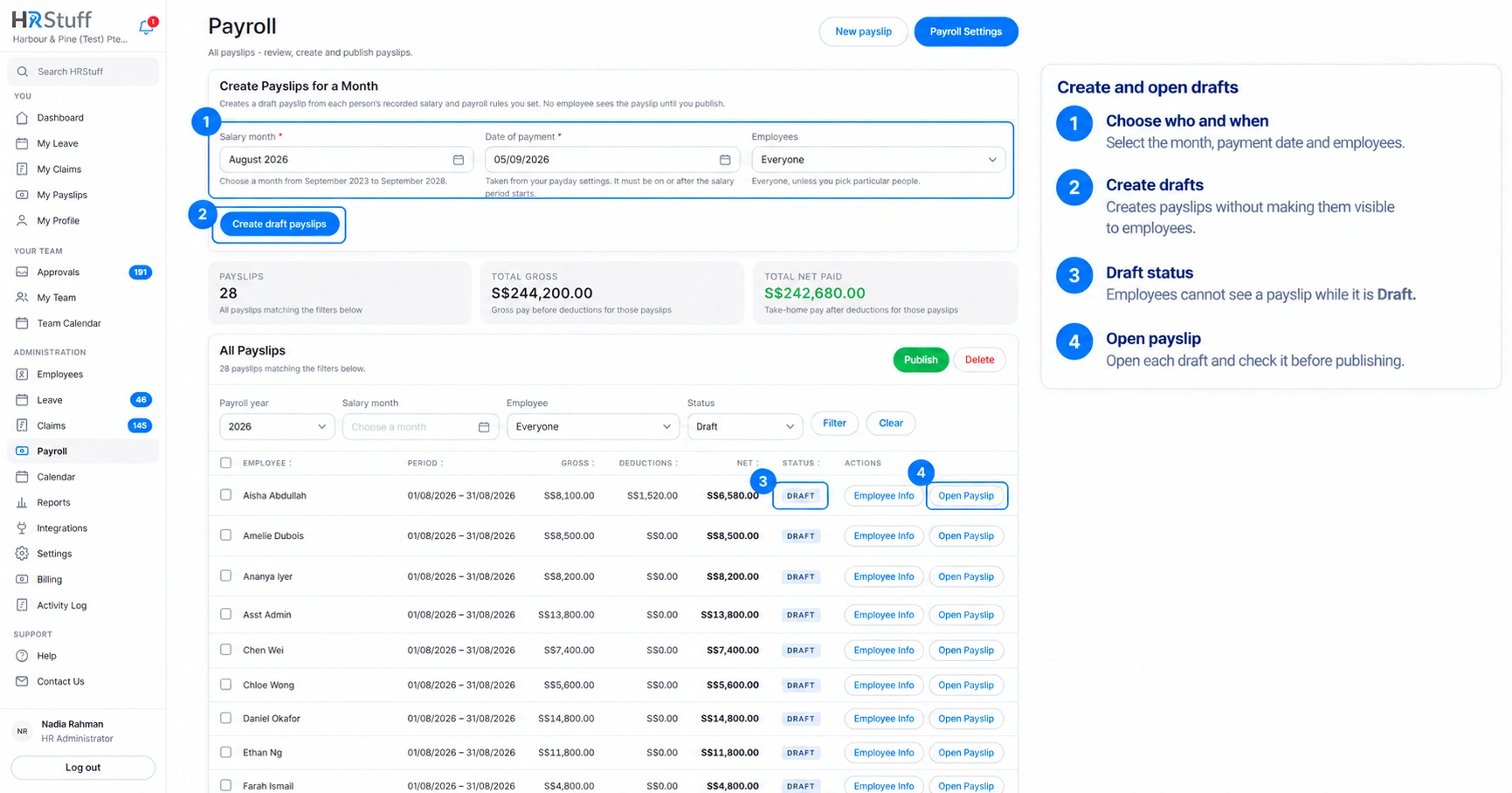
Raise one month’s drafts manually or have HRStuff prepare them on schedule.
Reading time: about 4 minutesUpdated: October 2026For: HR Admin
What this guide helps you do
A draft payslip is HR’s working copy. It calculates one salary period using the employee information that applies to that period, the employee’s Standard Payslip lines and the Payroll Builder rules. The employee cannot see it until it is published.
Open ADMINISTRATION, then Payroll. You can create a month for everyone, choose particular employees, create a one-off payslip by hand or let HRStuff create the monthly drafts on a schedule.
The numbered labels show how to create draft payslips and open them for review.
Create a month of drafts
Choose the salary month
In Create Payslips for a Month, choose the month the work belongs to. HRStuff fills the salary period with the first and last day of that month.
Check the date of payment
The date comes from Payroll Settings. If you change the salary month and leave the suggested date alone, HRStuff moves the date to the payday for the newly selected month. A date you deliberately type is kept. The date must not be before the salary period starts.
Choose the employees
Leave Employees as Everyone for the full eligible payroll, or select particular people for a smaller run. Selecting a person does not bypass their employment dates.
Choose Create draft payslips
HRStuff calculates the whole requested group as one operation. If one draft fails, none of the new drafts are kept. This avoids a half-created payroll month.
Who receives a monthly draft
The monthly run includes active employees whose employment overlaps the salary month. Their start date must be on or before the month ends, and their last working day must be on or after the month starts.
A person who had not started yet or had already left is named as not on the payroll for that month.
A person who already has a payslip for that salary period is left alone. HRStuff does not create a duplicate.
HRStuff uses the basic salary and Standard Payslip lines that applied on the last day of the salary period, not only the current values shown on the employee record.
Drafts use the Rule Sets currently saved in Payroll Builder. A dated payroll item is included only when the first day of the salary period falls within its current date range.
What HRStuff puts into each draft
Employee, salary period, date of payment and company currency.
The employee’s basic salary and standard recurring payroll lines for that period.
Additional pay, deductions and employer contributions produced by the Payroll Builder.
A saved explanation of each calculated line, including the matching rule, base figure, limits and rounding.
Warnings when a rule needs employee information that is missing or unusable.
Create one unusual draft
Choose New payslip to start without copying the employee’s Standard Payslip lines. Select the employee, enter the salary period, payment date and basic salary, then add any one-off payments, deductions or employer contributions.
This route creates a deliberately blank working payslip; it still applies Payroll Builder rules when the draft is calculated.
Use it for an exceptional period that should not be created as part of the normal monthly batch.
Check the result on the payslip page before publishing. A hand-built draft has the same employee-visibility and publishing safeguards as a monthly draft.
Create drafts automatically
Open Payroll Settings
In Create Drafts Automatically, choose day 1 through 28, Last day of each month or Off - Manual.
Leave time for review
The schedule raises that month’s drafts using the normal payday setting and skips existing payslips. It does not publish them. If you also schedule publishing, choose a later day so somebody can inspect the drafts first.
Check the last-run message
The settings page shows the most recent month processed. If HRStuff was unavailable on the scheduled day, it creates the missed drafts after service resumes. Administrators receive an attention notice if the run fails.
After the drafts are created
The Payroll page opens the selected salary month. Review the number created and any people skipped, then open each draft that needs attention. Employees still see nothing at this stage.
Confirm gross pay, deductions, net pay and employer contributions.
Read warnings and the calculation workings instead of judging only the final total.
Save any corrections, preview the employee-facing payslip, then publish only when the figures are ready.