
Disable or restore login access
Stop a login without deleting the employee record, then restore it when appropriate.
What this guide helps you do
Disable login when a person’s account must stop working but their employee record and employment should stay in place. This is useful for a temporary access hold, a suspected account problem or an active employee who should not currently use HRStuff.
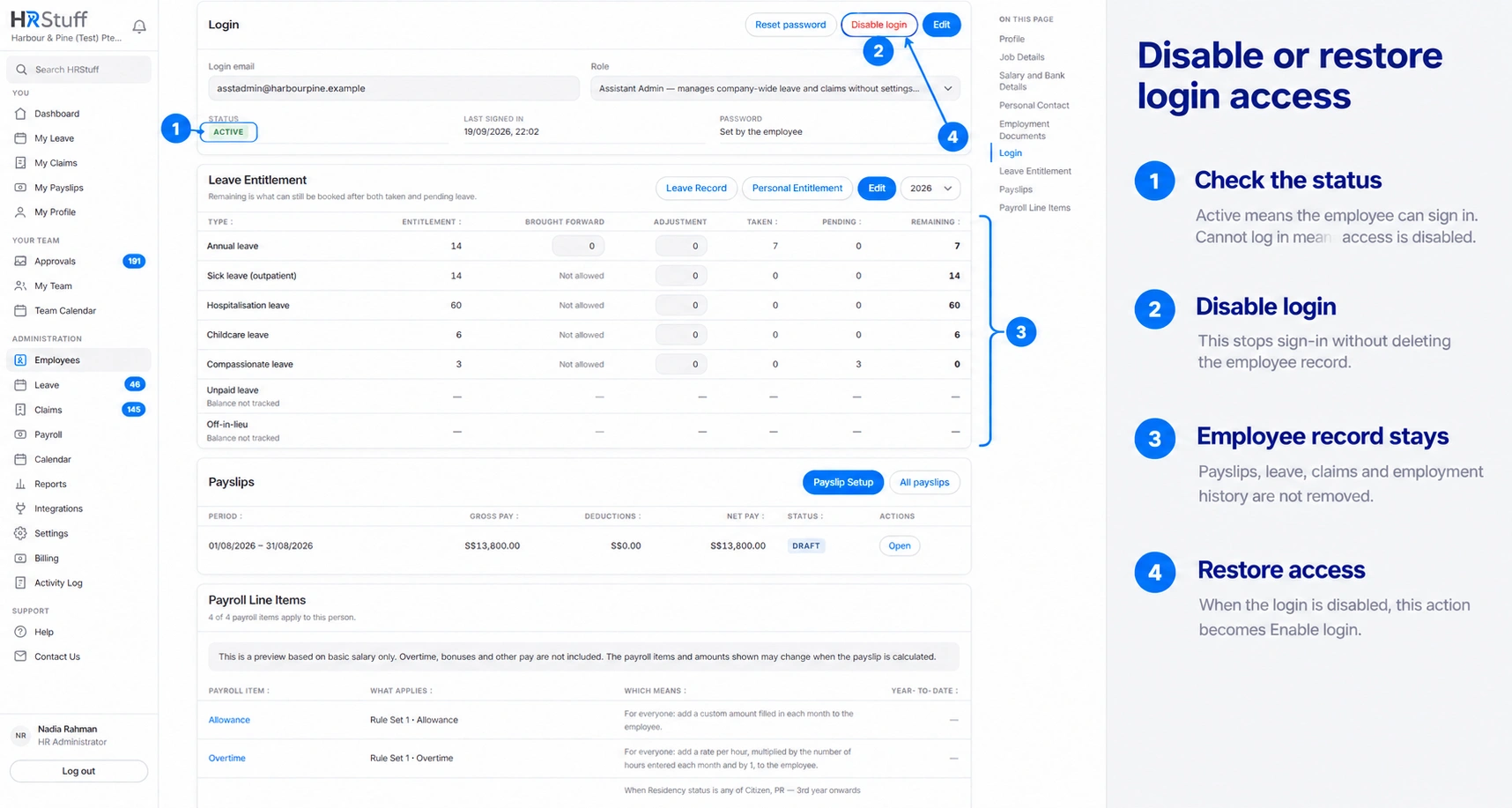
Disabling a login signs the person out, removes their active sessions and invalidates outstanding password setup or reset links. It does not delete their employee, leave, claim, document or payslip records.
Choose the right action
Use Disable login to pause access without saying the person has left.
Use Reset password when the person should retain access but has forgotten the password or an initial link is unusable.
Use Employment status Inactive with a Last working day when employment has ended.
Do not delete the employee record merely to stop access. Deletion is permanent and removes related history.
Disable the login
Open the employee record
Open ADMINISTRATION, Employees, choose the employee and find the Login card. The card must already exist; No Login Yet means there is no account to disable.
Choose Disable login
Read the confirmation and continue. HRStuff will not let you disable the login you are currently using, which protects you from locking yourself out.
Check the new status
The Login card should say Cannot log in. The person is signed out everywhere and can no longer open their profile, leave, claims or payslips. Their employee record and stored work remain available to authorised HR users.
Record why access was paused
The Activity Log records who disabled the account, but it does not record the reason. Keep any employment or security reason in your organisation’s approved confidential record, not in an unrelated HRStuff field.
Restore access
Confirm employment is Active
A login cannot be enabled while the employee is Inactive. If they have genuinely returned, first edit Job Details, set Employment status to Active and correct the employment dates. Reactivating employment deliberately leaves the login disabled until HR enables it.
Choose Enable login
Return to the Login card and choose Enable login. Status should change to Active, and the Activity Log records the restoration.
Deal with the password separately
Enabling the account does not replace its password. If the employee no longer knows it, choose Reset password and send a fresh email link or set a temporary password. A temporary password signs the person out everywhere and must be replaced at the next sign-in.
Know what disabling does not change
Employment status, job details, reporting lines and salary stay as recorded.
Payroll can still include an active employee even though they cannot sign in.
Published payslips remain stored, but the employee cannot open them while access is disabled.
The person’s role remains assigned and becomes effective again when the login is enabled.
Disabling access does not reassign approvals or direct reports. Review reporting lines when a manager will be unavailable.
If the button or sign-in result surprises you
You cannot disable your own login. Ask another HR administrator to make the change.
Enable login is unavailable for an Inactive employee. Restore Employment status first only when that employment fact is correct.
If the card says No Login Yet, create a login rather than looking for Enable.
If the employee can sign in but sees the wrong pages, check Role rather than repeatedly disabling the account.
Use ADMINISTRATION, Activity Log to confirm who enabled or disabled the login and when.