
Read an employee’s activity and payroll history
Use the record as a reliable trail without mixing private information into manager views.
What this guide helps you do
HRStuff keeps an employee’s current record together with links to their leave and payslip records. The company Activity Log separately records important actions, who performed them and when. Use both views: the employee record answers “what is stored now?” while the Activity Log helps answer “what changed and who changed it?”
Only HR administrators can open the full ADMINISTRATION employee record. Managers use limited team views and do not gain access to salary, payroll, bank, private identity or employment-document details.
Read the employee record first
Open the person
Open ADMINISTRATION, Employees, search for the person and choose their name. Use Status All or Inactive when the person has left.
Use each card for a different kind of information
Profile and Job Details show current personal and employment information. Salary and Bank Details shows current pay and payment information. Documents, Login, Leave Entitlement and Payslips each have their own access rules and history.
Do not treat a calculated figure as an editable field
Age is calculated from Date of birth. Gross pay year to date is calculated from published payslips in the current payroll year. Correct the source date or payslips when either result is wrong.
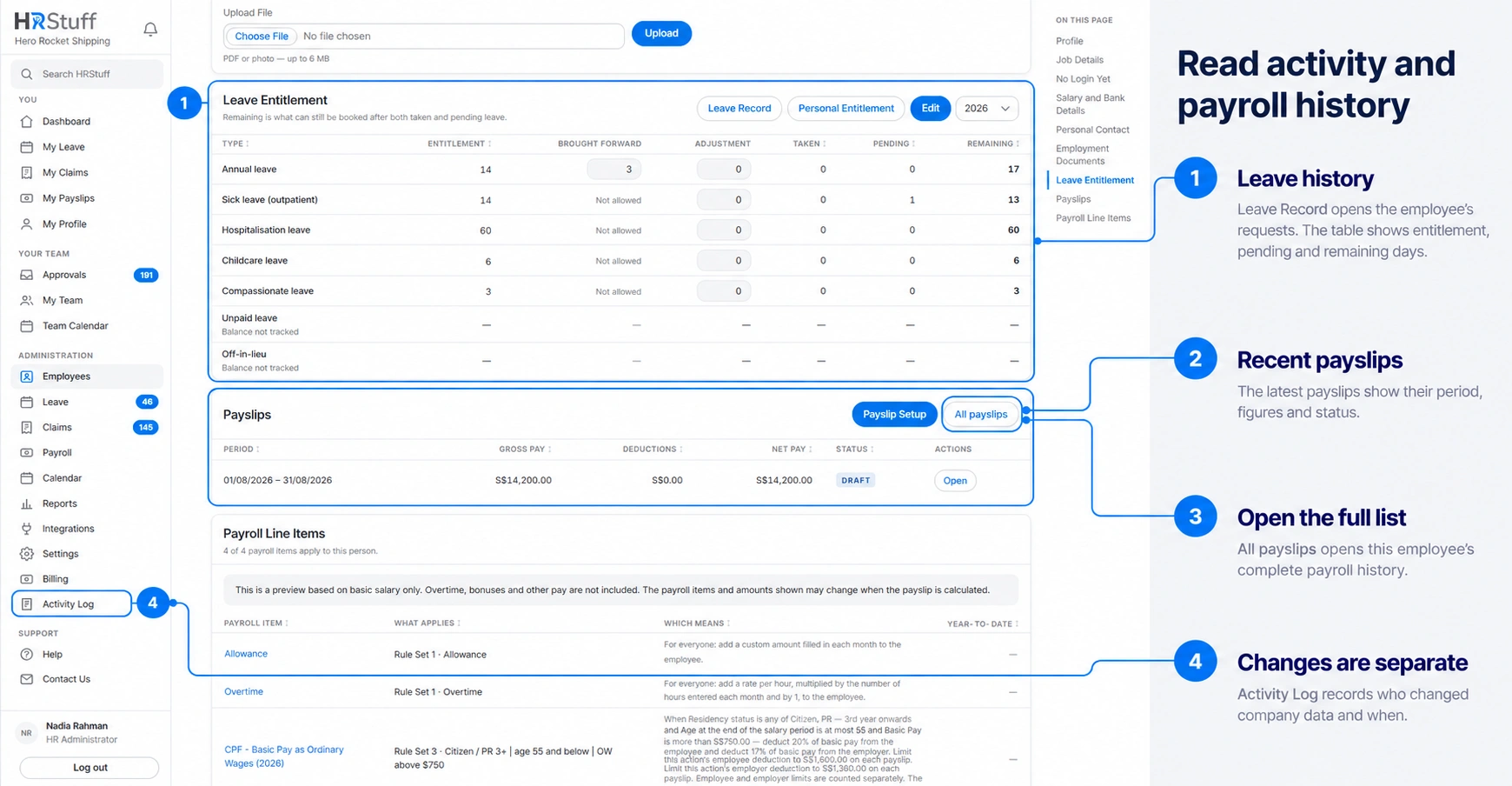
Read payroll and payslip history
Understand Gross pay year to date
This total uses published payslips whose payment dates fall within the current payroll year. Draft payslips are deliberately excluded. The note under the figure gives the payroll-year dates, number of published payslips and latest payment date.
Understand when the total is not shown
If published payslips use more than one currency, HRStuff says Not shown instead of adding unlike currencies into a misleading total. Open the individual payslips to read each amount and currency.
Use the Payslips card
The card shows up to the six most recent payslips with salary period, Net pay, Status and Open. Draft means HR is still working on it. Published means it is the issued employee-visible record unless it is deliberately moved back to draft.
Open the complete list
Choose All payslips. HRStuff opens the payroll list already filtered to this employee. Use payroll year, salary month and status filters when you need an older record, then open the payslip for its figures and calculation details.
Separate the current setup from issued history
Employee’s Standard Payslip and current Salary and Bank Details are inputs for future drafts. A published payslip keeps the figures issued for that period. Changing the current salary or a payroll rule does not silently rewrite an older published payslip.
Read leave history and balances
The Leave Entitlement card shows Entitlement, Brought forward, Adjustment, Taken, Pending and Remaining for the selected leave year.
Change the leave year in the card to inspect an earlier or later available period. Read the year label carefully when the company leave year does not begin in January.
Choose Leave Record to open that employee’s leave requests and decisions.
Remaining is a balance, not a history line: it reflects entitlement after taken and pending leave. Open the Leave Record when you need the requests behind it.
An inactive employee’s records remain available to HR. Search the employee directory with Inactive or All statuses first.
Use the company Activity Log
Open Activity Log
Open ADMINISTRATION, then Activity Log. Entries are newest first and show When, Who, Action and Details. Page controls reach older entries instead of limiting the view to recent activity.
Filter by the person who acted
Use Users to choose the administrator or user who performed the action. This is useful when you know who made the change. It does not mean every result is about that person’s own employee record.
Filter by the kind of activity
Use Type of Activity to narrow the log to actions such as a user role change, login disablement or employee update. Choose Clear to return to all activities.
Read Details with the source record
The Details column identifies the affected account or summarises the change when that information was recorded. Use the time and person shown to locate the action, then open the related employee, payslip or leave record to confirm the result.
Respect the privacy boundary
HR administrators can open the full employee record and company Activity Log because these pages contain sensitive company-wide information.
Employees see their own enabled profile, documents, leave, claims and published payslips, not the HR administration record or Activity Log.
Managers see permitted information for direct reports through My Team, Team Calendar and Team Reports. They do not see salaries, payslips, bank details, private identity information or employment documents.
Do not copy sensitive details into general notes merely to make them visible elsewhere. Keep each fact in the protected record designed for it.
When sharing evidence outside HRStuff, follow your company’s retention and privacy rules and reveal only what the recipient needs.
When figures or history seem incomplete
A missing year-to-date amount may mean no payslip has been published in that payroll year; drafts do not count.
Not shown for gross year to date can mean the published payslips use multiple currencies, not that the data is missing.
The Payslips card shows only the latest six. Choose All payslips for older records.
The Activity Log Users filter is about who acted. Search the Details column across the relevant activity type when another administrator changed the employee.
A current salary or rule is not proof of what an older published payslip contained. Open the issued payslip for that period.
If the person is absent from the normal Employees list, change Employment status to All statuses or Inactive.