
Follow a claim from approval to payment
Understand pending, approved, rejected, paid and cancelled statuses.
What this guide helps you do
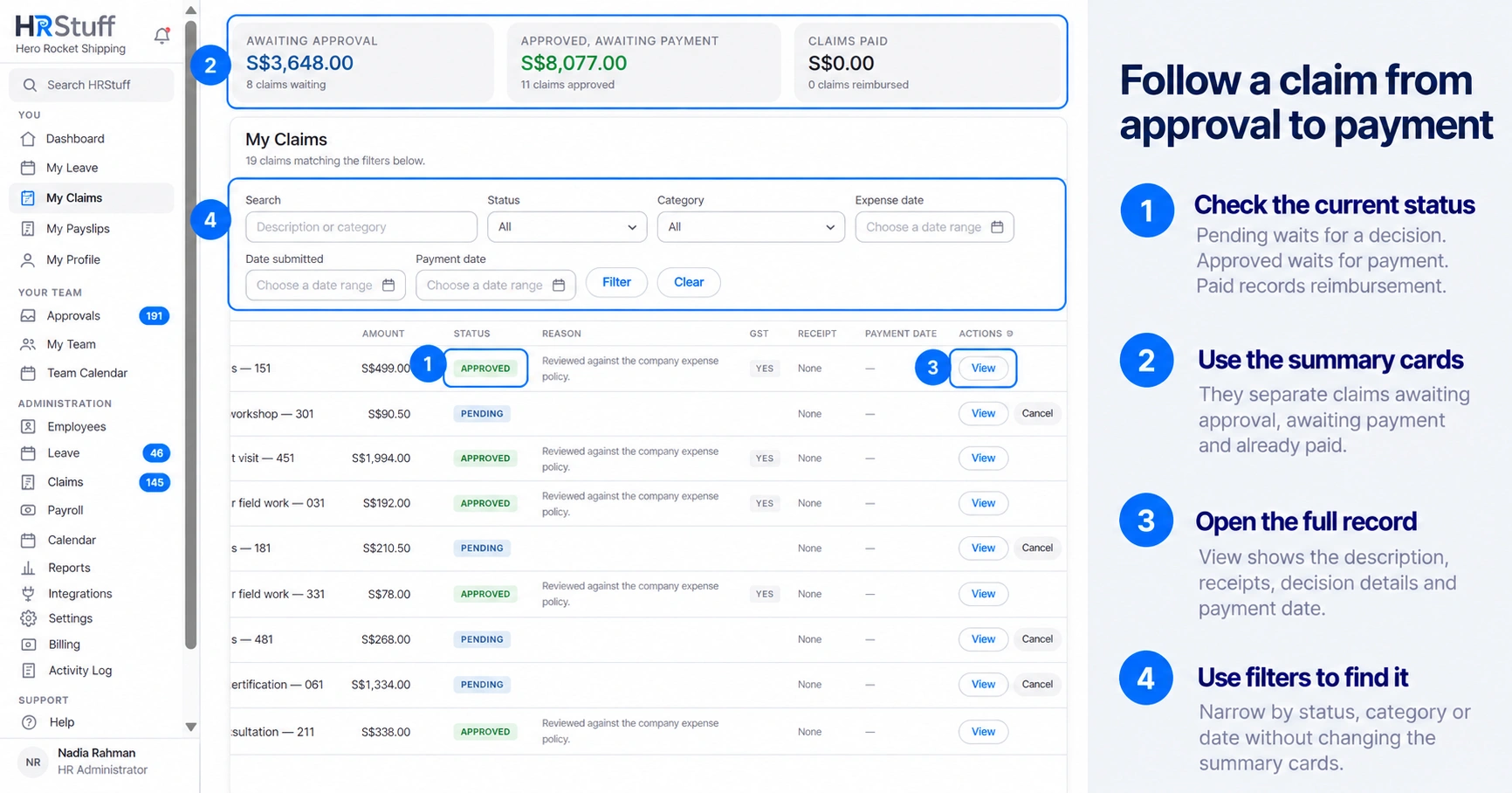
A claim moves through separate decision and payment stages. My Claims shows the current status, the person who decided it, any employee-visible note and the payment date when HR records reimbursement.
Open My Claims and use Search, Status, Category or the date filters to find the record. Choose View when you need the full description, receipt, decision and payment history together.
Understand each status
Pending: the claim is waiting for the manager or HR chosen by company settings. You may cancel your own claim while it is still here.
Approved: the expense was accepted and now waits for reimbursement. HR must mark it paid after the transfer is made.
Paid: HR recorded the reimbursement. The claim page shows the payment date.
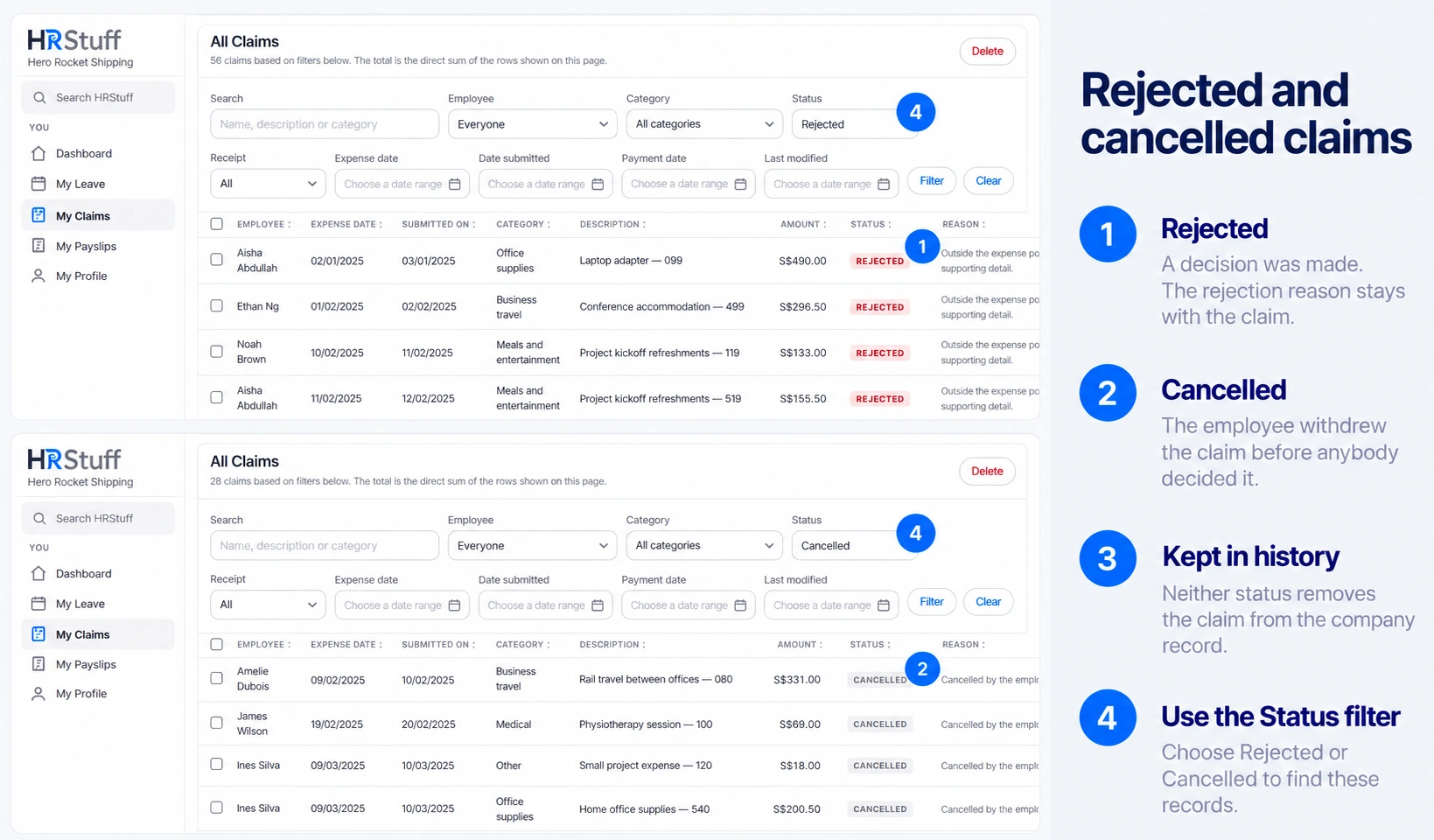
Rejected: the approver declined the claim. Any decision note that was entered is visible to the employee.
Cancelled: the employee withdrew the claim before anybody decided it. The record remains in company history.
Know when Pending may be skipped
A claim can be approved immediately in any of three cases: it is within the company’s automatic-approval amount, it is within the category’s employee limits when that rule is enabled, or the employee has individual automatic approval. It must still have a valid date, active category, description, amount and any receipt required by company policy.
An automatically approved claim says Approved automatically rather than naming a person who never reviewed it.
Automatic approval does not reimburse the claim. HR still records payment separately.
A company or employee category limit may still notify administrators when a total first goes over it.
Read the claim record
Expense date is when the money was spent; Submitted on is when the claim entered HRStuff.
Category and Description explain what the expense was for.
Amount uses the currency in force when the claim was filed. A later currency-setting change does not relabel that stored claim.
Receipt opens the supporting photo or PDF when you are allowed to view the claim.
Decided by, Decided on and Decision note record the approval outcome.
Payment date appears only after the status becomes Paid.
Read the three My Claims summary cards
The three summary cards show unfiltered totals for Pending, Approved and Paid claims across your full claim history. Rejected and Cancelled claims remain in the table but are not included in these cards. Searching or filtering the table does not change the cards.
Awaiting approval includes claims still waiting for a decision.
Approved, awaiting payment includes accepted claims HR has not yet marked Paid.
Claims Paid includes claims recorded as reimbursed.
Use the filtered table and its page total when you need a total for one status, category, date range or visible page.
Read the total at the bottom of a claims table
The Total row is a direct addition of every Amount shown on that page. It includes pending, approved, paid, rejected and cancelled rows when those statuses are visible. The total does not silently remove a status.
Filters decide which claims can appear in the table; the Total row then adds the visible page of those results.
When the filtered results use more than one page, each page has its own total. Move through the page numbers to inspect the rest rather than treating page 1 as the full filtered total.
Unlike currencies are listed separately instead of being converted or added together.
To see one status by itself, choose that Status filter first. Do not subtract rejected or cancelled rows by hand from an unfiltered total.
What changes trigger a notification
The employee receives an in-app notification when a claim is approved, rejected or marked paid. An optional decision note may appear in the private in-app notice, but it is not sent in external integration messages. Open the claim itself when you need the official record.
If the status is not what you expected
Refresh the claim
Another approver or HR may have acted since the list was loaded. HRStuff protects the newer result from being overwritten.
Check the decision note
A rejected claim may include an employee-visible note. If there is one, read it before deciding whether a new claim is appropriate.
Ask HR about an approved claim that remains unpaid
Do not resubmit the same expense. The existing approved claim is the record HR should reimburse and mark paid.