
Submit an expense claim
Enter the expense details, attach up to five receipts and submit the claim for approval.
What this guide helps you do
Submit a claim when you have paid a work expense and want the company to repay you. You can attach up to five receipts. The claim follows your company’s expense categories, receipt requirements and approval rules.
You must have an HRStuff login connected to your employee record. Go to My Claims. The New claim form appears at the top of the page.
What to have ready
The date and amount shown on the receipt, and the expense category that best matches the purchase.
A short explanation of what was purchased and why it was needed for work.
The relevant receipts or invoices. Your company may require them even if the form allows you to submit the claim without an attachment.
Whether the claimed amount includes sales tax, if the form shows a sales-tax option.
Complete and submit the claim
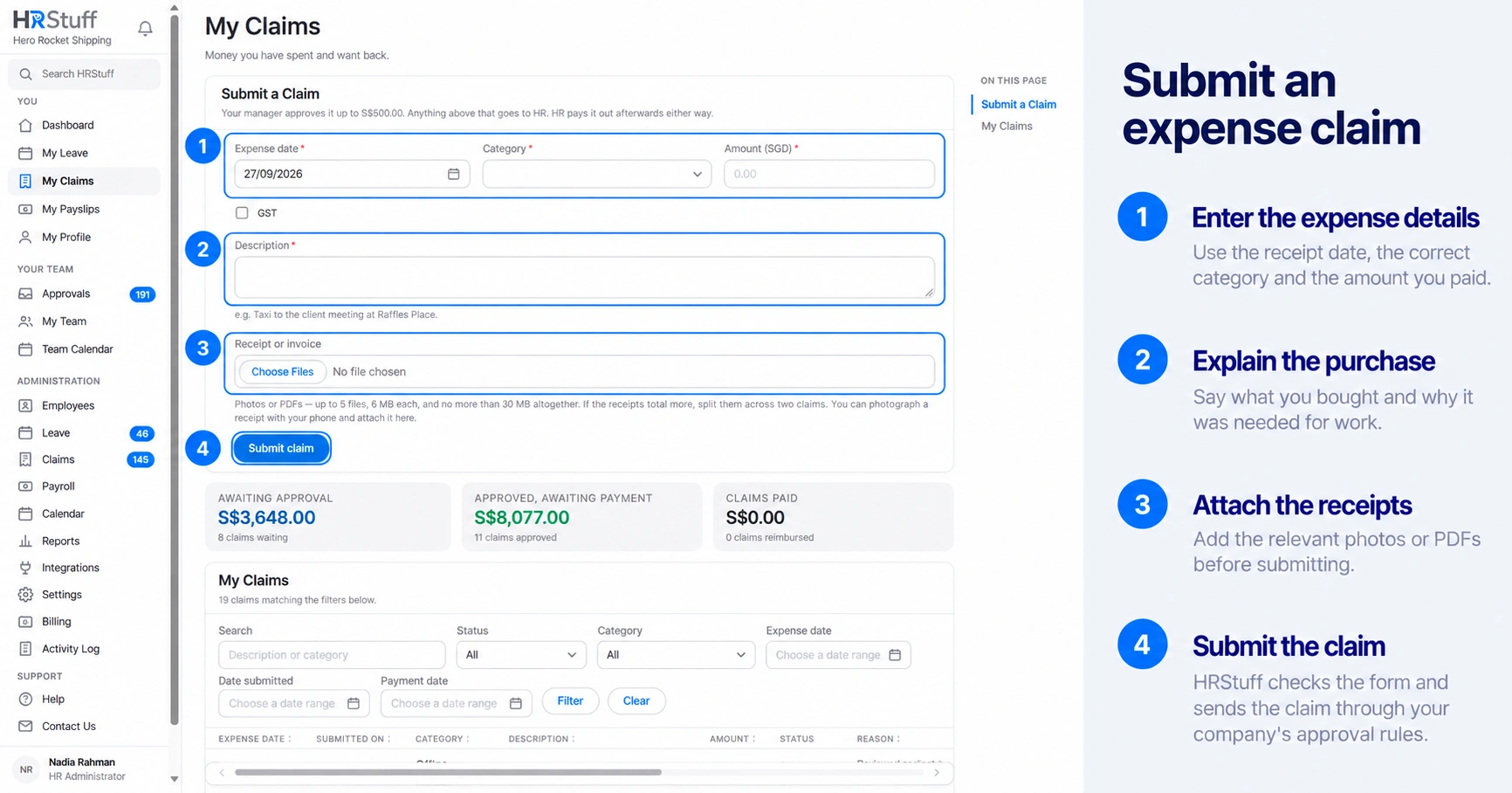
Choose the expense date
Enter the date shown on the receipt. It must be today or a date within the past year. You cannot submit a claim for a future expense.
Choose a category
Choose the company expense category that best describes the purchase. If the correct category is missing, contact HR instead of selecting an inaccurate one.
Enter the amount
Enter the amount shown on the receipt in the company’s currency. It must be greater than zero and no more than 1,000,000,000. Check the digits and decimal point before continuing. Create separate claims only for genuinely separate expenses. Do not split one expense to avoid a company limit or approval rule.
Write the description
Describe what was purchased and why it was needed for work. The description can contain up to 500 characters. Give the approver enough information to understand the claim without relying only on the receipt.
Mark the claim as including sales tax if applicable
If the form shows a sales-tax checkbox, select it when the claimed amount includes that tax. HRStuff saves the tax name and rate used when you submit the claim. Changing the company’s tax settings later will not change this claim.
Attach the receipts
You can attach JPG, PNG, GIF, WEBP, HEIC or PDF files. Each file can be up to 6 MB. One claim can contain up to five files with a combined maximum of 30 MB. If you need to attach more than five files, divide the supporting documents between two claims.
HRStuff checks that each attachment is really one of the permitted file types. Renaming an unsupported file will not make it acceptable. SVG files cannot be uploaded. HRStuff may reduce the file size of photos before uploading them. It does not alter PDF files.
Choose Submit claim
If the form reports an error, correct the problem and select the receipt files again. Your browser removes selected files after an unsuccessful submission. If HRStuff cannot save the receipts, it does not save the claim. This prevents a claim from being created without the attachments you selected.
What happens after submission
Your company may have rules that automatically approve certain claims based on the employee, expense category or amount. These claims do not wait for a person to review them. A category limit does not prevent you from submitting a claim. If the claim exceeds the limit, HRStuff notifies the active HR administrators. Pending, Approved and Paid claims count toward the limit. Rejected and Cancelled claims do not.
HRStuff notifies you when your claim is approved, rejected or marked as Paid. My Claims shows approved claims that are still awaiting payment separately from claims that have already been paid.
Pending: the claim is waiting for the manager or HR administrator selected by your company’s approval settings.
Approved: the company has accepted the claim, but the employee has not necessarily been repaid yet.
Paid: HR has recorded that the reimbursement was transferred to the employee.
Rejected: the approver declined the claim. Any decision note they added is visible to the employee.
Cancelled: you withdrew the claim before it was approved or rejected.
Before leaving the page
After submitting the claim, open it and check that every receipt was uploaded and can be read clearly.
Check that the amount, expense date and category are correct. HRStuff uses this information for approval rules, reports and company limits.
You can cancel your own claim only while it is Pending. After it has been approved or rejected, it remains in the company’s records. Contact HR if it needs to be corrected.
Receipts and descriptions may contain private information. Include only the information needed to explain and support the expense.