
Mark approved claims as paid
Record reimbursement only after the transfer has been made.
What this guide helps you do
Mark as paid records that an approved reimbursement has actually gone out. It is an administrative record-keeping step after the bank transfer, cash payment or other real payment method your company uses.
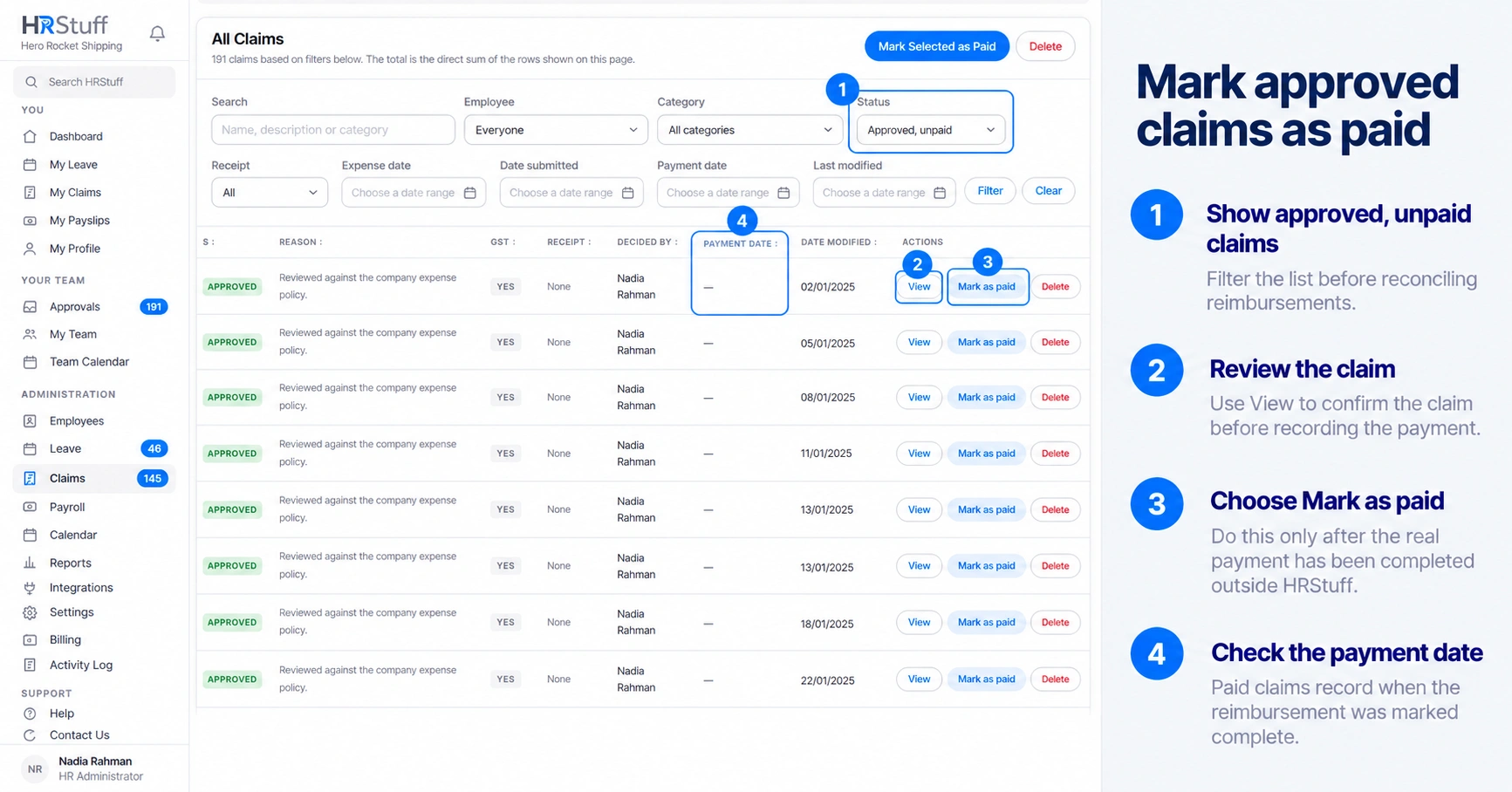
Open ADMINISTRATION, Claims. Filter Status to Approved, unpaid when you want a clean reimbursement list.
Before marking a claim paid
Confirm the status is Approved. Pending, rejected and cancelled claims cannot be marked paid.
Match the employee, amount and currency to the payment instruction or transfer record.
Check for another approved claim that may represent the same expense.
Make the reimbursement through the company’s actual payment process.
Read the company-wide summary separately from the table
The three cards above All Claims answer company-wide workflow questions. They do not change when you filter the table below them.
Claims pending counts claims still waiting for approval across the company.
Awaiting payment counts approved claims that have not yet been marked paid.
Total paid this year adds claims whose payment date falls in the current calendar year in the company time zone. Its caption also gives the number of paid claims included.
The Total row under All Claims is different: it adds every row displayed on the current filtered page, including rejected and cancelled rows. Paginated pages each have their own visible-row total.
If historical claims use different currencies, HRStuff lists the currencies separately instead of inventing an exchange rate.
Record one payment
Find the approved claim
Use Search or the employee, category, expense-date and submission-date filters if needed.
Choose View for a final check
Compare the receipt, amount and decision with the payment you made.
Choose Mark as paid
HRStuff changes Approved to Paid, records who performed the action and stores the payment time.
Confirm the payment date
The list and claim detail now show the date in the company time zone, and the employee receives an in-app notification.
Record several payments
Select the claims included in the completed payment batch and choose Mark Selected as Paid. Only Approved claims move to Paid. Claims with another status stay unchanged and are listed with the reason. Compare the result with your transfer list.
If a claim was marked paid by mistake
A Paid claim cannot be changed back to Approved. Check what happened in the bank, then contact an HR administrator. If the claim must be permanently deleted, its receipts are also deleted and the Activity Log records what was removed.