
Give an employee a login
Choose a role, set the initial access method and avoid duplicate email addresses.
What this guide helps you do
An employee record stores employment information. A login is the separate user account that lets the person sign in. You may keep a record without a login, then add access only when the person should use HRStuff.
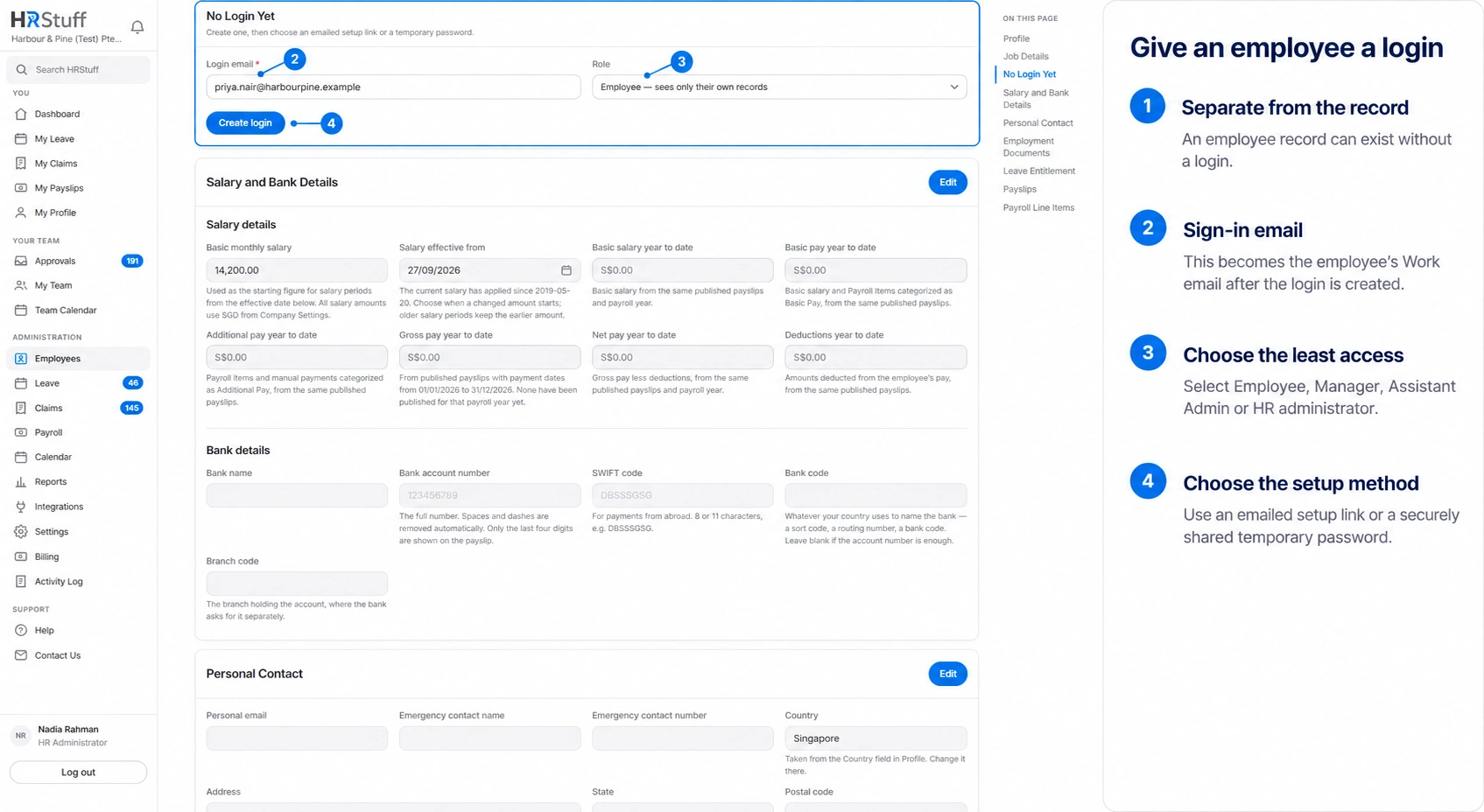
Create the login from the employee’s No Login Yet card. You choose the sign-in email, the access role and whether the person starts with an emailed setup link or a temporary password.
Decide what the employee needs
The employee’s Employment status must be Active. An inactive employee cannot be given a working login.
Choose a valid email address that is not already used by any HRStuff account. One email cannot identify two logins, even in different companies.
Choose the least powerful role that lets the person do their work. You can change it later.
Decide how the first password will be created. An emailed setup link is normally the safer choice; a temporary password is useful when email delivery is not yet available and must be shared securely outside HRStuff.
Choose the right login role
Employee can see only their own enabled profile, leave, claims and payslips. They cannot see coworkers or ADMINISTRATION.
Manager includes Employee access and adds My Team, Team Calendar, permitted Team Reports and eligible approvals for direct reports. Set reporting lines separately; choosing Manager does not assign a team.
Assistant Admin manages company-wide leave, claims and the company calendar, including approvals, claim payments and claims import or export. It cannot open payroll, salary, private employee records, reports, settings or other ADMINISTRATION areas.
HR administrator has full access to this company, including employee records, logins, roles, payroll, salaries, settings and reports. It does not grant access to another company or HRStuff’s platform-administration portal.
Create the login
Open the employee record
Open ADMINISTRATION, then Employees. Choose the employee’s name and find No Login Yet. If the card says the person is inactive, edit Job Details and make Employment status Active before continuing.
Enter Login email
Use the address the person will type on the sign-in page. HRStuff checks the format and refuses an address already attached to another account. If Work email already exists, it is offered as a starting value.
Choose Role
Select Employee, Manager, Assistant Admin or HR administrator. Read the explanation under each choice. Role controls access; it does not change Employment type, reporting manager or job title.
Choose Create login and the setup method
Choose Email setup link to send a one-use password-setting link. Choose Temporary password only when you can give the password to the employee through a secure channel. The temporary password and its confirmation must match and meet the strength rules shown by the form.
Read the confirmation
HRStuff saves the login, updated Work email, password setup and Activity Log entry together. If any part cannot be saved, no login is created. If you chose an email setup link, the confirmation says whether the email was delivered.
Check the Login card afterwards
Status should say Active. Cannot log in means the login exists but has been disabled.
Last signed in says Never until the person completes their first successful sign-in.
Password setup is pending means the employee must still set or replace the initial password.
Login email should be the same address now shown as Work email on the employee record.
For a manager, set the direct reports separately and ask them to confirm that My Team contains the expected people.
If the employee cannot start
If the email is already used, do not create a second employee or alter the address to work around the warning. Find the existing account and decide which employee record it belongs to.
If an emailed setup link was not delivered or is no longer usable, open the Login card and choose Reset password to send a fresh link.
If the employee received a temporary password, they must replace it after signing in. HRStuff marks setup as pending until that happens.
If the wrong role was chosen, use Edit on the Login card. Do not delete and recreate the employee record.
If access should be paused, choose Disable login. Do not mark the person Inactive unless they have actually left employment.