Import or export claims
Map spreadsheet columns, preview changes and export company claim records.
What this guide helps you do
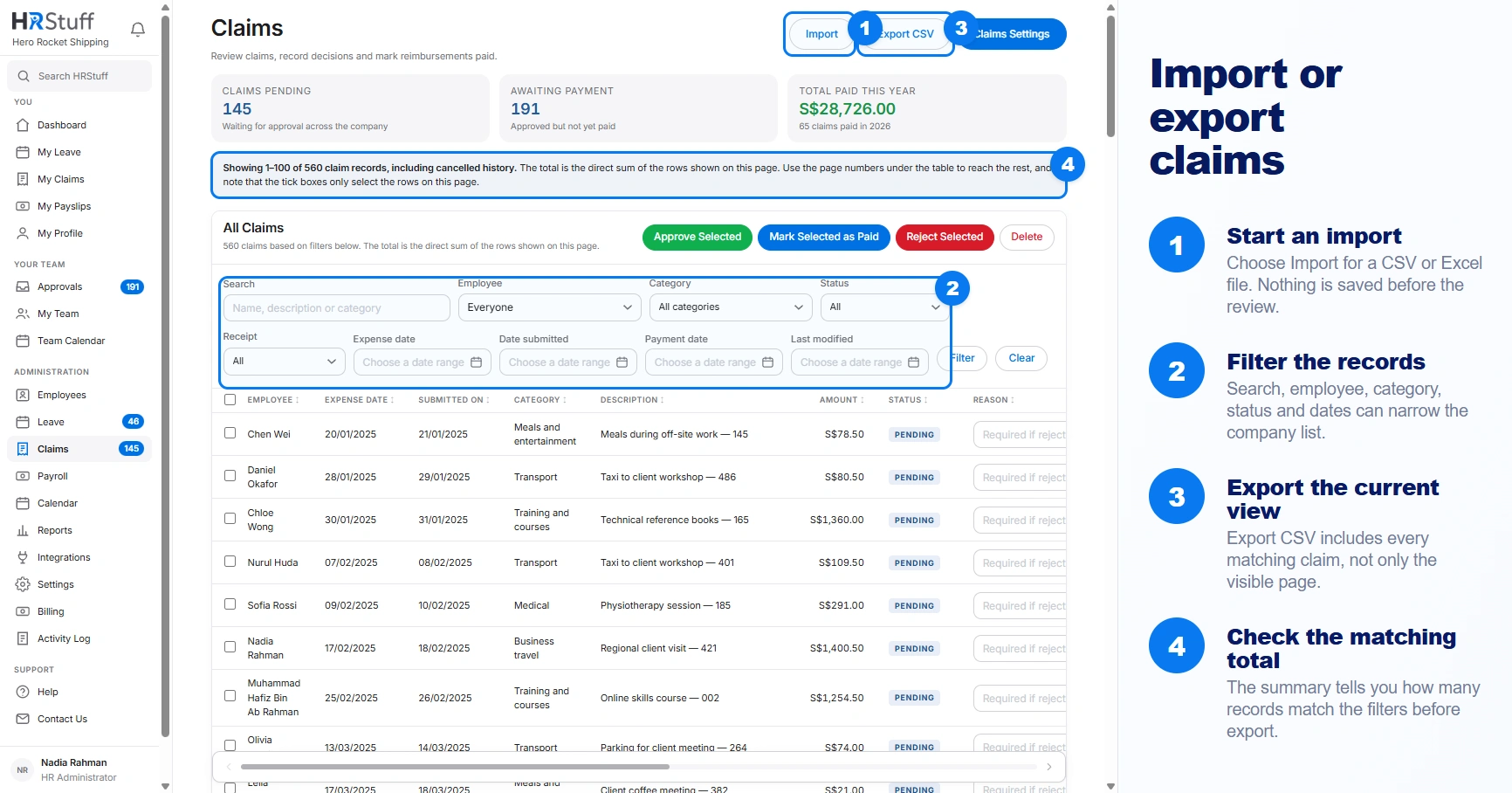
Claims import adds historical or externally collected expense claims from a CSV or Excel .xlsx file. Export downloads the claims that match the filters currently shown on the company Claims page.
Import always previews the result before saving. A row without a matching Claim ID adds a new claim. A matching Claim ID lets you keep the existing claim, apply selected file values or import another copy. If the Claim ID is valid but no longer exists, HRStuff can restore it as a new record.
Prepare the spreadsheet
Use CSV or an Excel .xlsx workbook no larger than 16 MB.
Put column headings in the first row.
Include Expense date, Category, Description and Amount.
Identify the employee with Work email or Employee name. First name and Last name may be mapped separately and are joined for matching.
A new claim must use an active employee and a category that currently exists. A row restoring a valid Claim ID may keep the inactive employee recorded on that earlier claim.
Download the blank template when you want the complete supported column set.
Map the columns
Choose Import, then select the file
Nothing is saved when the file is first uploaded.
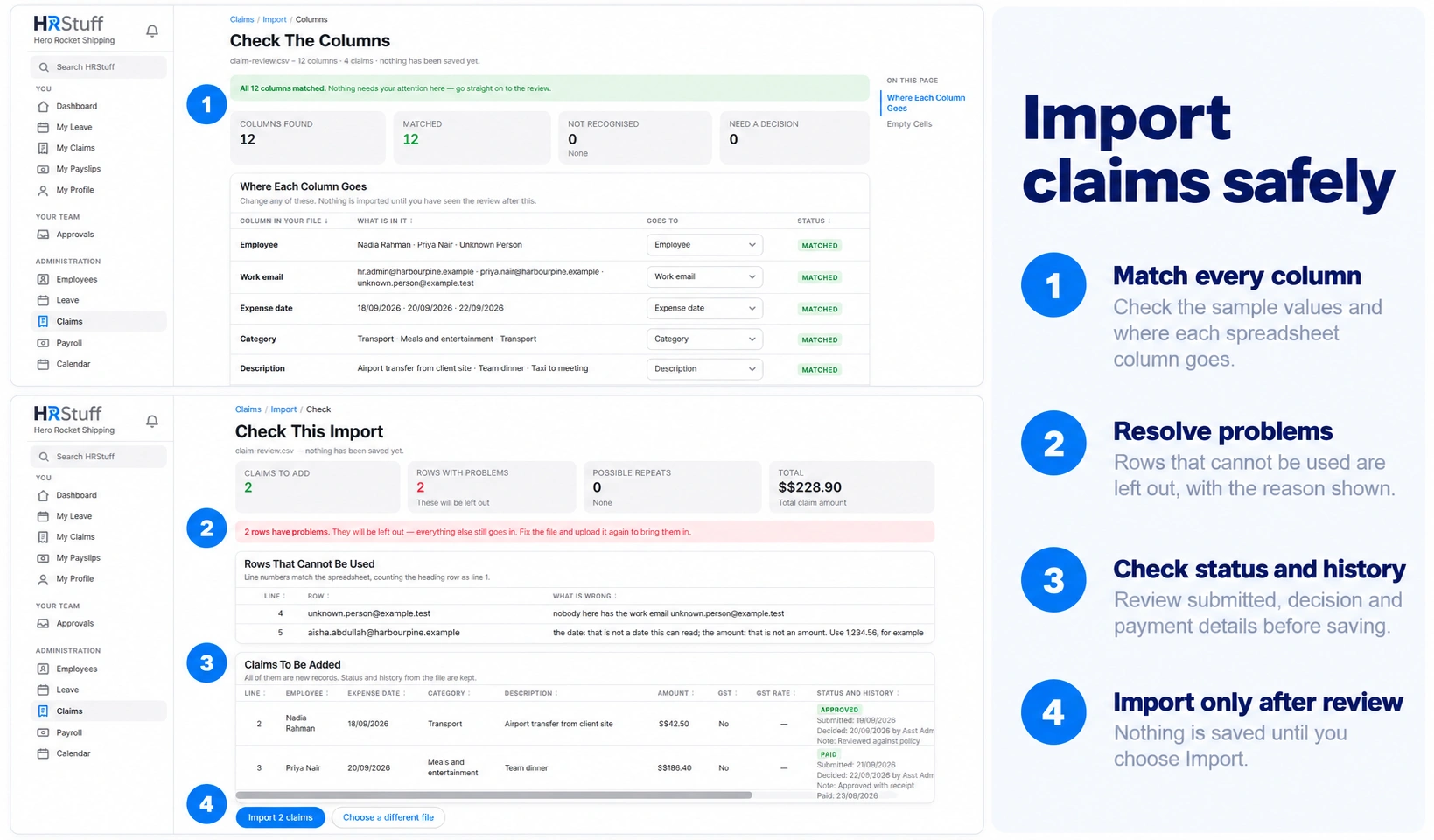
Choose Map Columns
HRStuff guesses common headings such as Date, Spent on, Value and Expense type, then shows sample values from each column.
Correct any wrong guess
One source column may fill one HRStuff field. If two columns point to the same field, map one elsewhere or choose Do not import.
Check employee matching
Work email is used first because it identifies one person. Name is used only when email is blank. A shared name is refused rather than guessed.
Review before confirming
The Check This Import page separates Claims to add, Existing ID matches, Rows with problems and Possible repeats. New rows with problems are left out. A matching Claim ID remains available for review: unusable file cells keep the current values, while valid differences can still be selected. Line numbers count the heading row as line 1.
Check employee, expense date, category, description, amount and tax treatment.
For a new or restored claim, a blank Status becomes Pending. For a matching Claim ID, a blank Status is flagged and the current status is kept. Supported file values are Pending, Approved, Rejected, Paid and Cancelled.
For a new or restored claim, supplied Submitted on, Decided on, Decided by, Decision note and Payment date values are kept. For a matching Claim ID, each current value stays unchanged unless you explicitly choose the file value or clear an optional field.
Payment date is valid only for a Paid row.
Automatic approval does not run during an import; the status in the file is the history being imported.
Choose Import only after the preview matches the intended records.
Handle currency and tax columns carefully
A missing Currency uses the company currency. A supplied value must be a supported currency code. HRStuff does not convert one currency into another.
The tax heading uses the company’s configured name, such as GST or VAT. A tax rate supplied in the file is preserved. If a tax-marked row has no rate column, HRStuff uses the company’s current rate. If the file includes Amount without tax, it must agree with the Amount and tax rate; HRStuff uses it only as a check.
Export the records you need
Filter ADMINISTRATION, Claims
Narrow by employee, category, status, receipt, expense date, submitted date, payment date or last modified date. Search can find a name, description or category.
Read the table count and current-page total
The count says how many claims match the filters. The Total row adds every Amount shown on this page, including rejected and cancelled claims when they match. If the table has more than one page, this is not the total for later pages.
Choose Export CSV
The download contains every claim matching those filters, not merely the current page.
Keep the headings when editing a round-trip file
Keep the exported headings, including Claim ID, when editing a file for import. Claim ID lets HRStuff match each row to the correct saved claim so you can review differences instead of creating an unintended duplicate.
Protect the file
The CSV can contain employee names, expense descriptions, amounts, approval notes and payment history. Store and share it as an HR record. Receipt files are not embedded in the CSV.