
Move a published payslip back to draft
Correct an issued payslip transparently and replace the stale notification.
What this guide helps you do
Moving a published payslip back to draft is HRStuff’s correction path. It immediately removes the employee’s access to that issued payslip, unlocks the admin editor and keeps a record of what happened.
Use it when the issued figures, dates, employee information or note must be corrected. Do not use it merely because the employee has already downloaded the document; their downloaded copy cannot be withdrawn from their device.
Before moving it
Confirm that you opened the correct employee and salary period.
Write down the source of the error: employee record, payroll rule, dates, one-off line, override or note.
Consider whether your payroll, accounting or legal process requires a separate correction record outside HRStuff.
Remember that HRStuff does not reverse a bank payment or government filing.
Move one payslip back to draft
Open the published payslip
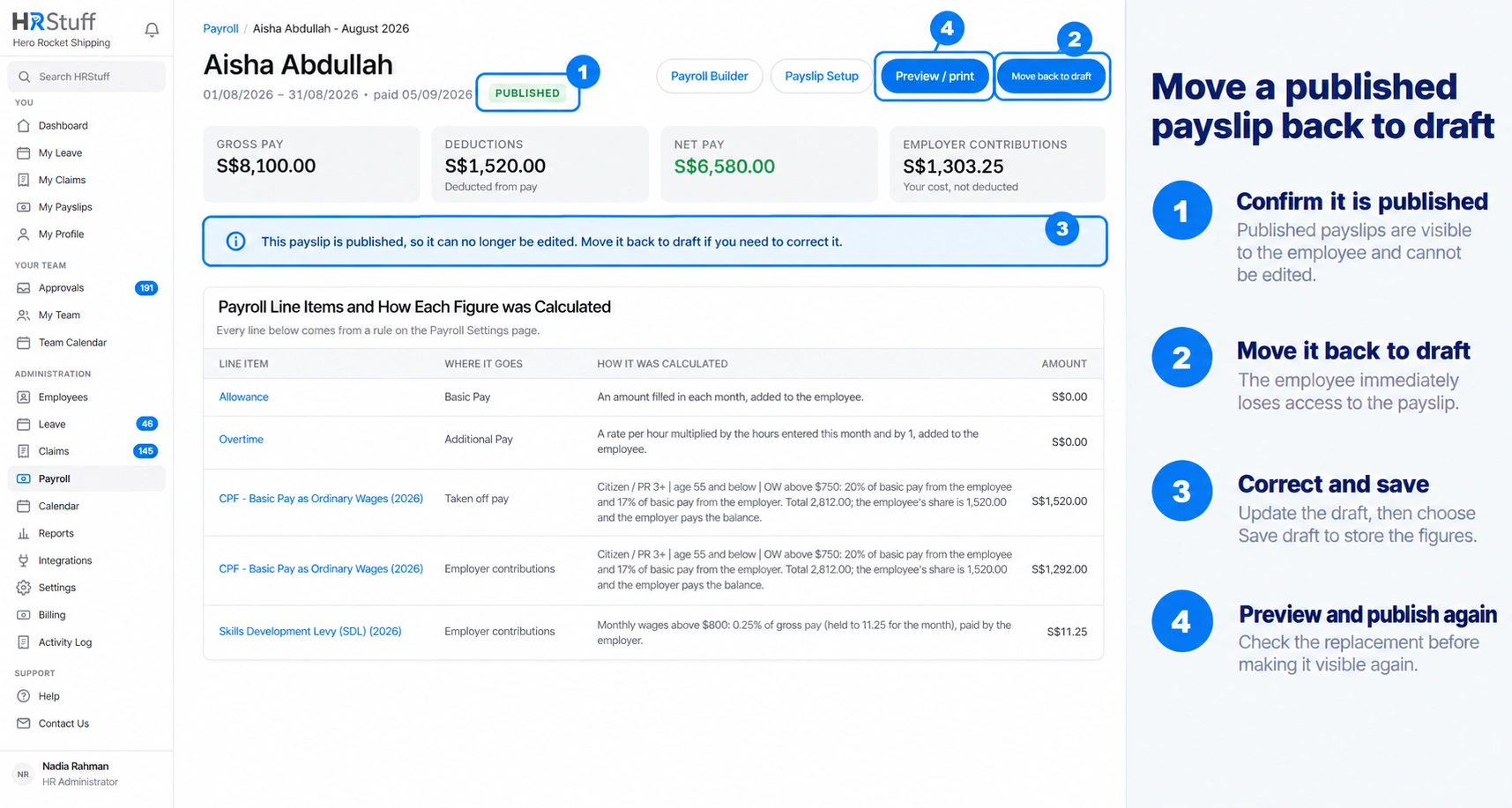
From ADMINISTRATION, Payroll, filter to the employee or salary month and choose Open Payslip. Confirm the Published status.
Choose Move back to draft
Read the confirmation and continue. The employee loses access, HRStuff records the action, and the corrected payslip will use the company’s current number format when it is published again.
Correct the cause
Update the employee record or Payroll Builder if the source is wrong. Then return to the draft and edit the dates, amounts, override or note that needs correction.
Choose Save draft
Saving recalculates the current rules and writes the corrected totals. Read the warnings and workings before continuing.
Preview and publish again
Use Preview to inspect the employee-facing document, then choose Publish when the replacement is ready.
Move several payslips together
On Payroll, tick the relevant rows and choose Move to draft. The action moves published rows and leaves rows that are already drafts alone. Tick boxes cover only the current page.
What the employee is told
HRStuff replaces the earlier publication notice with a message that HR withdrew the payslip for correction. When the corrected draft is published, the employee receives a new notification. Any connected service notified about the change receives no salary amounts or payslip contents.
Moving to draft is not deletion
Once the payslip is a draft, HR can delete it, but deletion permanently removes the working record and cannot be undone. Correct and republish when the payslip represents a real salary period. Delete only a genuinely unwanted duplicate or erroneous draft, following your company’s retention requirements.
Keep the correction understandable
The Activity Log records the move back to draft and the later publication.
Published payslips preserve the figures and explanations saved at publication; after correction, the newly published record becomes the employee-visible version.
An employee may already have printed or saved the earlier version. Tell them which copy replaces it when that matters.