
Open, print and understand your payslip
Read salary, additions, deductions, employer costs and net pay.
What this guide helps you do
My Payslips lists the payslips that HR has currently published to you. Drafts and payslips moved back to draft do not appear. Only you and an HR administrator can open your payslips; your manager cannot see them through the team pages.
Open My Payslips from the left navigation. You can read every published year, open one payslip and use your browser to print it or save it as a PDF.
Find the right payslip
All years is the default and shows your complete published archive.
Payroll year narrows the table using your company’s payroll-year boundary and each payslip’s payment date.
The summary cards describe the current payroll year when All years is selected, or the chosen year when you filter.
Salary period tells you which work period the payslip covers. Paid on is the recorded date of payment.
Gross and Net pay help you identify the record before you open it.
Read the company, employee and period details
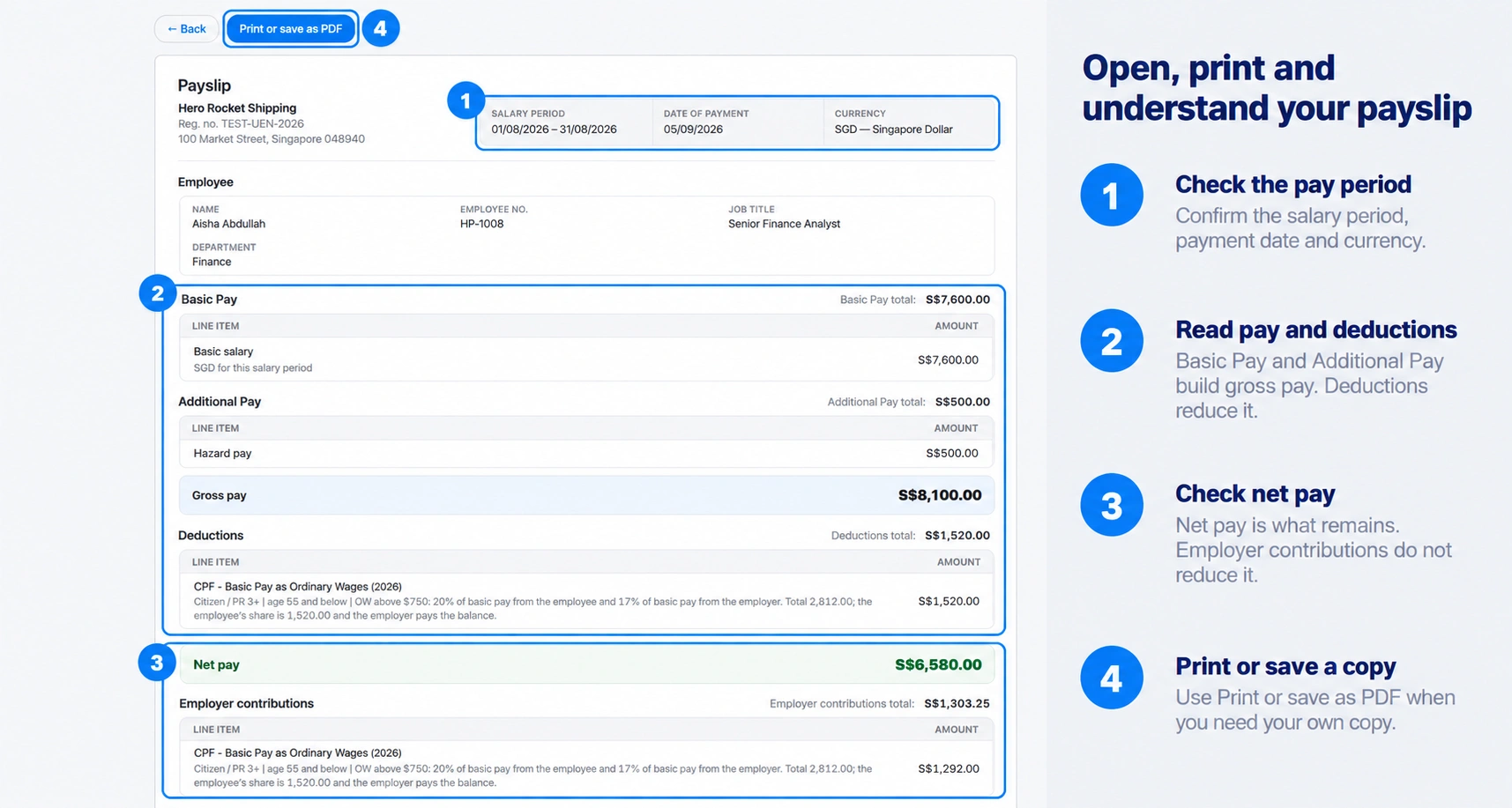
At the top of the payslip, check the company name, registration number and address, where provided. Then check the salary period, payment date and currency. The Employee section may also show your employee number, job title, department, ID card number and masked bank account.
Understand the money sections
Basic Pay shows the employee’s basic salary and any payroll items assigned to Basic Pay.
Additional Pay lists payroll items assigned to Additional Pay, which may include allowances, overtime and bonuses.
Gross pay is Basic Pay plus Additional Pay before deductions.
Deductions lists amounts taken from gross pay.
Net pay is gross pay less deductions and is the take-home figure recorded on the payslip.
Employer contributions are costs paid by the company. They are shown for information and are not taken from your net pay.
Notes appears only when HR included an explanation on the issued payslip.
Print or save a PDF
Open the payslip
Choose View beside the salary period, then choose Print or save as PDF.
Use the browser print window
To print, choose a printer. To keep a file, choose the browser option such as Save as PDF, then select a safe folder and file name. HRStuff does not create a second stored PDF inside your account.
Protect the saved copy
A downloaded payslip contains salary and identity information. Store it on a trusted device and share it only through a secure method approved by your company.
If a payslip is missing
A payslip appears only after HR publishes it. Check All years and the relevant payroll year. If it is still absent, ask your HR administrator whether the month remains a draft or whether no payslip was created for that period.
If something looks wrong
Do not alter a saved PDF and treat it as the official record. Contact your HR administrator and name the salary period, the line and the figure you expected. HR can move the published payslip back to draft, correct it and publish the replacement.
For a wrong payment date or salary period, identify the date shown and the date expected.
For a wrong amount, name the exact salary, payment, deduction or employer-contribution line.
For a missing line, explain what you expected to see without sending unnecessary personal information.