
Publish payslips to employees
Check draft payslips, publish them and notify employees that their payslips are ready.
What this guide helps you do
Publishing a payslip makes the draft available to the employee. HRStuff notifies the employee, who can then open, print or save the payslip as a PDF from My Payslips.
Only an HR administrator with payroll access can publish. Open ADMINISTRATION, then Payroll.
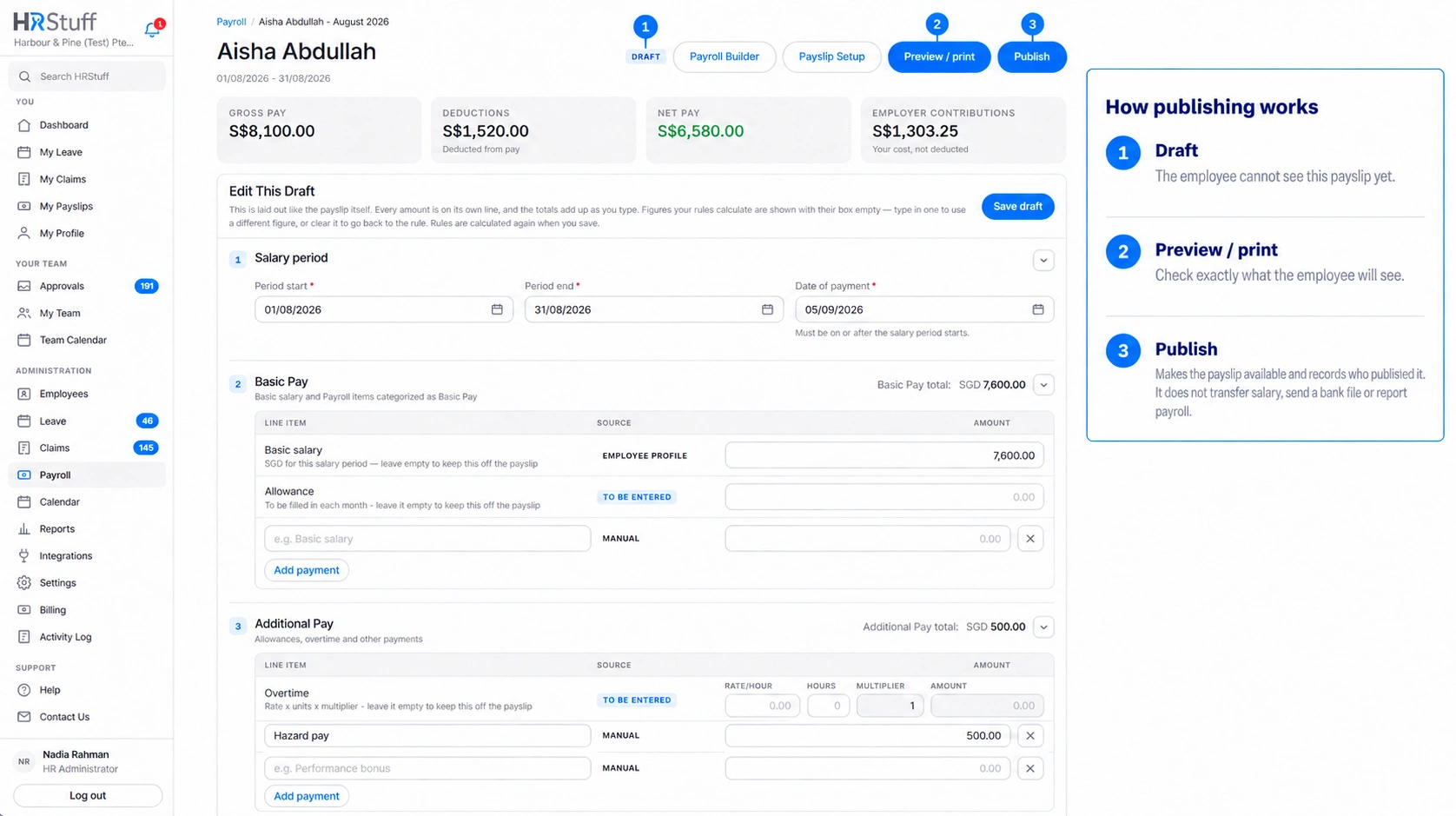
Review every draft before publishing
Create draft payslips for the month if needed. Employees cannot see a payslip while its status is Draft. Before publishing, open each draft and check the following.
Employee, salary period and date of payment.
Gross pay, deductions, net pay and employer contributions.
Check Payroll Line Items and How Each Figure was Calculated. Confirm the rule and amount used in each calculation, any rounding, and any minimum or maximum limit.
Any warning about missing employee details, amounts entered by hand, or totals that need to be recalculated after a payroll rule changed.
Check every note and amount entered by hand. If the payroll rule should calculate the amount, remove the amount entered by hand so HRStuff can calculate it again.
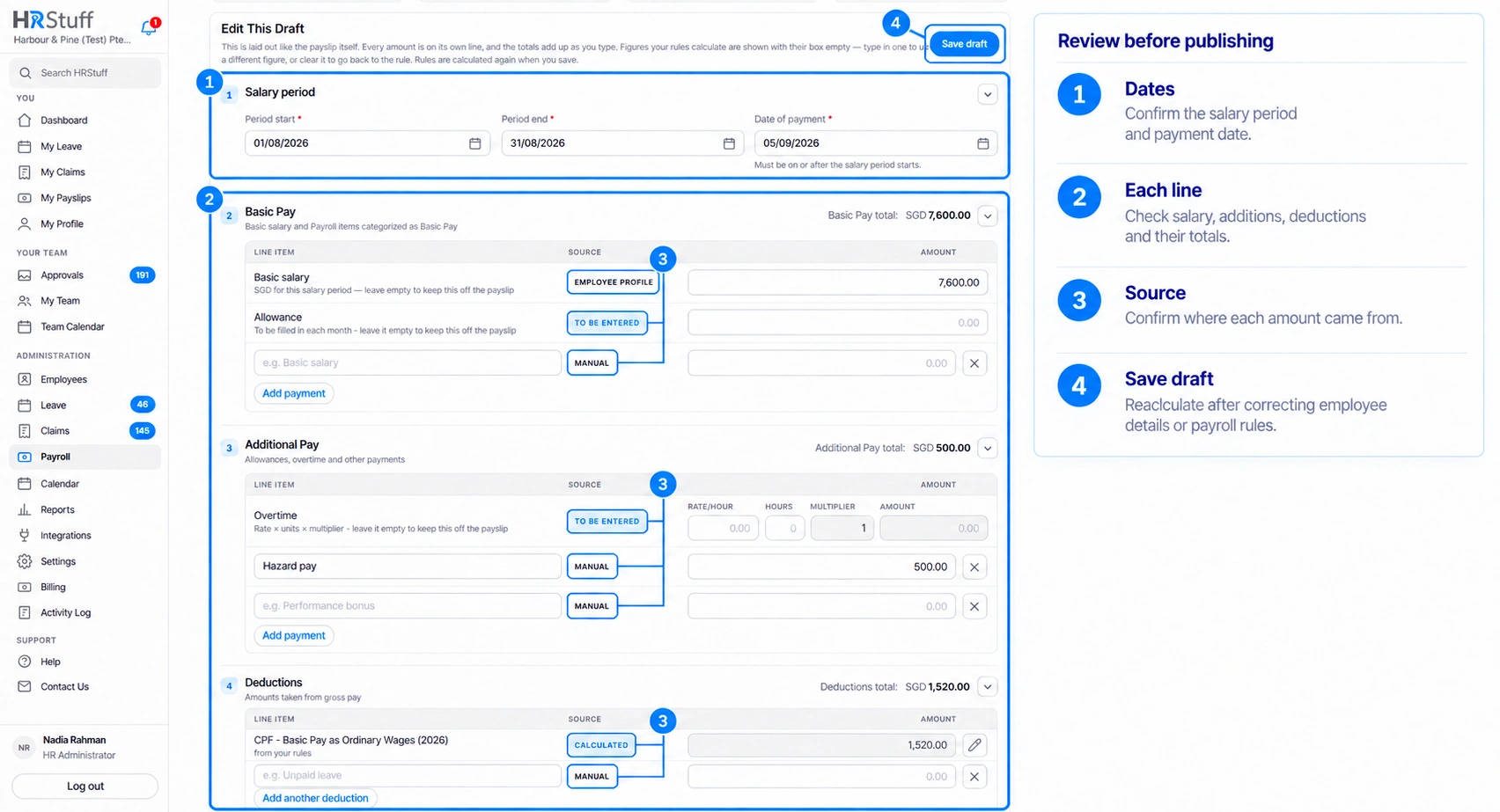
Publish one payslip
Open the draft
In All Payslips, select Open Payslip. Confirm that the status is Draft. Select Preview to check exactly what the employee will see.
Resolve or understand every warning
Fix any missing employee details or incorrect payroll rules. If a rule changed, save the draft so HRStuff recalculates the totals. If an amount was entered by hand, confirm that this was intentional.
Choose Publish
Read the confirmation message. Pay particular attention to missing information and amounts entered by hand. Confirm only when the payslip is correct and ready for the employee.
Read the result message
HRStuff publishes the last updated draft exactly as shown. If a payroll rule or annual limit has changed, the confirmation points out the difference, but publishing does not change the draft. Press Update draft before publishing if you want to use the current calculation.
Publish several payslips together
Filter to the right group
Use the payroll year, salary month, employee and status filters to find the correct drafts. Select the checkbox beside each draft you want to publish. Only payslips on the current page are selected, so repeat this on any other pages you need.
Choose Publish
Select Publish. HRStuff skips payslips that have already been published. It publishes every remaining saved draft exactly as shown; selecting several does not recalculate or reorder their figures.
Check the batch confirmation
HRStuff publishes every selected payslip or publishes none of them. If one payslip has a problem, no payslips in the group are published. Fix the problem named in the message and try again.
What HRStuff does when you publish
Checks the salary period and payment date, then publishes the saved totals, line items and calculation details exactly as shown.
If two HR administrators publish at the same time, HRStuff prevents the same saved payslip from being processed twice.
Keeps the saved amounts and their calculation details together as the published payslip.
Makes the payslip visible only to the employee and HR; managers do not gain access to team payslips.
Sends the employee an in-app notification and records the publication in the Activity Log.
If your company connects HRStuff to another service, HRStuff can notify that service that a payslip was published. It does not include the employee’s salary or the contents of the payslip.
If a published payslip is wrong
Select Move back to draft. The employee immediately loses access to the payslip. HRStuff replaces the original publication notice with a message saying that HR withdrew the payslip for correction.
Correct the employee details, payroll rule or draft. Save it, review the recalculated amounts and publish it again. You must move a published payslip back to Draft before you can edit or delete it.