
Record somebody leaving the company
Set the final working day, preserve history and remove them from the paying-user count.
What this guide helps you do
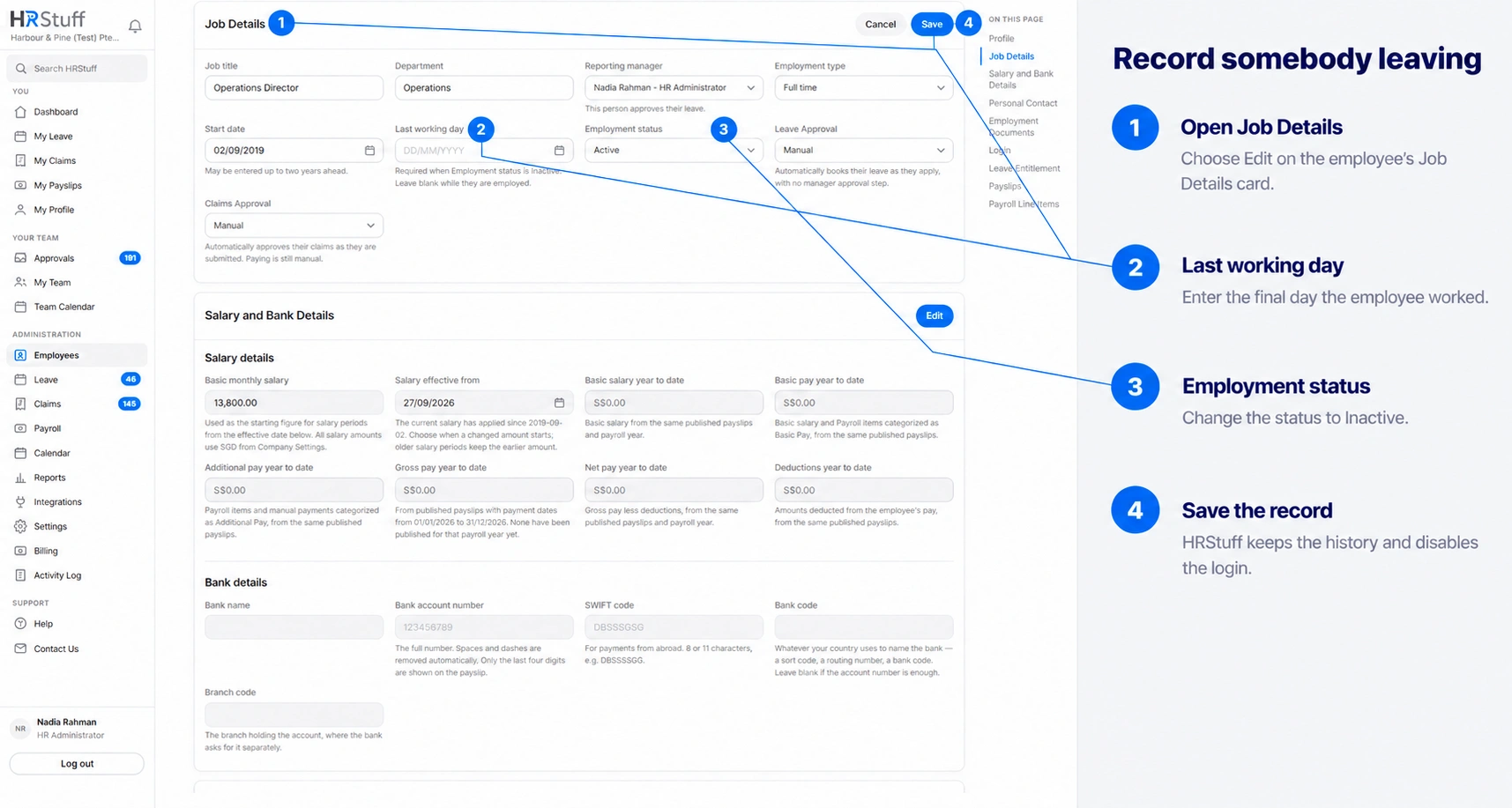
Close an employee record by entering the real Last working day and changing Employment status to Inactive. HRStuff keeps the history, disables the login, signs the person out and removes them from the active paying-user count.
Do not delete a normal leaver. Deletion permanently removes related records; Inactive preserves the evidence that payroll, leave, claims and HR work may still need.
Prepare before the final status change
Confirm the final calendar date on which the person is employed. Last working day cannot be before Start date.
Resolve or reassign work that should not remain with the person, including pending approvals and direct reports.
If the leaver is a reporting manager, use the Employees Reporting manager filter to find everyone assigned to them. Reassign those employees; making the manager Inactive does not move the team automatically.
Complete any final payroll, claims, leave and document process required by your organisation before or after the status change as appropriate. HRStuff preserves the records, but an inactive employee cannot sign in to retrieve them.
Make sure another active HR administrator exists before closing your own record. HRStuff will not let the signed-in administrator make their own employment Inactive.
Record the employee leaving
Open the employee record
Open ADMINISTRATION, Employees and choose the employee. Do not use the directory quick edit for this task because Last working day is intentionally managed on the individual record.
Edit Job Details
Find Job Details and choose Edit. Check Start date while you are there; HRStuff will refuse a Last working day earlier than it.
Enter Last working day
Use the final employed date, not the date HR happens to update the record. Reports use employment dates to answer who was employed on a particular day.
Set Employment status to Inactive
Inactive means the person has left employment. HRStuff requires Last working day before it accepts this status.
Save and read the result
Saving disables any linked login, signs the employee out on every device and cancels unused password setup or reset links. The employee disappears from the normal Active directory view but remains available under Inactive or All statuses.
Understand what is kept and what changes
The employee record, employment dates, leave, claims, documents and payslips remain available to authorised HR users.
The login becomes disabled, so the former employee cannot sign in or open their old payslips and self-service records.
An inactive employee is not counted as a paying user. An active employee is counted after their linked login has been used at least once. The company’s minimum subscription quantity and renewal rules still apply.
Historical reports use Start date and Last working day to decide whether the person belonged in an earlier period; setting Inactive does not erase them from the past.
Direct reports are not reassigned automatically. They may continue to show the former manager as “no longer here” until HR replaces the reporting line.
If the employee returns
Review the existing record first
Search Employees with Status set to Inactive. Reuse the existing employee record when it is the same person, so their earlier history remains connected instead of creating a duplicate.
Make employment Active
Edit Job Details, set Employment status to Active and update Start date, Last working day, department, manager and other current facts as required. Leave Last working day blank while they are currently employed.
Enable the login deliberately
Reactivating employment does not automatically reopen the login. Check the Login card, choose Enable login, and use Reset password if the employee no longer knows the old password.
Do not use Delete employee for routine offboarding
Delete employee is a permanent data-removal action. HRStuff shows what related records will be removed and warns when people report to the employee. Use it only when deletion is genuinely required and your retention obligations allow it.
Inactive preserves the record and can be reversed.
Delete cannot be undone from the employee page.
Deleting a manager can leave direct reports without a manager.
A retained inactive record is normally the safer source for historical payroll, leave, claims and audit questions.
Finish the offboarding check
Find the employee under the Inactive directory filter and confirm the Last working day.
Confirm the Login card says Cannot log in.
Check every former direct report has the intended manager or Default - HR.
Confirm any final documents and payslips are retained according to your company process.
Use the Activity Log when you need to confirm who changed the employment record or disabled access.