
See how every payroll figure was calculated
Trace the matching rule and action, source amount, limits and rounding behind a result.
What this guide helps you do
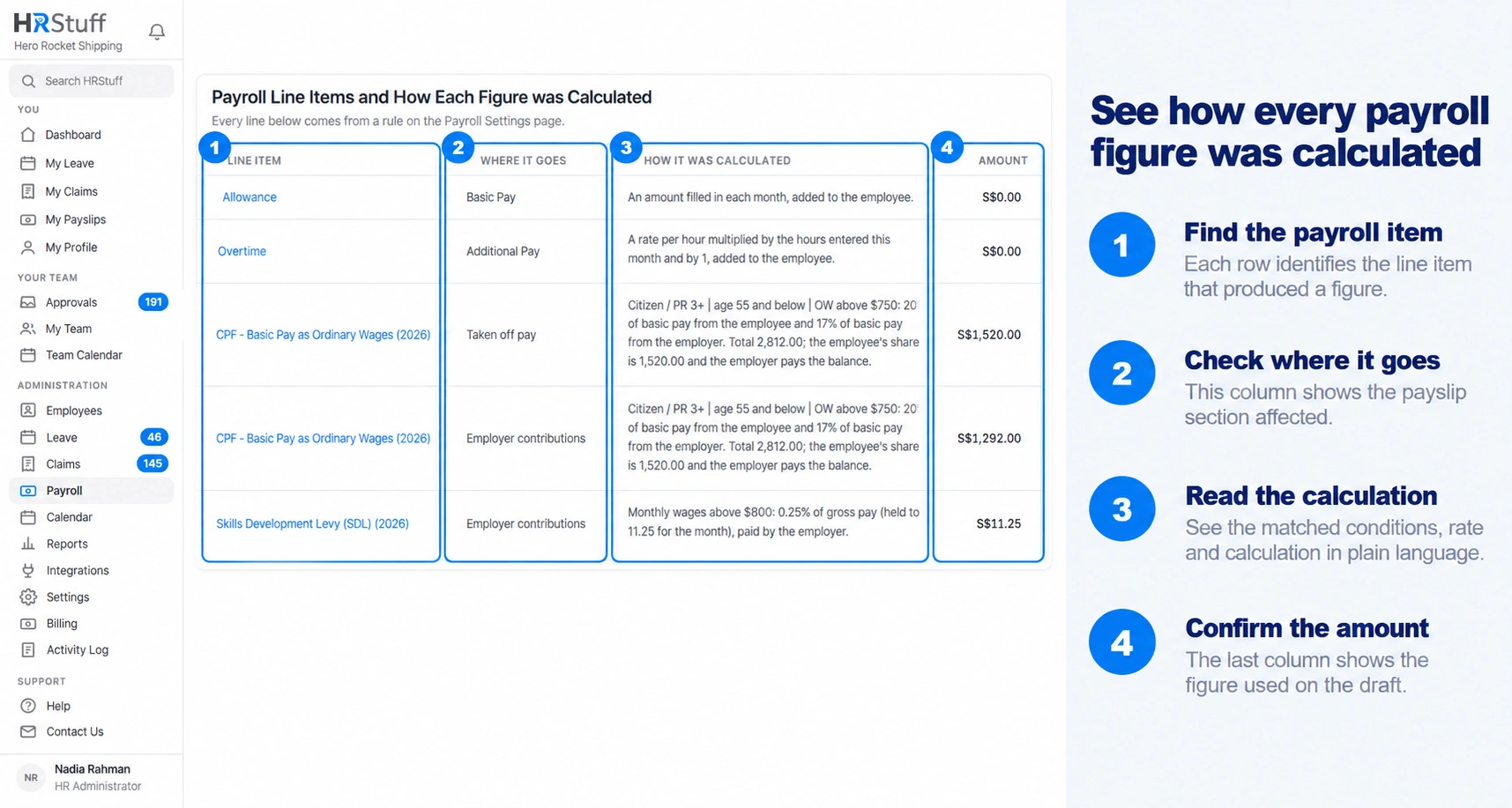
Every calculated payroll line has an explanation on the admin payslip. Open ADMINISTRATION, Payroll, Open Payslip, then read Payroll Line Items and How Each Figure was Calculated.
The table is the quickest way to answer three questions: which line applied, where its money goes and why that exact amount was used.
Read the four columns
Line Item is the payroll item name shown on the payslip, such as a transport payment or pension deduction.
Where it goes says whether the amount is an additional payment, employee deduction or employer contribution.
How it was calculated names the matching Rule Set and describes the base figure, rate or amount, applicable limit and rounding.
Amount is the final figure included in this payslip.
Follow the calculation back to its rule
HRStuff reads a payroll item’s Rule Sets from top to bottom and uses the first one whose conditions match. The explanation names the matching Rule Set so you can open the same item in Payroll Builder.
A fixed amount states the saved amount.
A percentage states the base, rate and resulting figure.
A rate table states the employee value and the matching band.
A custom monthly amount says that HR must enter the figure for this period.
A floor, ceiling or yearly limit is stated when it changes or constrains the result.
The rounding method is stated when the rule rounds the calculated amount.
Understand lines that did not apply
Below the table, Not applied to this person lists payroll items that did not match the employee. This may be correct if the employee is outside the required department, age band, residency group or another condition.
Read the badges and warnings
Entered this month means the rule intentionally left a monthly amount for HR to supply.
Changed means somebody replaced the rule’s result for this payslip. The explanation shows the original calculated amount.
Out of date means the draft’s stored totals no longer equal the current calculation. Save the draft before relying on the totals at the top.
A dependency error names an earlier payroll item that is unavailable or ordered too late. The calculation is blocked instead of silently using zero.
Why a published explanation does not change
A published payslip keeps the figures, item lines, explanations and number format saved when it was issued. Later changes to the employee record or Payroll Builder do not rewrite that historical document.
Use the published workings to explain what was actually issued at the time.
Use the current Payroll Builder preview to understand what a new draft would calculate now.
If the issued record is wrong, move it back to draft, correct and save it, then publish it again.
Investigate a figure that looks wrong
Check the dates
Confirm the salary period and payment date. The first day of the salary period decides whether a dated payroll item is active. The payment date decides the payroll year and year-to-date limits. Immediately and always skips only the item’s effective-date check; its conditions and limits can still depend on payslip dates.
Check the employee facts
Open the linked employee record and verify every fact named by the matching conditions.
Check earlier payroll items
If the calculation uses another payroll item, confirm that the source appears earlier in Payroll Builder and is active for the same period.
Check published history
Yearly limits count published payslips by payment date. A draft does not consume the limit until it is published.
Check for a manual change
If the line is marked Changed, decide whether to keep the exception or clear it and return to the rule’s figure.