
Test, repair or disconnect an integration
Send a safe test event, read the connection status and replace connection details or disconnect a destination cleanly.
What this guide helps you do
The Integrations page shows whether each connection is ready and provides the safest repair action for that provider. A test message checks delivery without creating a real leave, claim, payroll or approval event.
Notifications are separate from actions recorded in HRStuff. A Slack or Teams outage does not undo an approved leave request, and a failed notification does not cancel a published payslip. Repair the notification connection without repeating or changing the official HRStuff action.
Read the status first
Connected means HRStuff has an active saved destination. The destination may still stop working if an administrator changes or disables it in the external service.
Needs attention means the provider rejected or could not receive the latest delivery or test. Expand the card and read its warning before changing anything.
Not connected means there is no active company destination of that type.
Built-in applies to email because no external connection is needed.
Off on Teams or a Telegram destination is a notification frequency. The destination remains connected and can still accept a test.
A connected calendar has no delivery status because the calendar app decides when to ask HRStuff for updates.
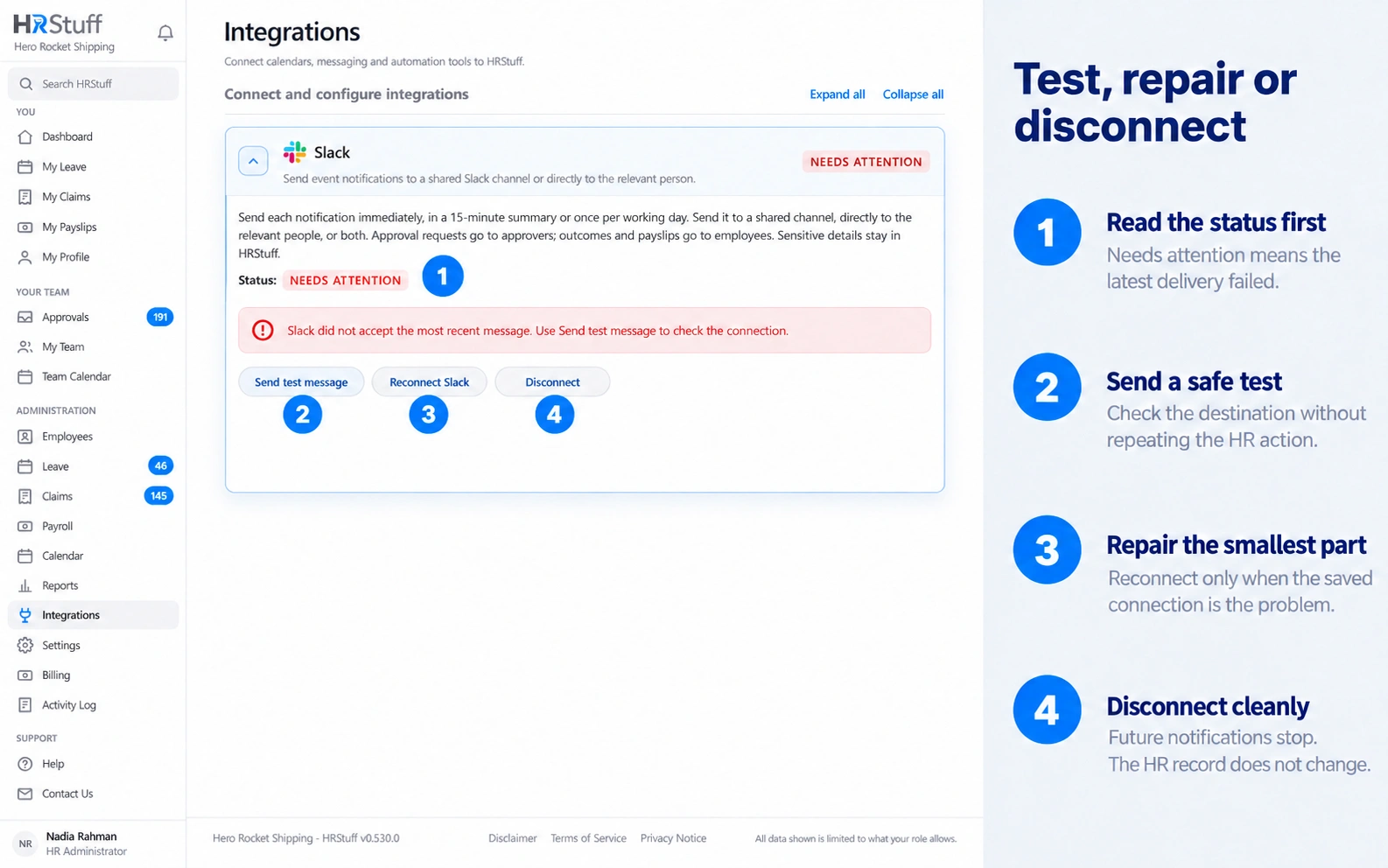
Send a safe test
Open the affected destination
Open ADMINISTRATION → Integrations and expand the card marked Needs attention or the connection you have just changed. For Telegram, choose the individual destination card that failed.
Read the warning before testing
The warning can distinguish a missing bot, disabled workflow, rejected webhook or other provider failure. Check that external provider first; repeatedly sending the same test does not repair a connection that the provider has revoked.
Choose the available test action
Slack, Teams and Telegram use Send test message. Zapier and Make manual webhooks use Send test event. The sample contains no real leave, claim, payroll or approval record.
Installed Zapier and Make triggers are tested from the Zap or scenario builder with the provider’s own test controls and a matching HRStuff event.
Check the exact external destination
Confirm both that the test arrived and that it reached the correct channel, chat, group, Catch Hook or Custom webhook. In Zapier or Make, inspect the received test data rather than assuming the next action ran.
A successful HRStuff test clears the current connection error. It proves the destination accepts the sample; it does not prove every event selection, Slack personal recipient or later automation action.
Verify one low-risk notification
After the connection test succeeds, use one safe real event to confirm the chosen event rule, personal recipient and timing. Do not repeat an approval, payment or payroll publication that is already correctly recorded.
Repair the smallest broken part
Confirm the HRStuff event exists
Open the leave request, claim, payslip, payroll run or delegation record that should have created the notification. If the source record is missing or still has another status, correct it instead of changing the integration.
Check the saved notification settings
Confirm that the event is enabled for this provider, the destination is not Off and the intended person has a connected destination. For email, check both the company event settings and the recipient’s My Profile preference.
Check the destination in the other service
Make sure the Slack app, Teams Workflow, Telegram bot, Zap, Make scenario or calendar subscription still exists and is enabled. HRStuff cannot restore something deleted inside another provider.
Test before replacing connection details
Use the existing test action first. Replace a webhook, app key or private calendar link only when it is lost, exposed, revoked or points to the wrong destination. Replacing it makes the old connection stop working.
Check the provider-specific cause
Slack: confirm the HRStuff app still belongs to the intended workspace and the shared channel still exists. Reconnect if the channel, workspace or permissions changed. Choose Refresh employee matches after work-email or Slack-account changes.
Microsoft Teams: open the Workflow in Teams or Power Automate. Confirm it is enabled, has an active owner and connection, and its run history is not failing. If its trigger address changed, use Change channel and paste the fresh complete address.
Telegram: confirm the official bot is not blocked and is still present. In a channel, it must remain an administrator allowed to post. Restore the permission and test the individual destination; reconnect it if the old route still fails.
Zapier: confirm the Zap is published and on. For a Catch Hook, make sure the saved Zap still owns that hook and test the trigger. For the private HRStuff app, reconnect with the active company app key if the key was replaced.
Make: confirm the scenario is active, scheduled Immediately as data arrives and the expected webhook is listening. Reconnect the HRStuff app after an app-key replacement, or replace a stale Custom webhook.
Understand automatic retries
When a notification fails, HRStuff retries it up to eight times, waiting longer between attempts. After the final failure, active administrators receive an in-app warning, and HRStuff keeps the attempt history.
A successful test shows that the current destination can accept a sample. It does not resend an old event or repeat the HR action. Check both the destination and the HRStuff record to decide whether someone still needs to be notified.
Replace a private address or app key safely
Create the replacement at the provider first
Create the new Teams Workflow, Zapier Catch Hook or Make Custom webhook and copy its complete private address. Keep the old provider route available until the new address is ready, unless it was exposed and must be stopped immediately.
Use the matching HRStuff change action
Choose Change channel for Teams or Change webhook for a manual Zapier or Make connection. Paste the complete replacement address and confirm the intended event selection.
HRStuff encrypts saved webhook addresses and cannot display them later. When you replace a manual webhook, HRStuff deletes unsent notifications for the old address instead of sending them to the new destination.
Replace an app key only when necessary
Choose Replace app key for the affected Zapier or Make provider and copy the new key while it is shown. The old key and its native-app subscriptions stop working.
Reconnect every affected Zap or Make scenario with the new key, recreate or select its trigger subscription, run a new test and reactivate it. A separate manual webhook is unchanged.
Replace calendar links everywhere
Choosing Replace link immediately closes the old private calendar address. Copy the newly shown address and replace the subscription in every legitimate calendar app, then remove the empty old subscription.
Know what Disconnect removes
Slack Disconnect stops HRStuff Slack notifications but does not uninstall the HRStuff app from Slack.
Teams Disconnect stops HRStuff deliveries but does not delete the Workflow in Teams.
Telegram Disconnect stops that destination but does not remove the bot from the chat, group or channel.
Zapier or Make webhook Disconnect deletes only the manually saved webhook. Native app triggers and app keys remain separate.
Revoke app key removes the provider’s native-app triggers but leaves the manual webhook unchanged.
Calendar Disconnect revokes the private feed address. Removing a subscribed calendar only in the calendar app does not revoke the HRStuff link.
After disconnecting in HRStuff, remove the unused provider-side app, Workflow, bot, Zap, scenario or calendar subscription separately when your organisation no longer needs it.
Check built-in email and calendar subscriptions differently
Email has no connection test. Check the company event settings, the recipient’s My Profile frequency, the login email and the company working-day schedule. Essential messages remain immediate.
A calendar app controls its own refresh interval. Check HRStuff first, then allow time for the app to refresh. Replace the link only if it is lost or may have been exposed; replacing it makes the existing subscription stop immediately.
Keep the repair accountable
Connection, settings, app-key and disconnection changes are recorded in the company Activity Log. Use your own administrator account and change only what is needed.
A platform support session is read-only. HRStuff support can inspect the connection state during that session but cannot connect, change or disconnect a customer destination.