
Use the team calendar
See approved and pending absences, understand each role’s scope and connect a private calendar feed.
What this guide helps you do
The leave calendar helps managers and HR plan coverage. It shows approved leave and leave still waiting for a decision, together with company public holidays. Pending leave is marked so it is visible without being mistaken for a confirmed absence.
Managers open Team Calendar for themselves and their active direct reports. HR administrators and Assistant Administrators open Company Calendar to see active employees across the company. An Assistant Administrator who is also a manager can also open a separate Team Calendar.
Read the calendar in HRStuff
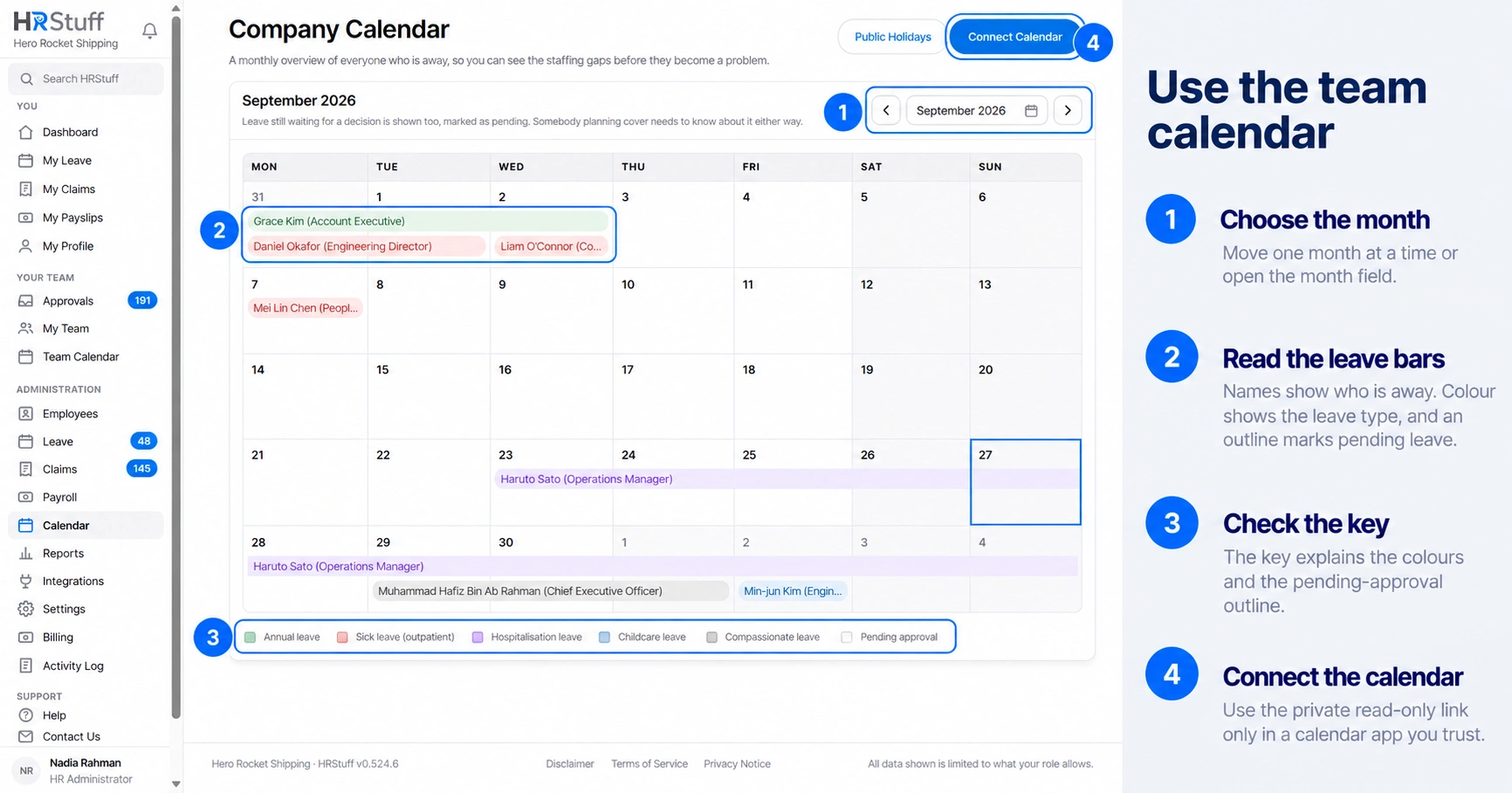
Use the month field or the previous and next controls to move through time.
Colours distinguish leave types. The key below the calendar explains the colours shown in that month.
A pending outline means the request is still waiting for a decision.
Half-day leave is shortened at the start or end of the calendar bar. A one-day AM or PM request is labelled with the relevant half.
Choose a leave bar to open the request you are allowed to view. Calendar labels do not reveal the employee’s private reason.
Understand who appears
A Team Calendar includes the manager and active direct reports. A Company Calendar includes all active employees for an HR administrator or Assistant Administrator. Access updates when the account, role or reporting line changes.
Managers do not gain salary, payslip, bank, personal-details or employment-document access through the calendar. The calendar is for absence planning, not a shortcut around employee privacy.
Connect the calendar to another app
Choose Connect Calendar
Open it from the Team or Company Calendar whose scope you want to subscribe to.
Create the private link
HRStuff creates a long, read-only subscription address. Copy it while it is shown because HRStuff cannot display the same address again. If you lose it, choose Replace private link to create a new one.
Add it as a subscribed calendar
In Google Calendar, Outlook, Apple Calendar or another compatible app, use its option to subscribe from a URL. Do not import the file as a one-time snapshot if you want updates.
Wait for the calendar app to refresh
The feed asks calendar apps to refresh every six hours, but each provider decides its own schedule. Changes in HRStuff may not appear immediately.
Know what the feed contains
Approved leave is a confirmed all-day event.
Pending leave is a tentative all-day event and says it is waiting for approval.
Company public holidays are confirmed all-day events.
Employee name, job title when available, leave type and half-day detail may appear.
Leave reasons, balances, salary, payslips and other private HR record details are not included.
Replace or disconnect a link
Use Replace private link when you still need a subscription but the old address may be known by the wrong person. The previous link stops working immediately, so every legitimate calendar must be updated. Use Disconnect when the subscription is no longer needed; the old link then stops updating.
A disabled login or inactive employee account makes its link stop working.
A change to the account, role or reporting line updates the feed to match the owner’s current access. The link may stop working, or employees and events may be added or removed.
A calendar app may keep events it downloaded earlier. Disconnecting the live feed cannot remove those saved events from the other app.